Basics of RTK GPS and GNSS for non-surveyors
What is RTK GPS? In fields like surveying, construction, and agriculture, precision isn’t optional—it’s essential. In many of these tasks, being off by even a few meters can lead to wasted time, costly mistakes, or failed inspections. That’s why professionals turn to high-precision positioning technologies like RTK GPS.
But to understand how RTK delivers centimeter-level results, we first need to look at the system it relies on—GNSS. GNSS provides the global coverage and satellite data that RTK builds upon. It’s the foundation of all satellite-based positioning.
Let’s start with the basics of how GNSS positioning works—and then explore how RTK takes it to the next level.
Table of contents
- How does GNSS positioning work?
- What is RTK GPS?
- How RTK works?
- Understanding RTK solution statuses
- How to send RTK corrections from a base to a rover?
- What are the differences between RTK solution statuses?
- How to get the best RTK GPS performance in the field?
- Where RTK is used?
- Reach RS3: ready for professional RTK
- FAQs
How does GNSS positioning work?
Global Navigation Satellite Systems, or GNSS, refer to satellite constellations like GPS, GLONASS, Galileo, and BeiDou. These systems provide global satellite positioning services. Many industries — from mobile navigation and logistics to construction and autonomous systems — use them in daily life.
GNSS receivers calculate their position by measuring how long it takes for signals from satellites to reach the receiver. Each signal includes data on satellite location and transmission time. When a receiver picks up signals from at least four satellites, it can determine its position on Earth.
Most standard GNSS receivers, like those in smartphones or drones, offer accuracy in the range of 2 to 4 meters. That’s fine for casual navigation, but for tasks like land surveying, construction layout, or precision agriculture, meter-level accuracy falls short.
That’s where high-precision GNSS positioning techniques like RTK come in.
What is RTK GPS?
RTK, or Real-Time Kinematic, is a positioning method that improves GNSS accuracy from meters down to centimeters. It does this by correcting satellite signal errors in real time.
An RTK system includes two GNSS receivers: a base and a rover. The base station is set at a known location and constantly receives satellite signals. It then sends corrections to the rover, which is the moving unit that needs to determine its accurate position. Because both units are observing the same satellites under nearly identical conditions, the rover can use the base’s corrections to eliminate common errors.
This method allows the rover to deliver precise position data with centimeter-level accuracy. RTK GPS technology is especially useful in surveying, mapping, agriculture, construction, and inspection tasks—where real-time precision is critical.
How RTK works?
When the rover meets the base
The base station can be a local GNSS unit or a remote reference station accessed via an RTK network. The role of the base remains the same—to provide reference data in real time that allows the rover to calculate its position with much greater accuracy.
These GNSS corrections are what make RTK stand apart from traditional GNSS. While standard GNSS relies only on signal timing, RTK takes advantage of a more detailed technique: carrier phase measurement.
Carrier phase and ambiguity resolution
GNSS signals travel as waveforms—RTK doesn’t just measure when the signal arrives, but how many full and partial wave cycles it took to get there. However, in the beginning, the receiver doesn’t know the number of whole cycles. This is called ambiguity.
RTK resolves these ambiguities by comparing signals from both base and rover. Once you resolve it, the system locks onto what’s called a FIX status—meaning the receiver has achieved centimeter-level accuracy.
This step is essential in transforming approximate GPS data into precise positioning.

Understanding RTK solution statuses
RTK solutions go through different phases as the receiver processes satellite data:
- SINGLE: No corrections are being received. Accuracy is similar to standard GNSS—several meters.
- FLOAT: Corrections have begun, but ambiguities aren’t fully resolved. Accuracy improves, but hasn’t yet reached centimeter level.
- FIX: The receiver now delivers centimeter-accurate positions after resolving ambiguities
Getting to FIX is the ultimate goal in any RTK setup, and maintaining FIX is key to successful high-precision work.
This video will show you how RTK technology works.
How to send RTK corrections from a base to a rover?
RTK corrections can be delivered via different channels, depending on your workflow and environment:
- Radio: Best for on-site setups without internet. It’s reliable when there’s a direct line of sight between the base and the rover.
- NTRIP: A protocol that sends corrections over the internet. Perfect for longer distances or when using a network of reference stations.
- Dual-streaming: Some systems support broadcasting over both radio and internet simultaneously. This ensures corrections stay stable even when one method becomes unreliable.

These flexible delivery methods allow users to choose the right setup for their environment—urban, rural, or remote.
What are the differences between RTK solution statuses?
RTK solutions go through different phases as the receiver processes satellite data:
- SINGLE: No corrections are being received. Accuracy is similar to standard GNSS—several meters.
- FLOAT: Corrections have begun, but ambiguities aren’t fully resolved. Accuracy improves, but hasn’t yet reached centimeter level.
- FIX: Ambiguities are resolved, and the receiver is now delivering centimeter-accurate positions.
Getting to FIX is the ultimate goal in any RTK setup, and maintaining FIX is key to successful high-precision work.
How to get the best RTK GPS performance in the field?
RTK depends on specific conditions to perform at its best, including but not limited to a short baseline between the base and rover, a clear view of the sky, and distance from sources of electromagnetic interference to avoid signal distortion.
Baseline
The distance between base and rover, known as the baseline, is a key factor. The closer the two units are, the more similar their satellite observations will be. Long baselines introduce environmental differences—like varying atmospheric conditions—that reduce correction effectiveness. Keeping the baseline short helps maintain the accuracy of RTK.

Satellite visibility
GNSS relies on a clear sky view. Obstacles like buildings, trees, or terrain features can block or reflect signals, weakening the quality of the data. A clear line of sight to the sky is essential for consistent fixes.
Electromagnetic interference
Electronic equipment, power lines, or heavy machinery can interfere with GNSS signals. Keeping your receiver away from such sources improves reliability and reduces signal noise.
To learn more about factors that affect signal accuracy, read our guide on eight common mistakes in GNSS surveying and how to fix them.
Where RTK is used?
RTK GPS is now a standard tool across many industries that rely on spatial accuracy:
- Surveying and mapping: From topographic surveys to construction layout.
- Precision agriculture: Automating machinery, planting, and soil analysis with sub-inch accuracy.
- Drone mapping: Enhancing data for orthomosaics and 3D models.
- Construction: Layout tasks, volume measurement, and quality control.
- Inspection and infrastructure: Power lines, roads, pipelines, and more.
The wide range of RTK uses highlights its value in turning GNSS from a navigation tool into a precise positioning instrument. This technique transforms GNSS from a general positioning tool into a high-precision system suitable for professional tasks. RTK delivers the accuracy you need—especially when paired with the right tools, like the Emlid Reach RS3 receivers.
If you’re looking to boost efficiency, improve data quality, and unlock centimeter-level results in the field, RTK GPS is the technology to build your workflow on.
Meet the RTK GNSS lineup that makes precision look easy
Need centimeter-level accuracy but don’t want to wrestle with complicated gear, outdated workflows, or fragile equipment? Modern RTK GNSS doesn’t have to feel like a surveying textbook.
Today’s field teams—whether in construction, GIS, engineering, or mapping—need tools that remove friction, not add to it. That means fast setup, reliable all-band RTK performance, and the freedom to move without constantly leveling poles or rechecking points:
Reach RS4 Pro is our most advanced all-band RTK GNSS receiver, combining centimeter-level positioning with dual cameras, AR stakeout, image-based measurements, and tilt compensation. It’s built for teams who want to move faster on site, capture more in one go, and rethink what a GNSS rover can actually do.
Reach RS4 delivers powerful all-band RTK performance with tilt compensation in a streamlined setup—perfect for topographic surveys, design set-out, and everyday fieldwork where precision is non-negotiable.
Reach RX2 is the ultralight RTK rover made for mobility. With tilt compensation and full RTK capability, it’s ideal for GIS mapping, layout, and terrestrial scanning—high accuracy, zero bulk.
FAQs
What’s the difference between GPS and GNSS?
GNSS includes multiple satellite systems—GPS, GLONASS, Galileo, BeiDou—while GPS refers only to the American system. GNSS offers broader coverage and better reliability.
What does RTK mean in GPS?
RTK stands for Real-Time Kinematic. It’s a technique that provides high-precision positioning by correcting GNSS signals in real time.
Can I use RTK without a base station?
Yes and no. You don’t necessarily need to own your local base station. However, you need to connect to a source of corrections data. This could be CORS or a remote reference station—you can connect to it over the internet using the NTRIP protocol.
How accurate is RTK?
With proper setup, RTK provides centimeter-level accuracy—far beyond the meter-level positioning of traditional GPS.
What happens without RTK?
Without RTK, your receiver falls back to standard GNSS, which is only meter-accurate, which may not be sufficient for your surveying tasks.
Useful materials
- RTK corrections explained: from base station to NTRIP service
- Different methods of setting up the RTK base – new video guide
- GNSS vs GPS: what is the difference?
- Precise drone mapping with Emlid gear setup: GNSS base station, GCPs, and more
- Performing centimeter-accurate GPS / GNSS survey in RTK: video tutorial
- Evolution of mapping: from clay tablets to GNSS receivers
- PPK with Emlid Studio: a step-by-step guide


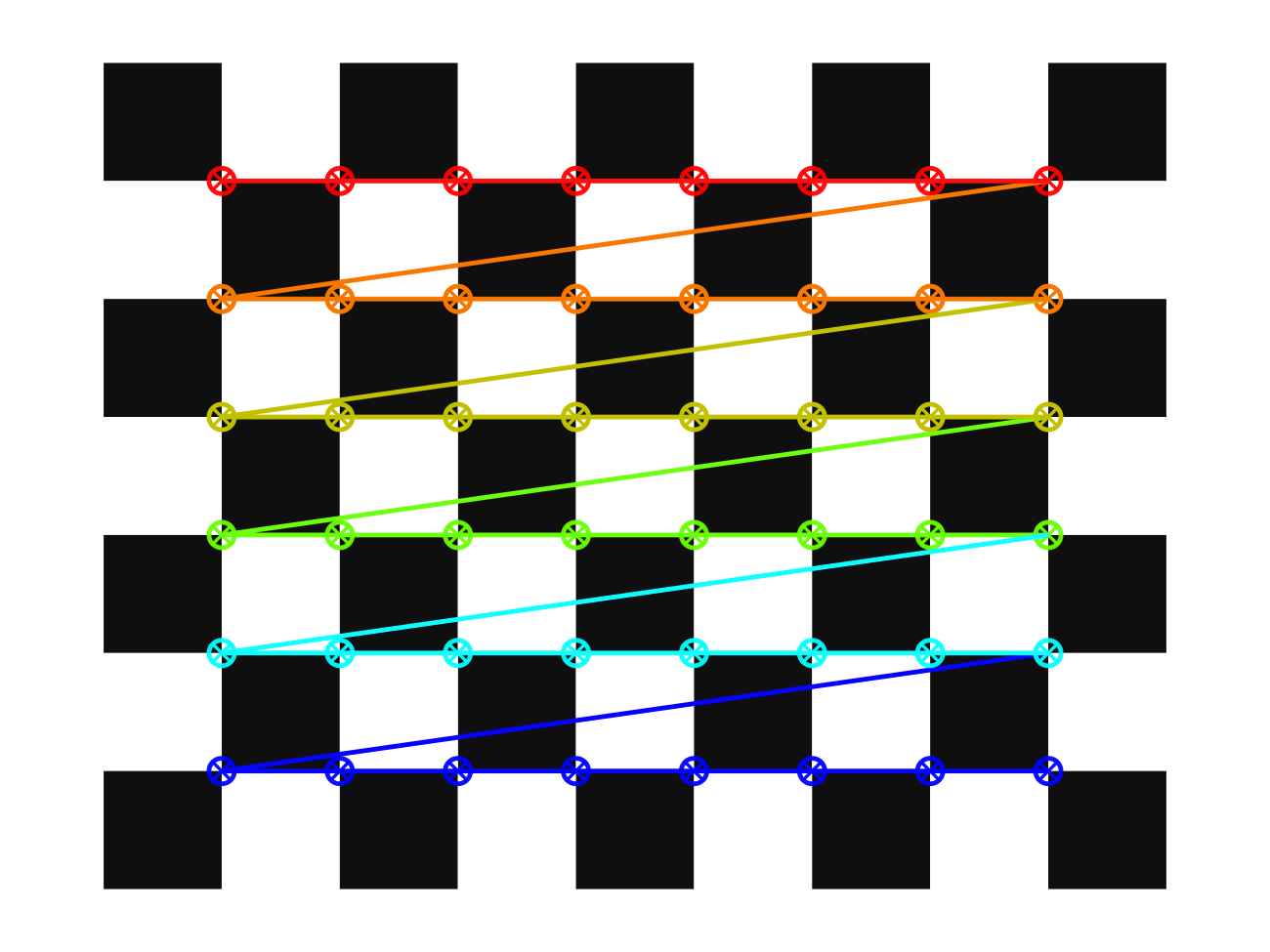
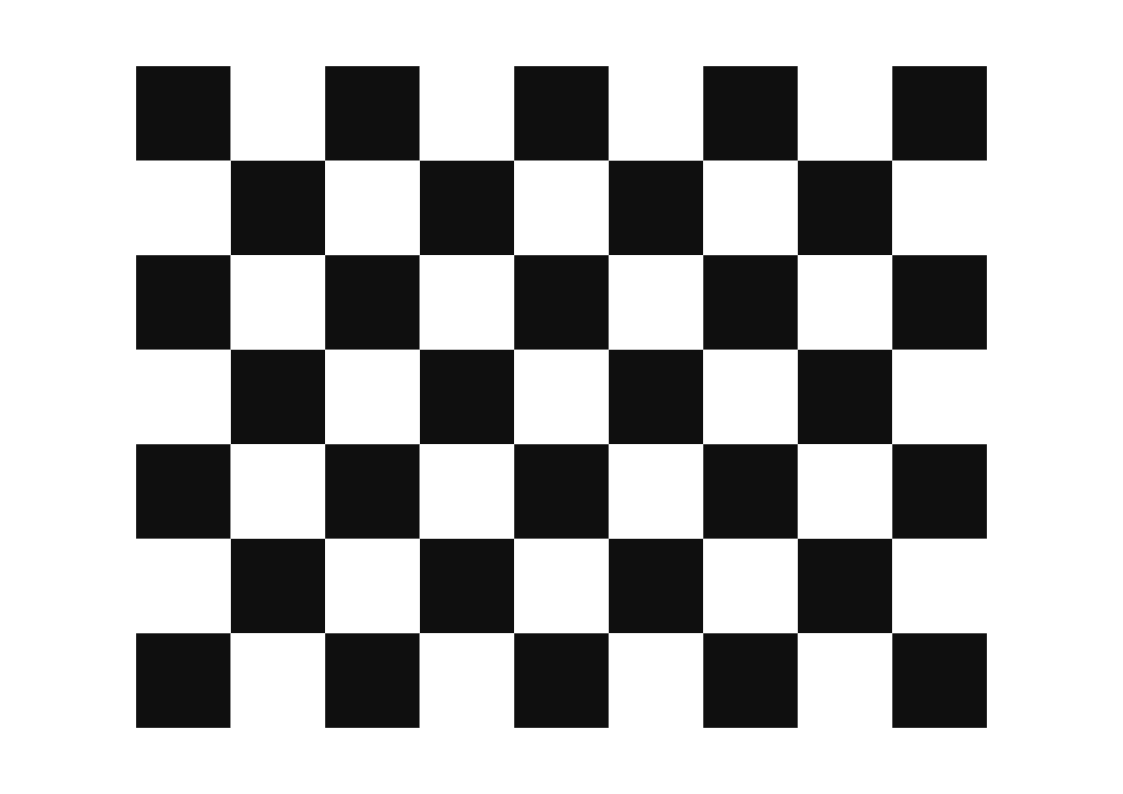 A4 - 25mm squares - 8x6 vertices, 9x7 squares
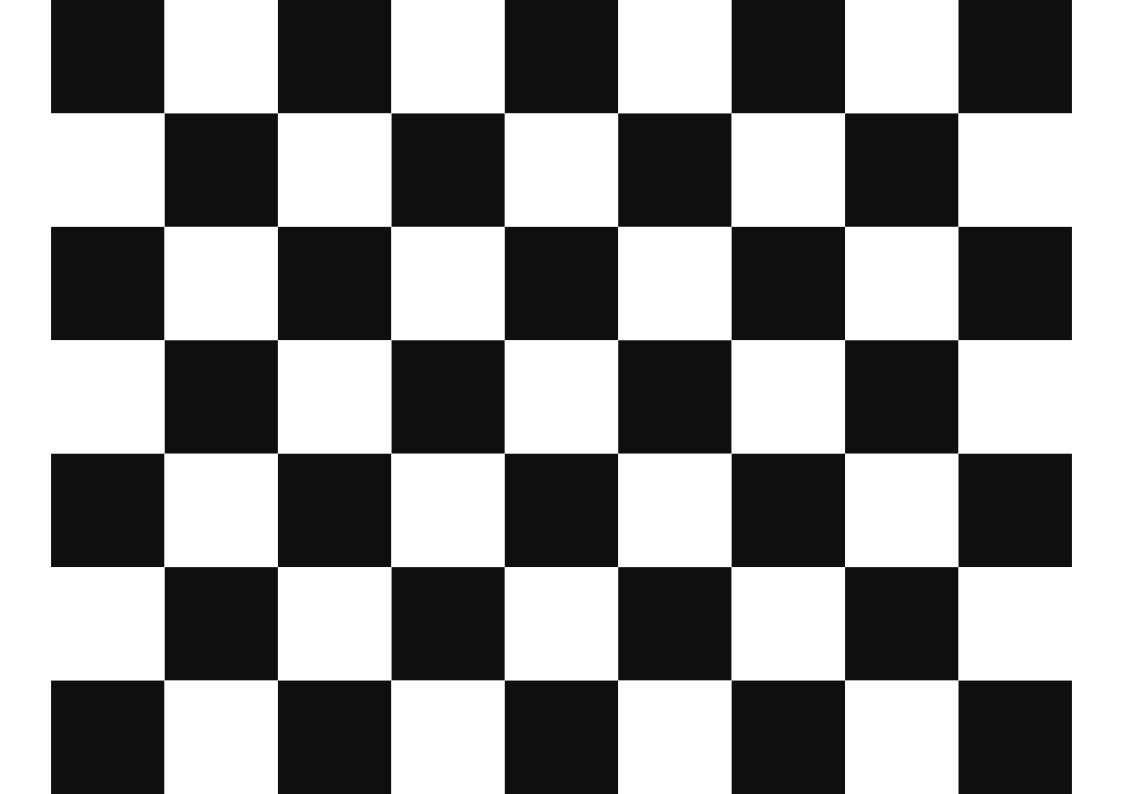 A4 - 30mm squares - 8x6 vertices, 9x7 squares
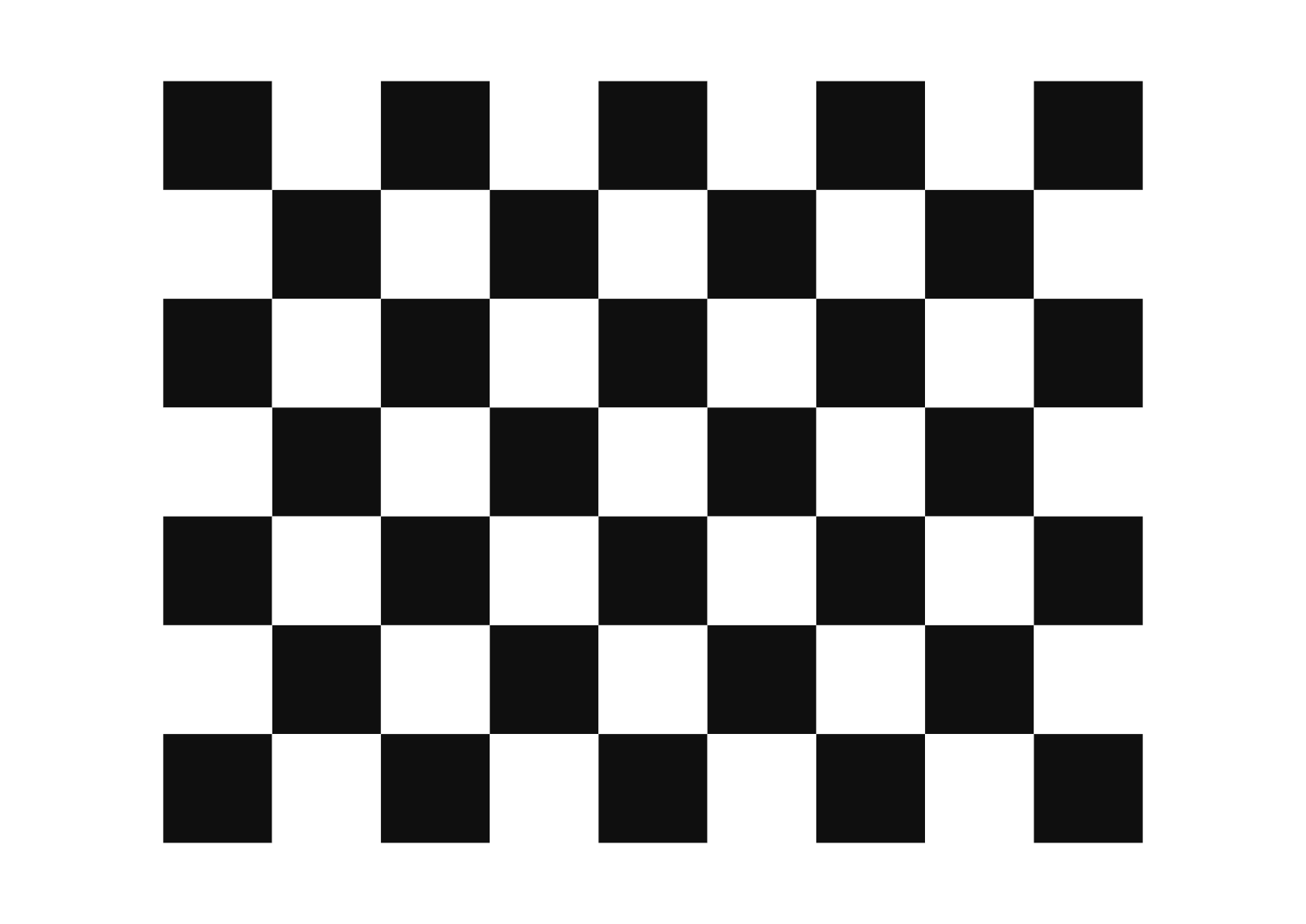 A3 - 35mm squares - 8x6 vertices, 9x7 squares
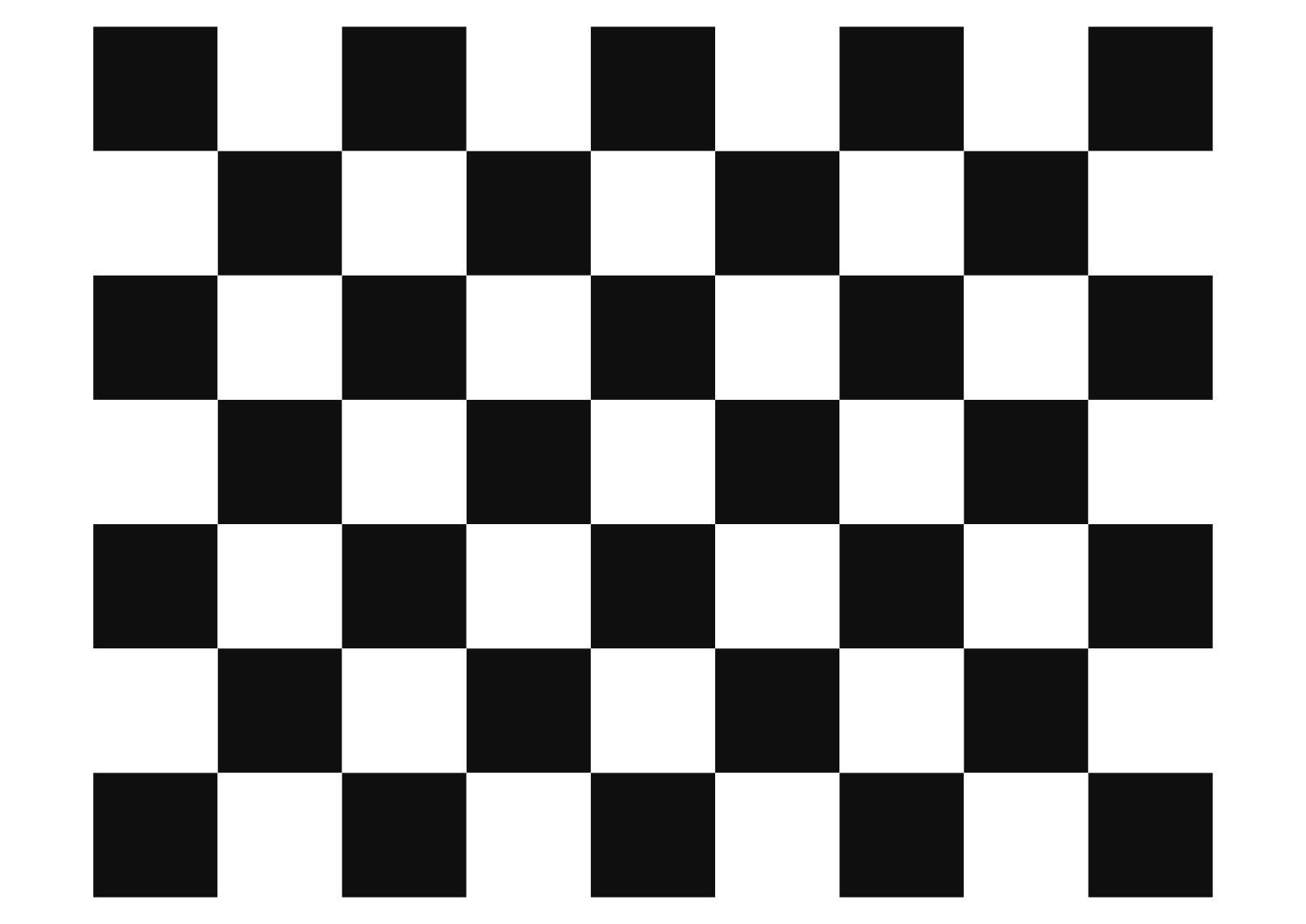 A3 - 40mm squares - 8x6 vertices, 9x7 squares
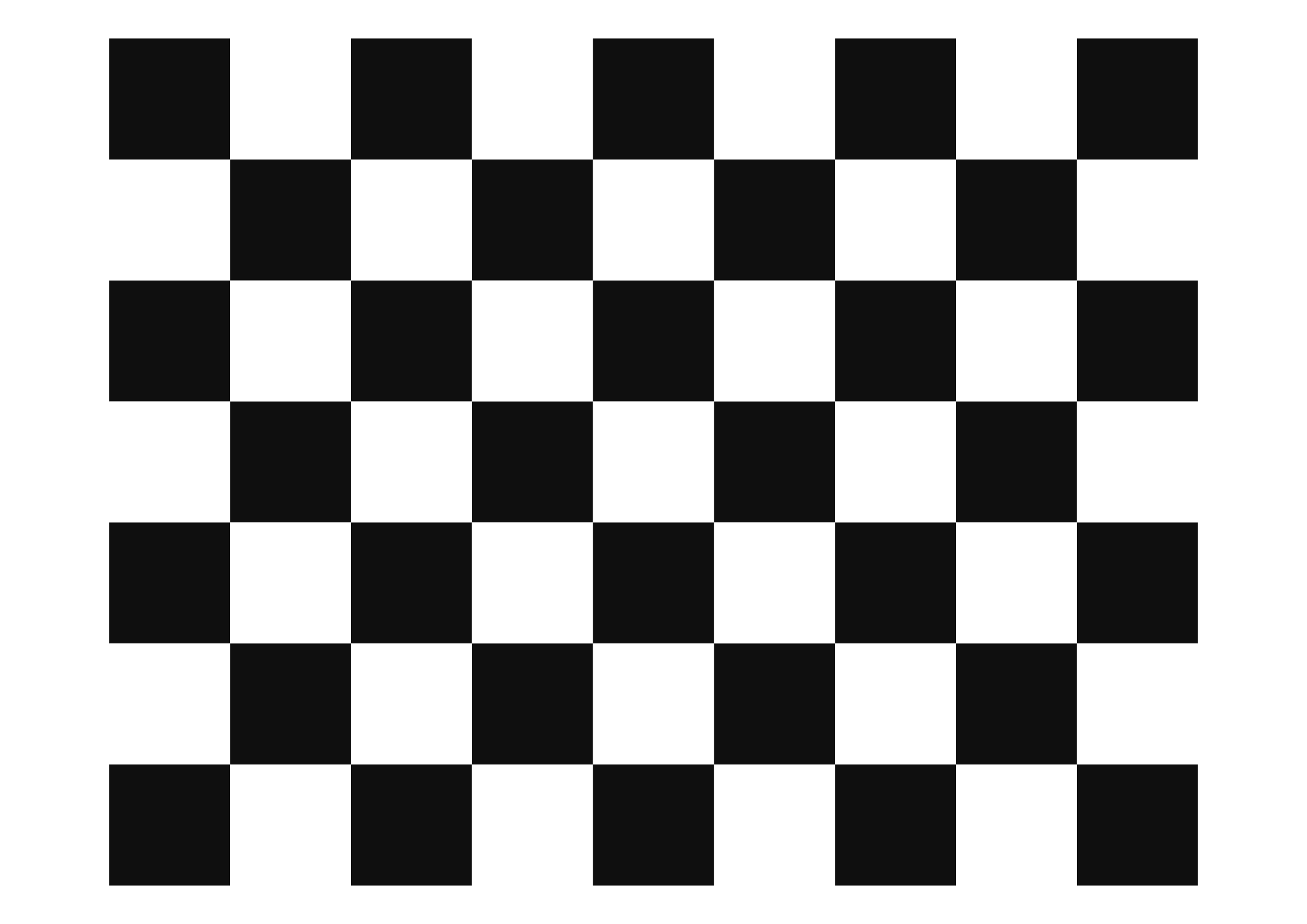 A2 - 55mm squares - 8x6 vertices, 9x7 squares
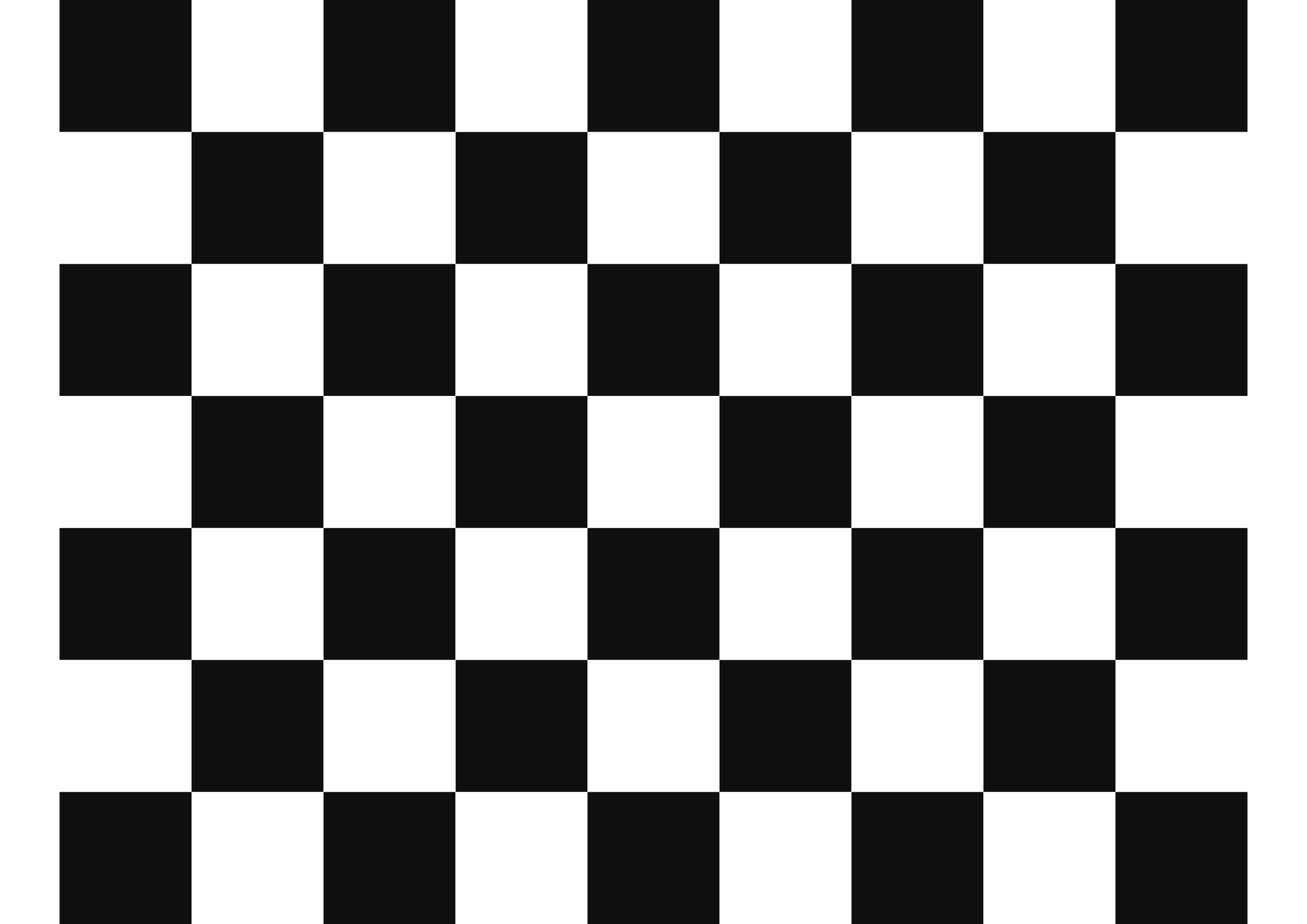 A2 - 60mm squares - 8x6 vertices, 9x7 squares
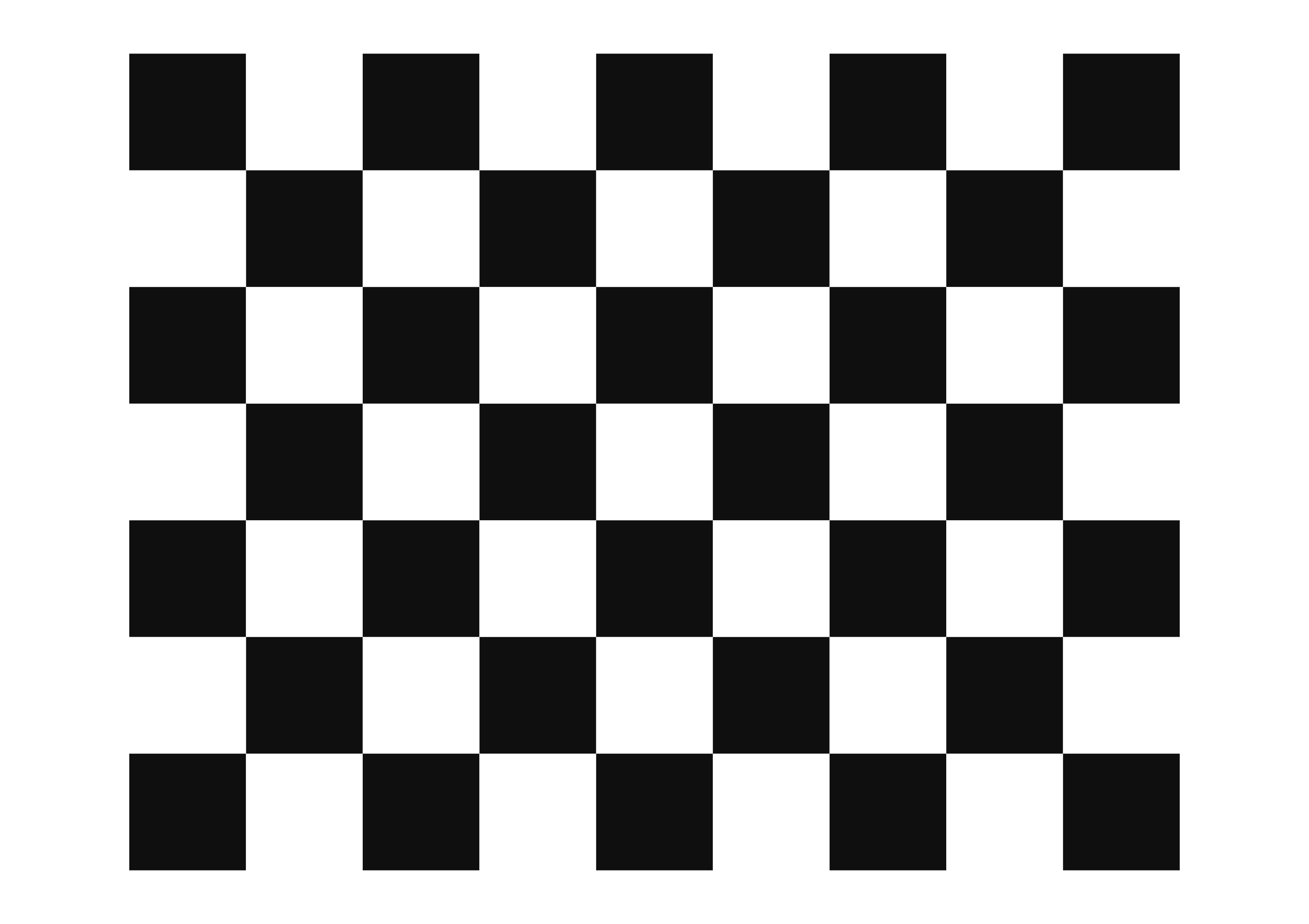 A1 - 75mm squares - 8x6 vertices, 9x7 squares
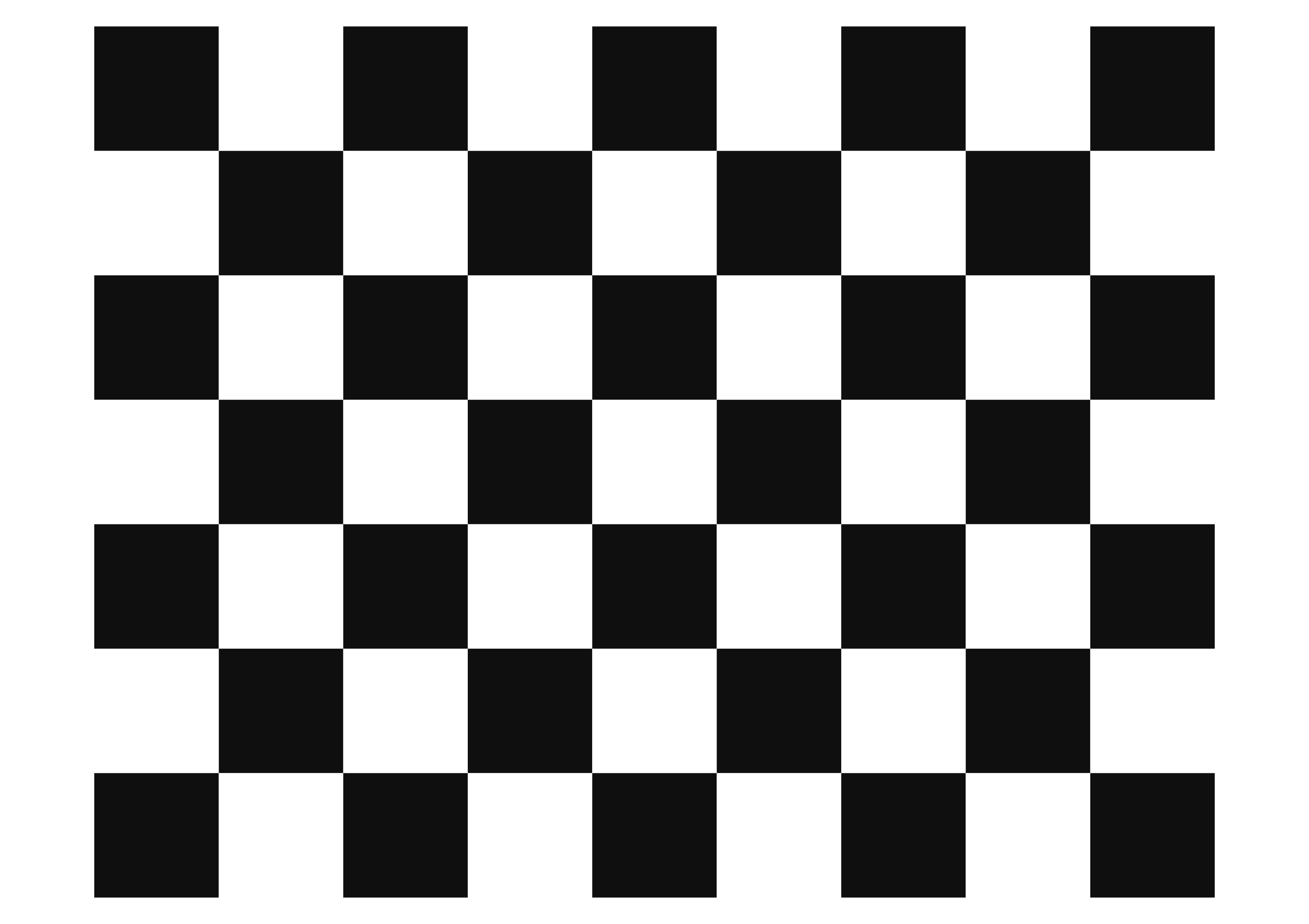 A1 - 80mm squares - 8x6 vertices, 9x7 squares
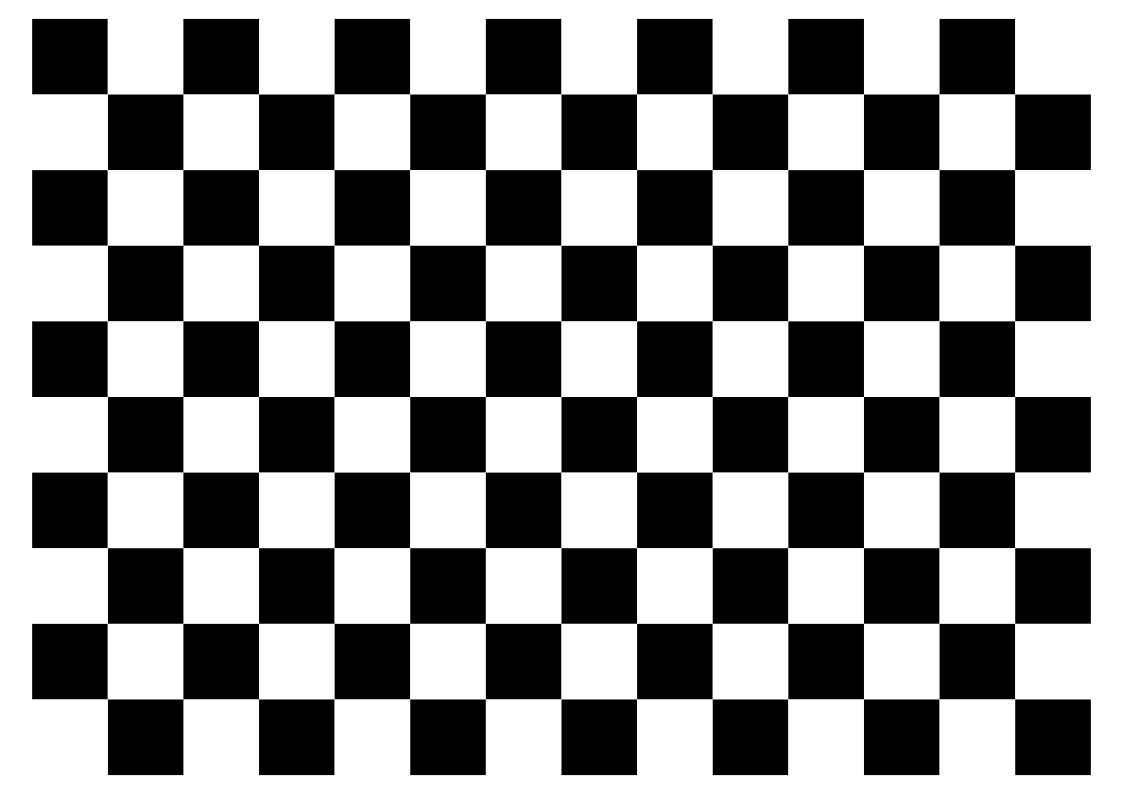 A4 - 20mm squares - 13x9 vertices, 14x10 squares
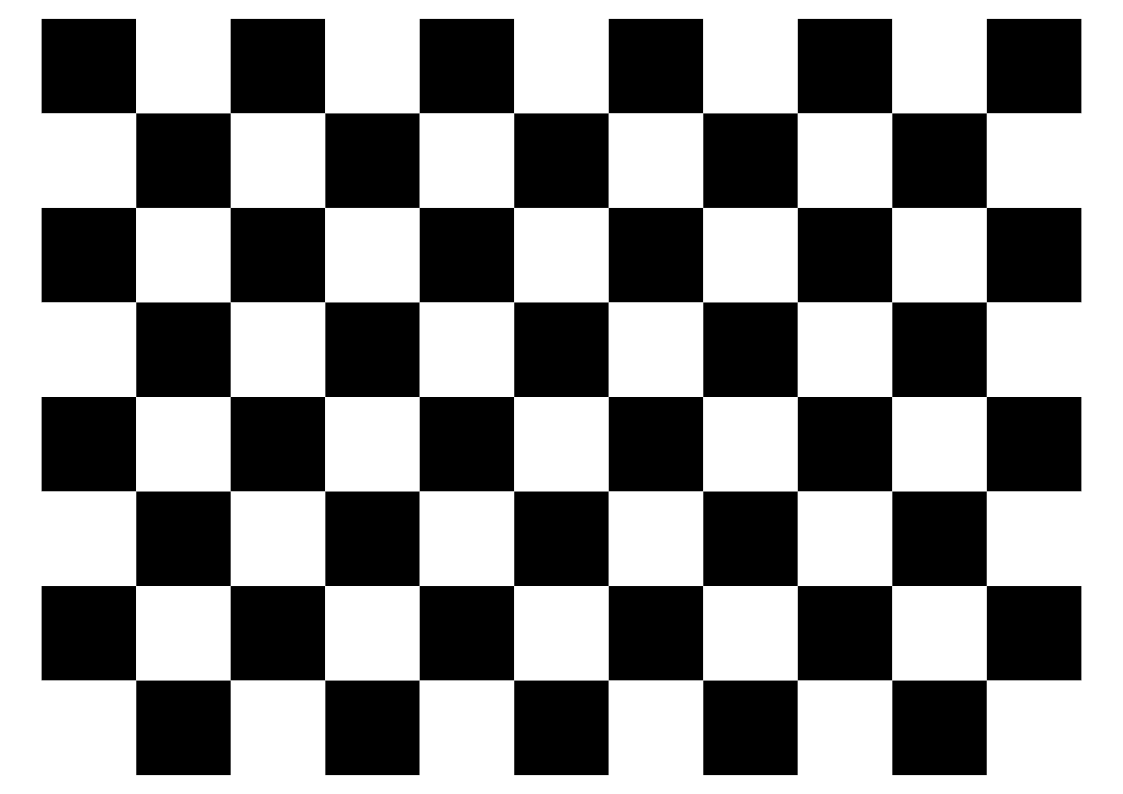 A4 - 25mm squares - 10x7 vertices, 11x8 squares
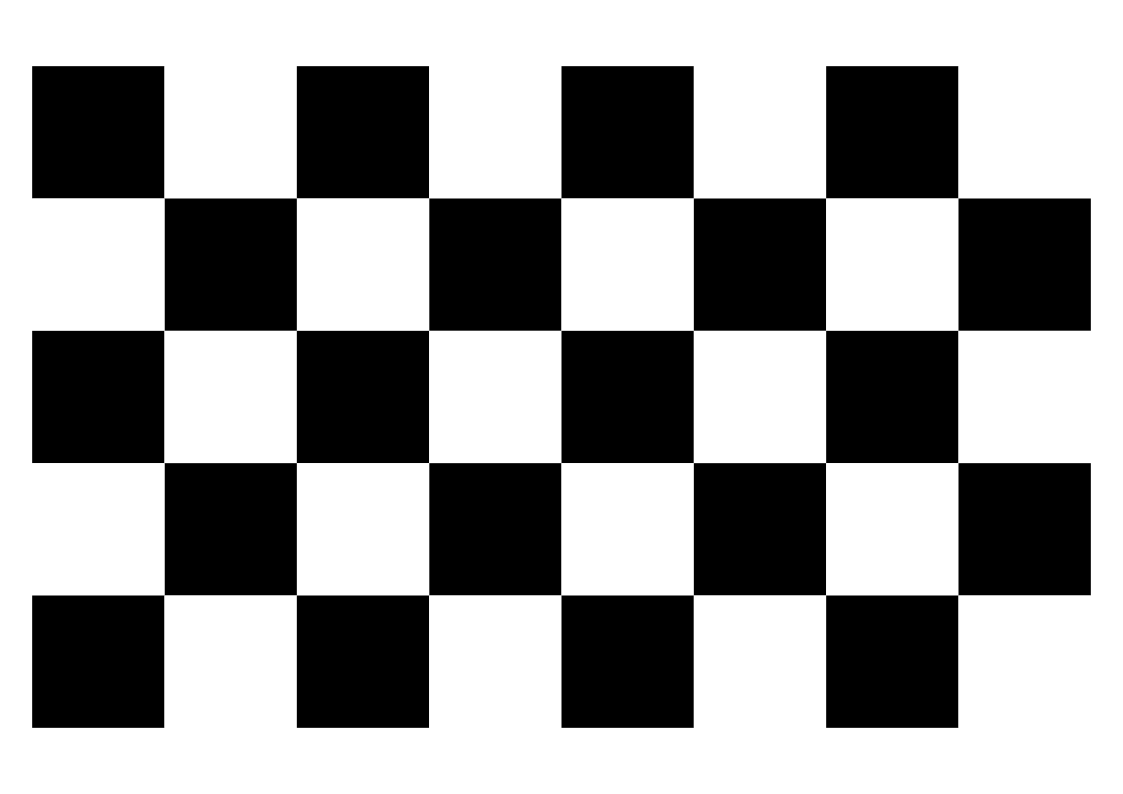 A4 - 35mm squares - 7x4 vertices, 8x5 squares
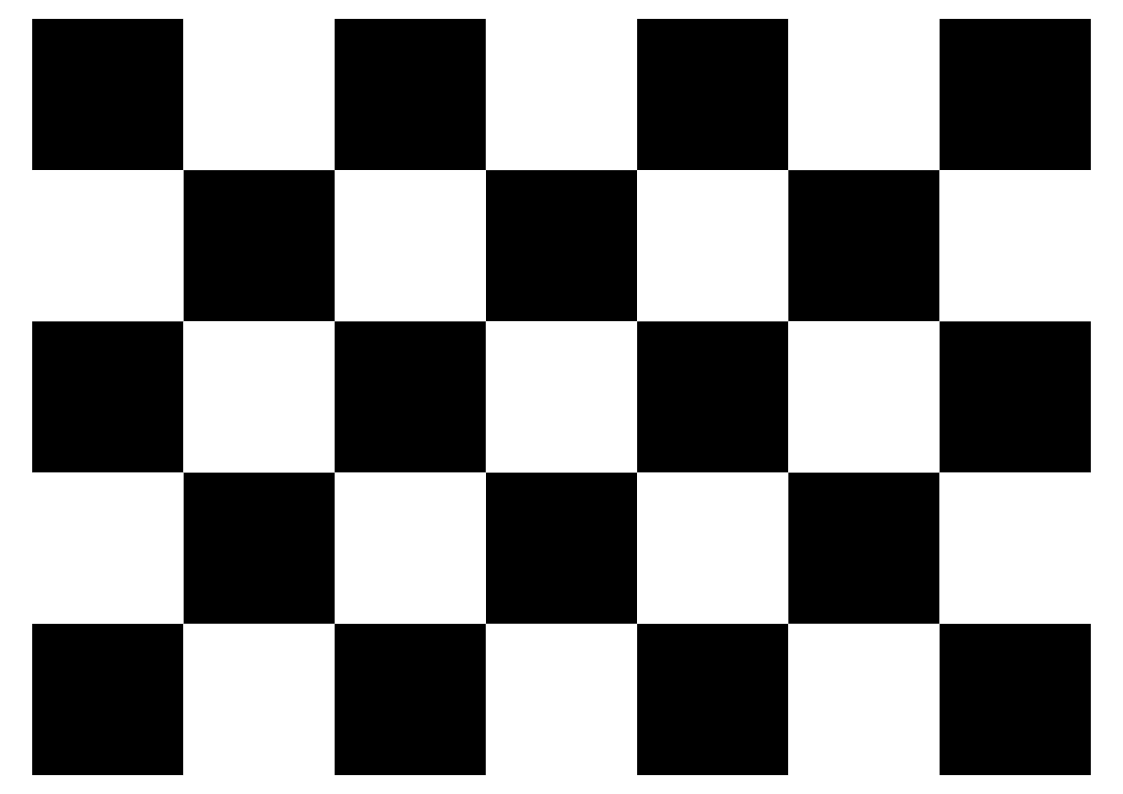 A4 - 40mm squares - 6x4 vertices, 7x5 squares
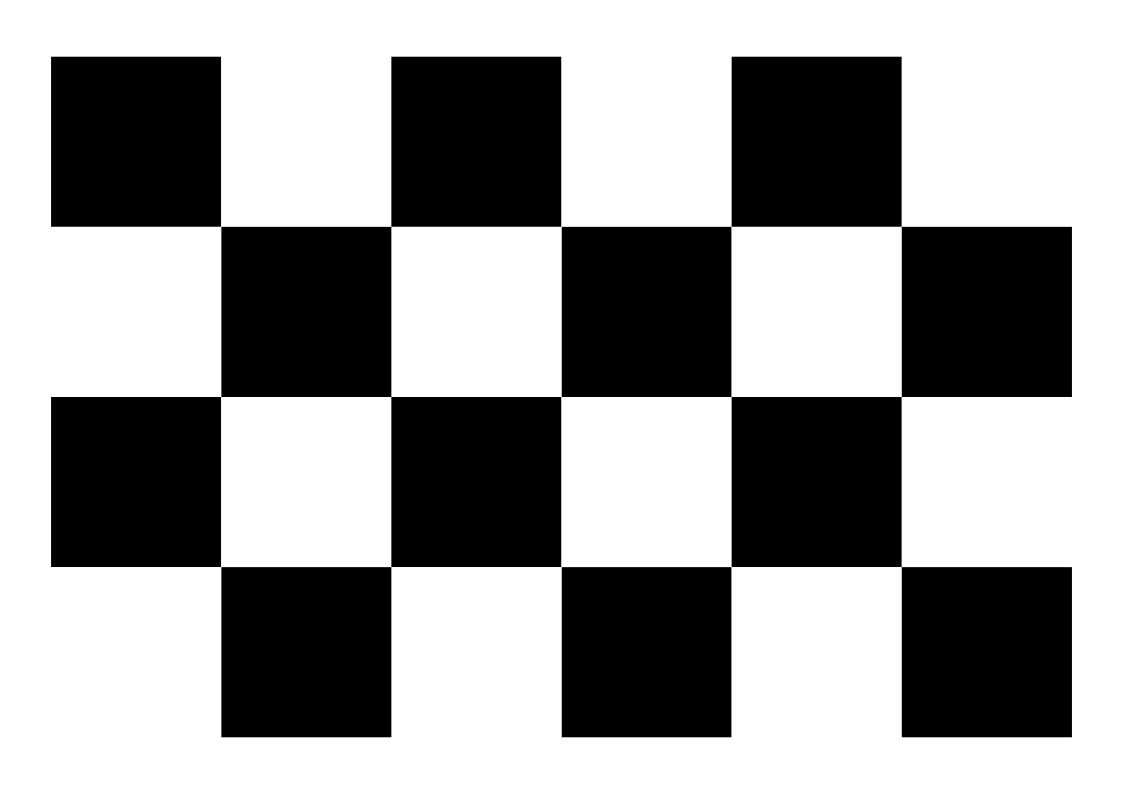 A4 - 45mm squares - 5x3 vertices, 6x4 squares
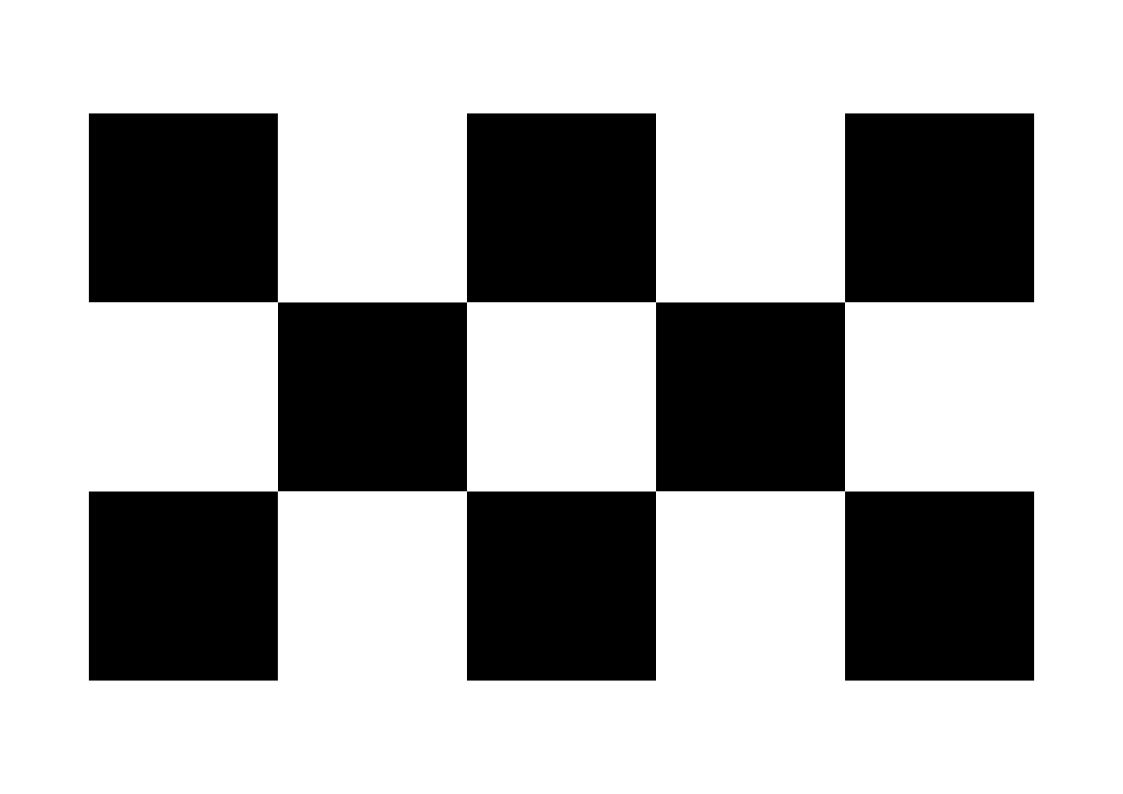 A4 - 50mm squares - 4x2 vertices, 5x3 squares
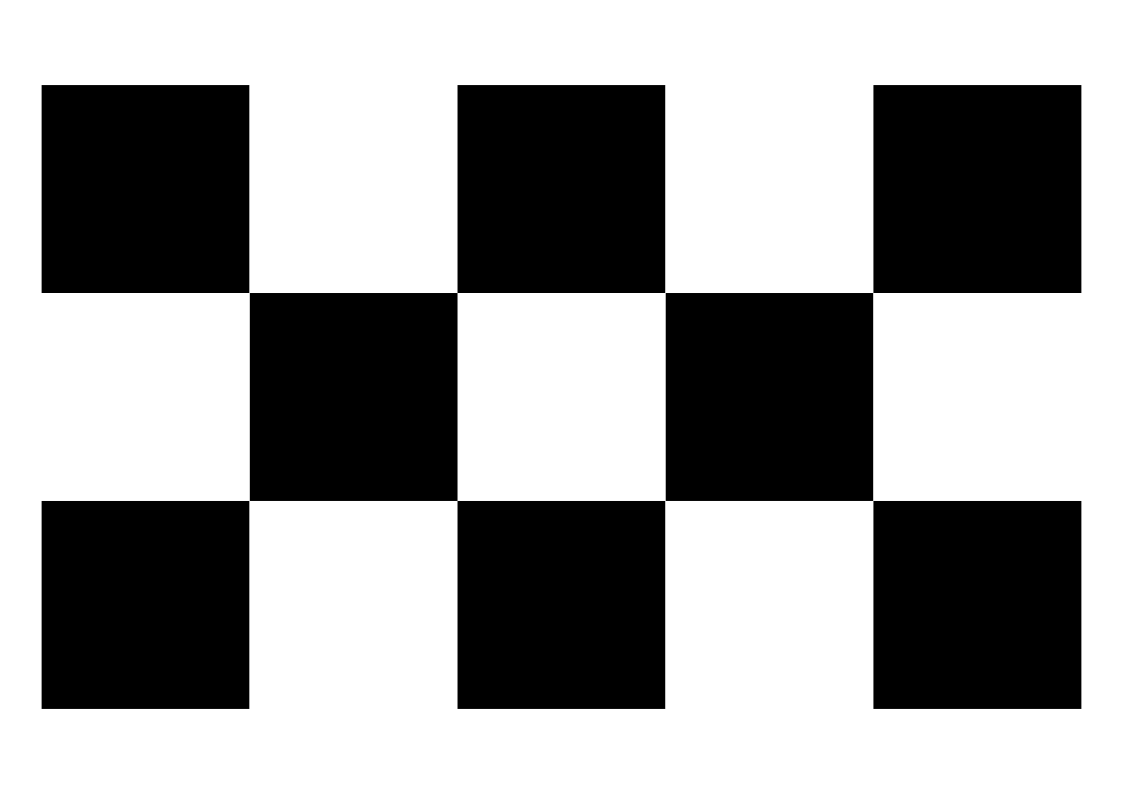 A4 - 55mm squares - 4x2 vertices, 5x3 squares
 A4 - 60mm squares - 3x2 vertices, 4x3 squares
 A4 - 65mm squares - 3x2 vertices, 4x3 squares
 A4 - 70mm squares - 3x2 vertices, 4x3 squares
 A3 - 20mm squares - 19x13 vertices, 20x14 squares
 A3 - 25mm squares - 15x10 vertices, 16x11 squares
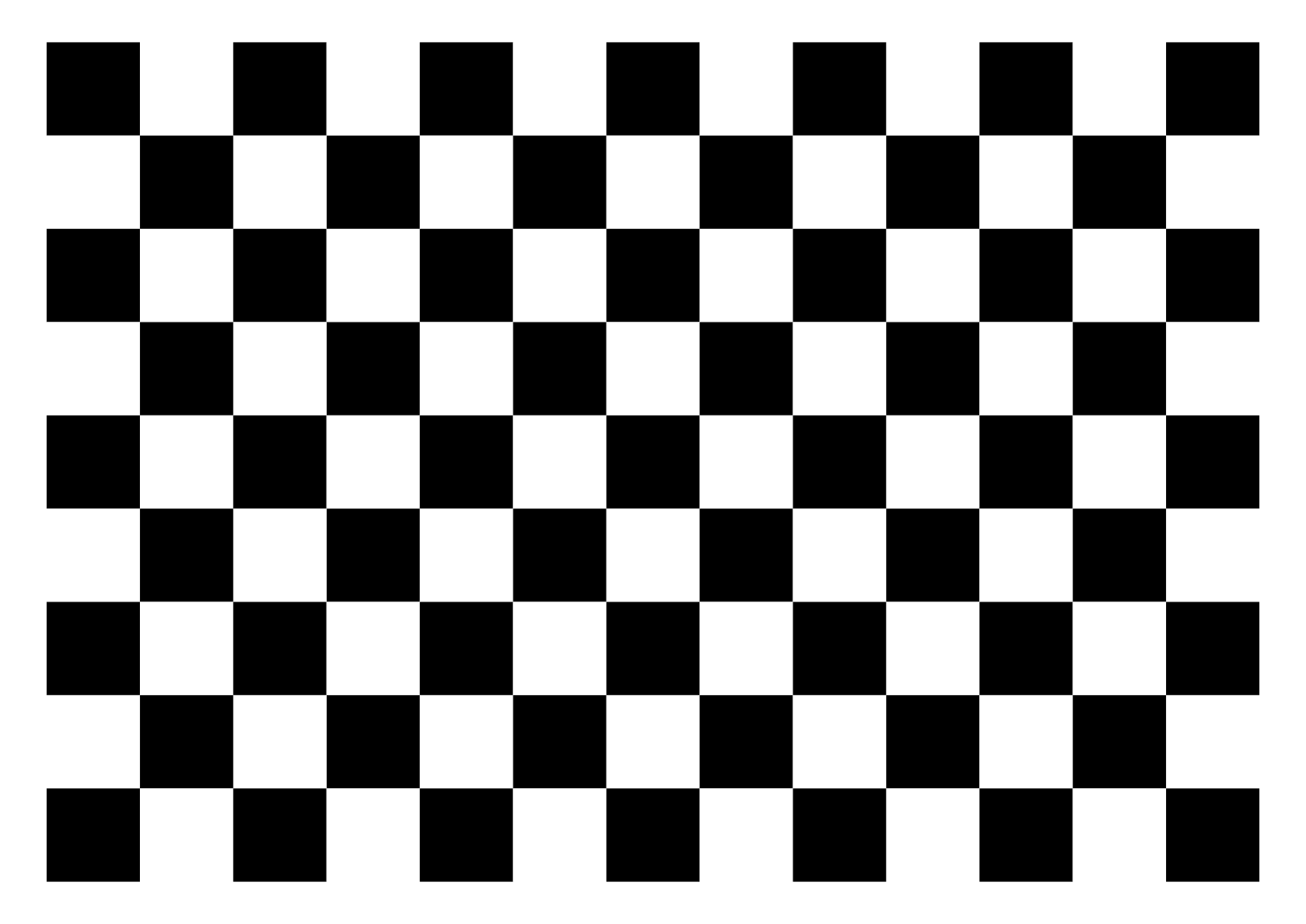 A3 - 30mm squares - 12x8 vertices, 13x9 squares
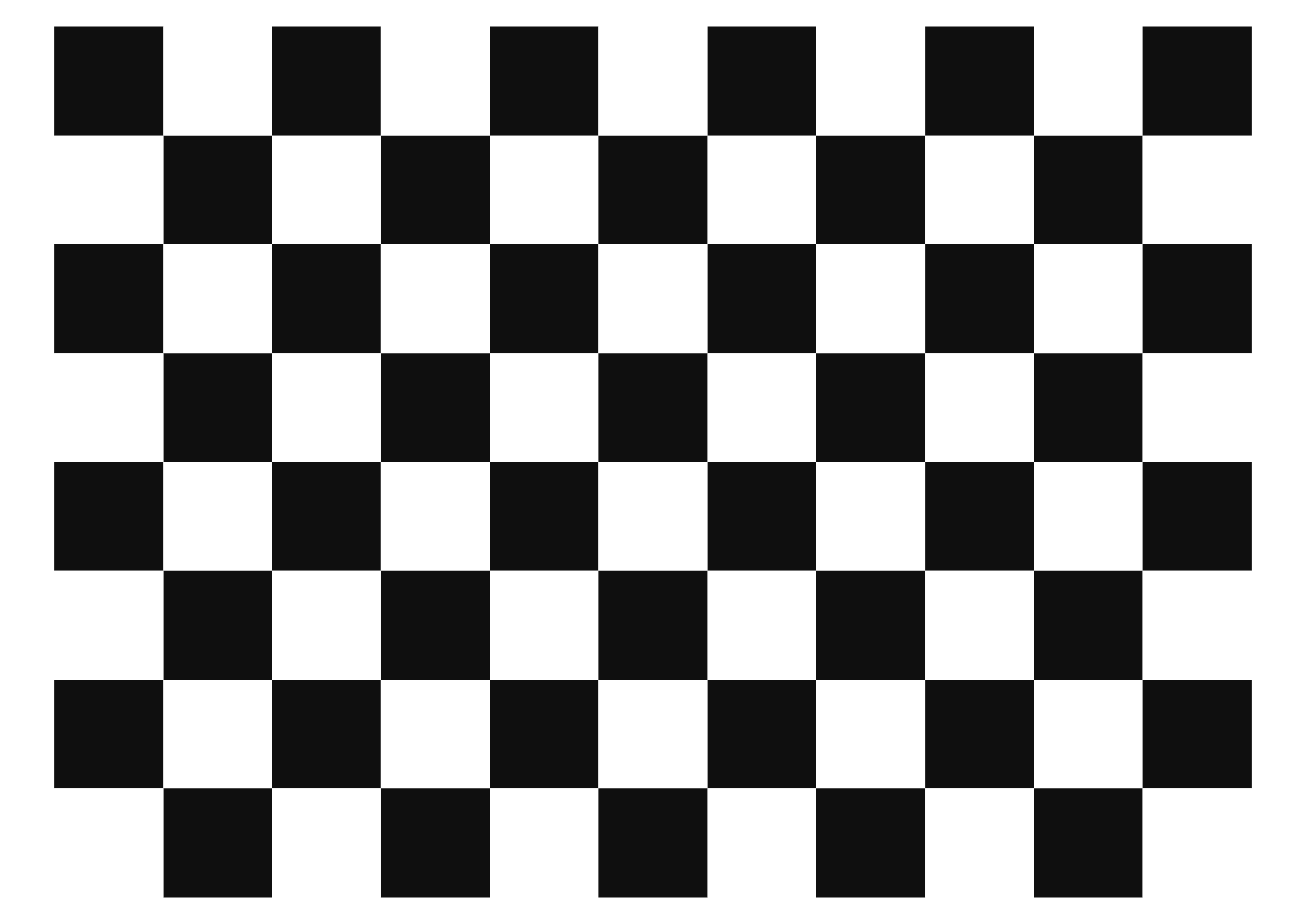 A3 - 35mm squares - 10x7 vertices, 11x8 squares
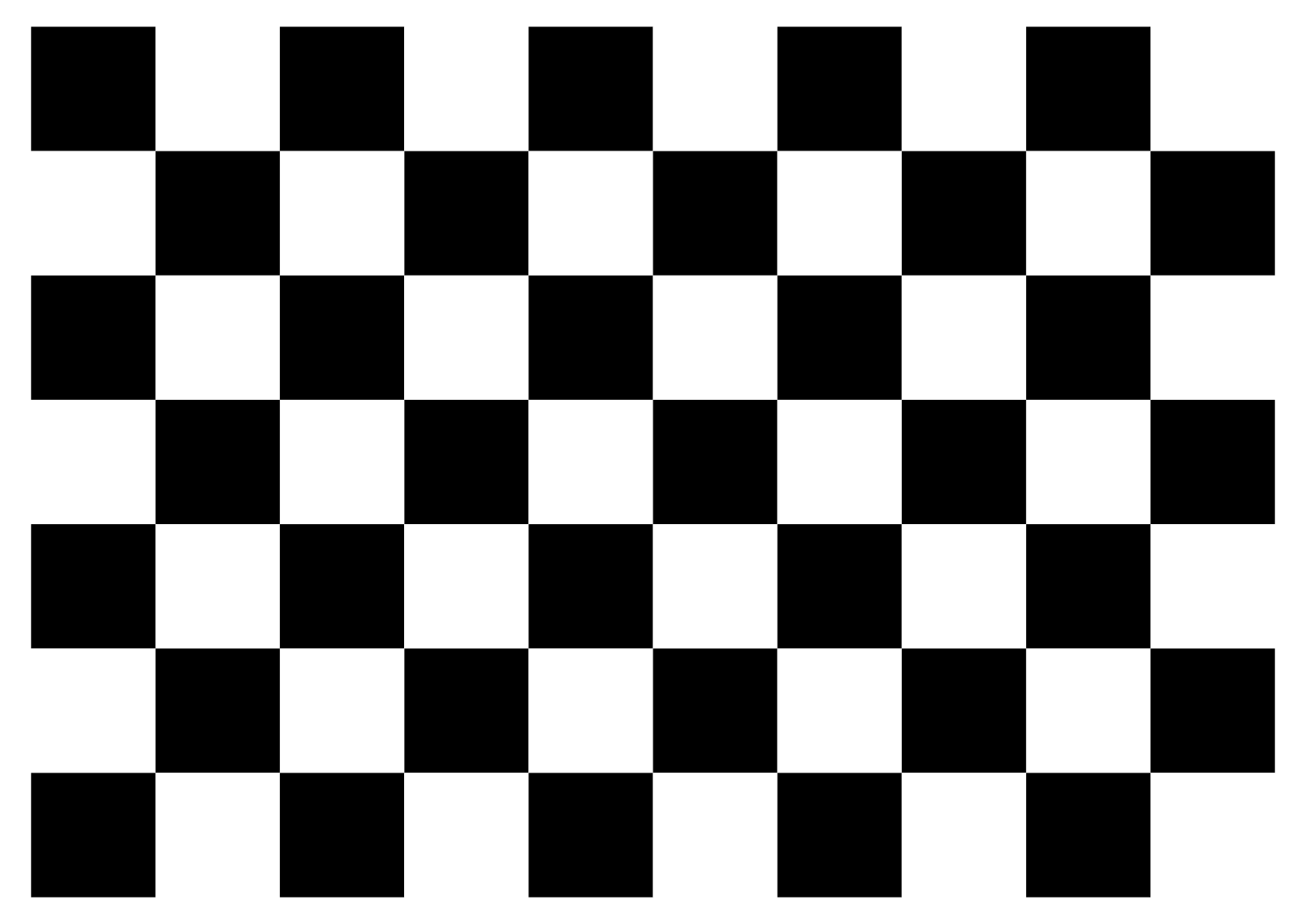 A3 - 40mm squares - 9x6 vertices, 10x7 squares
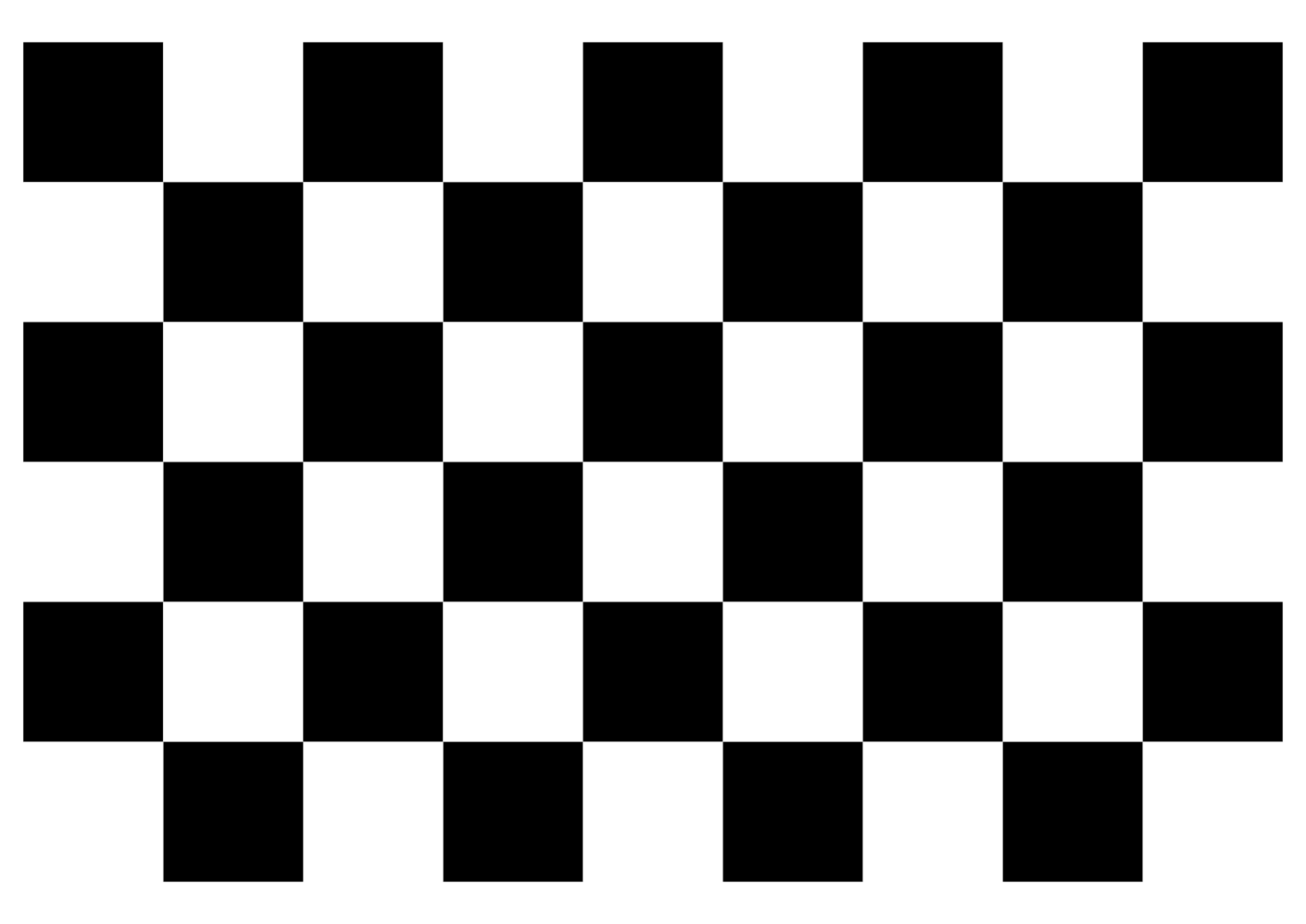 A3 - 45mm squares - 8x5 vertices, 9x6 squares
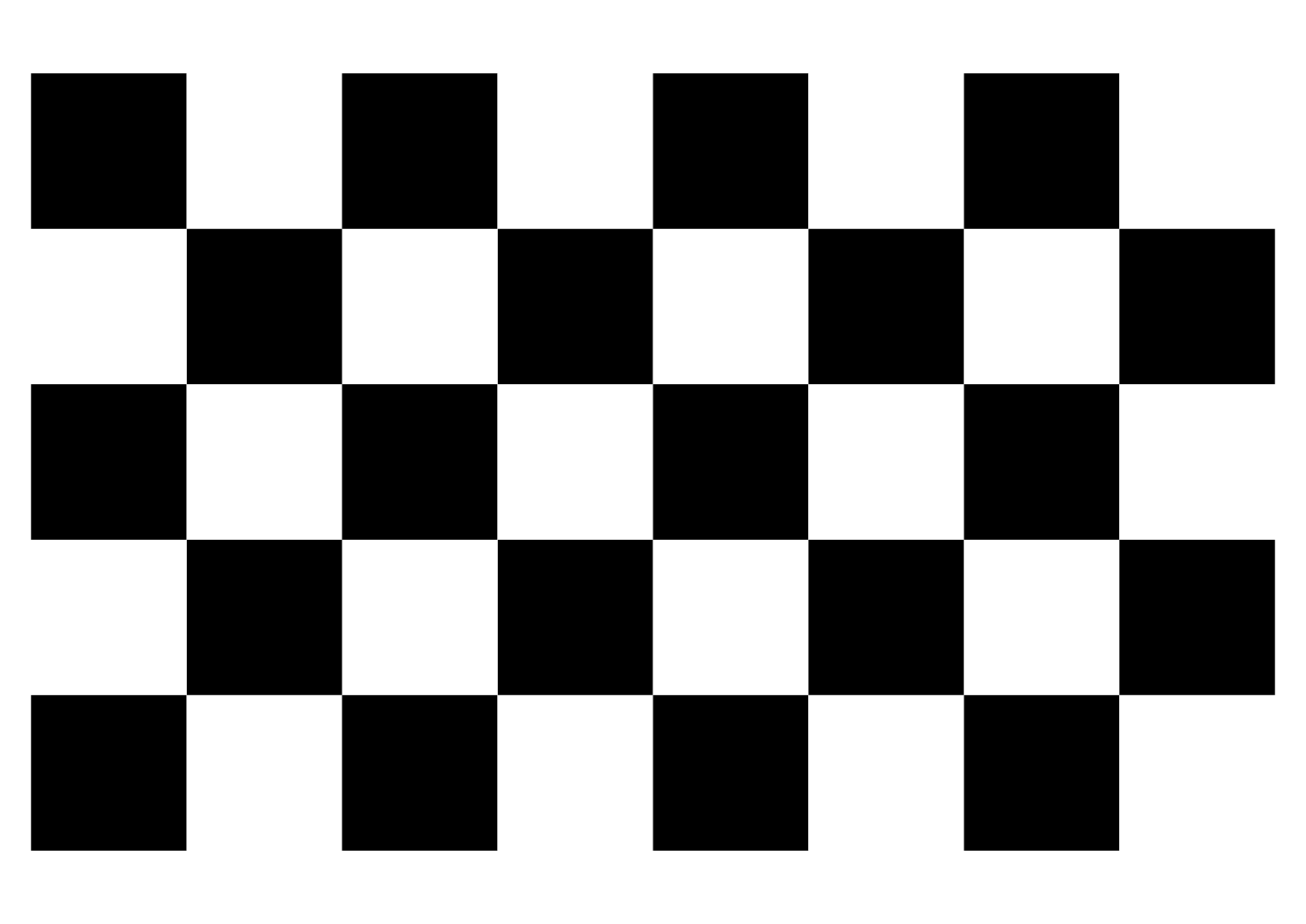 A3 - 50mm squares - 7x4 vertices, 8x5 squares
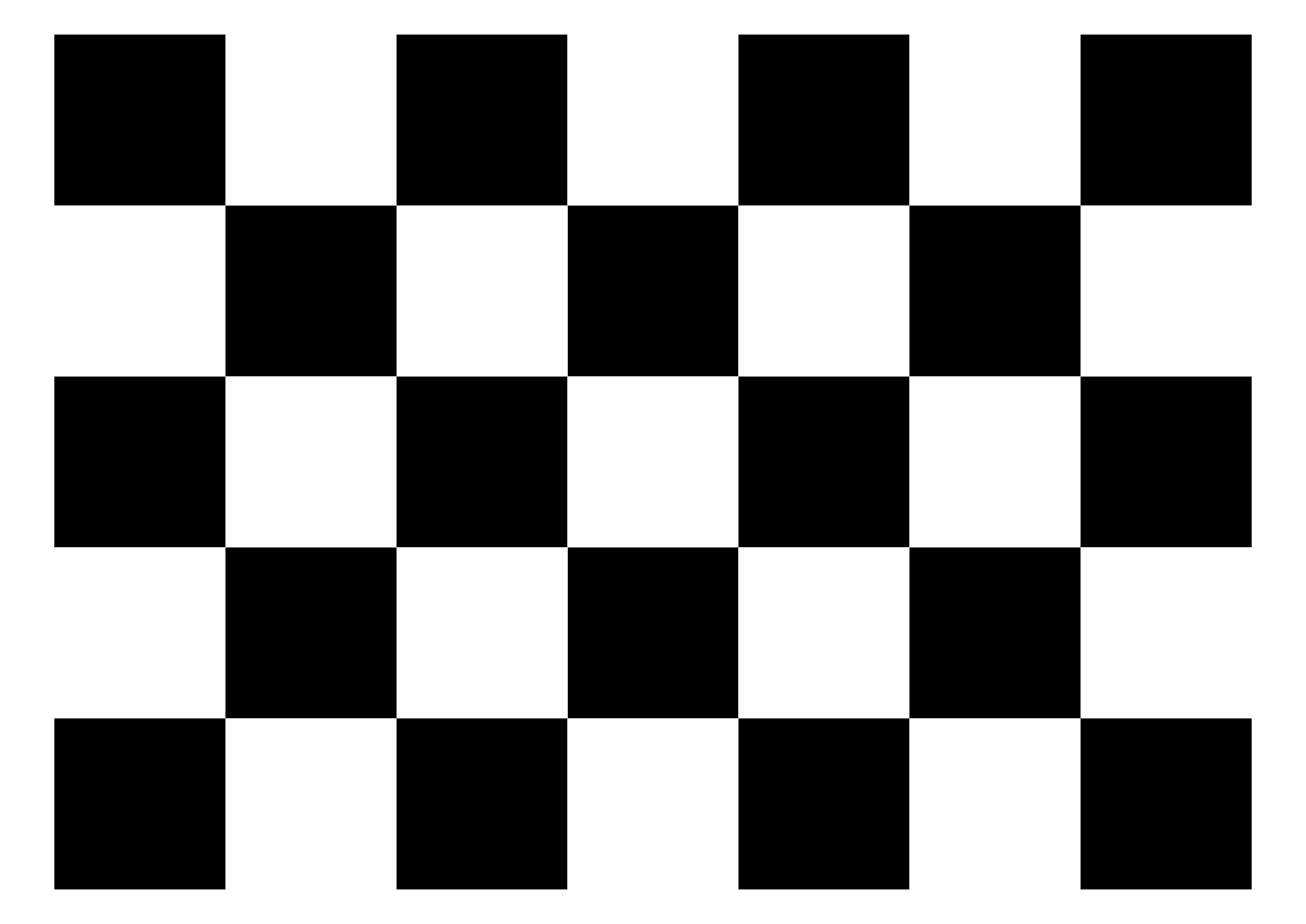 A3 - 55mm squares - 6x4 vertices, 7x5 squares
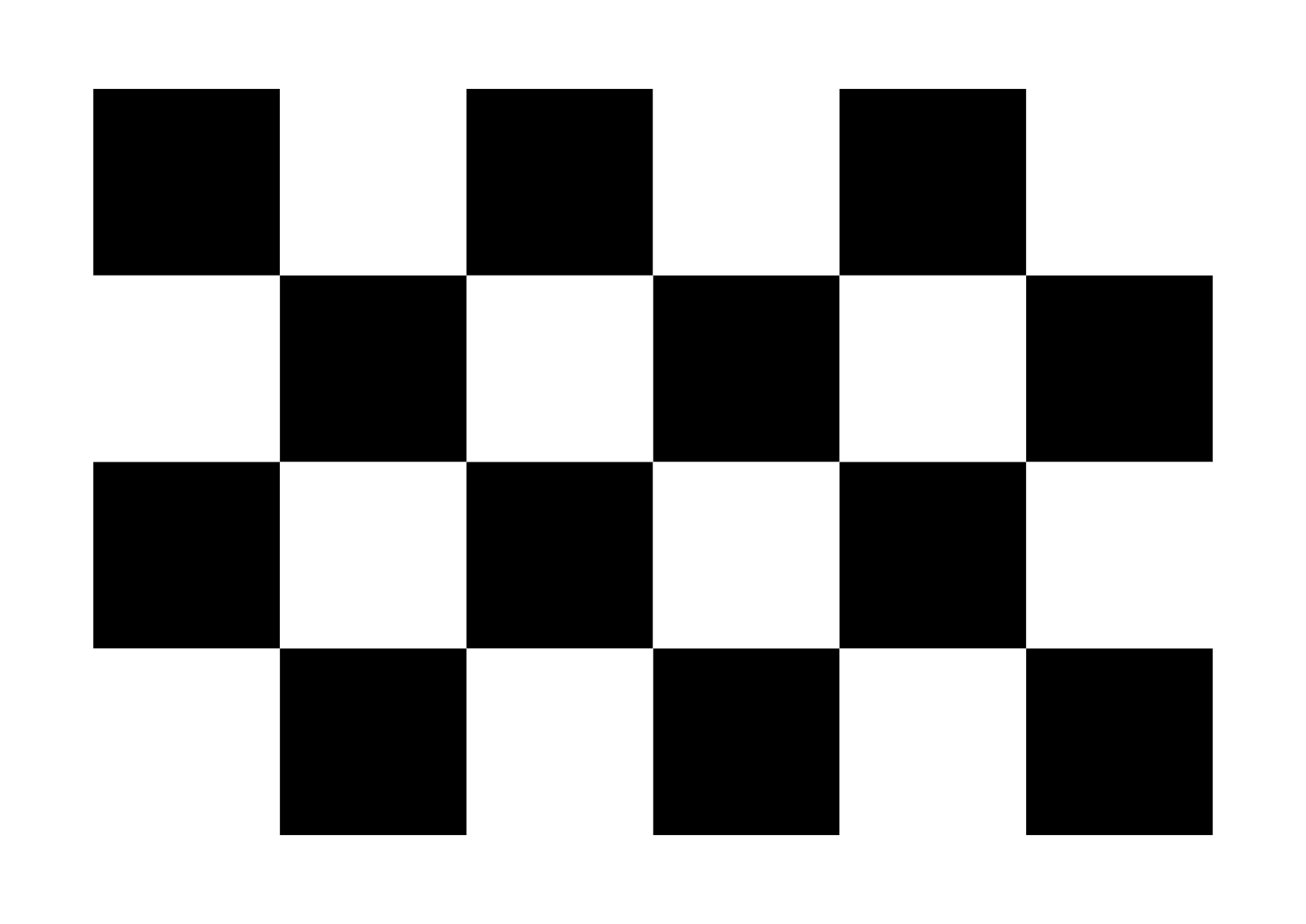 A3 - 60mm squares - 5x3 vertices, 6x4 squares
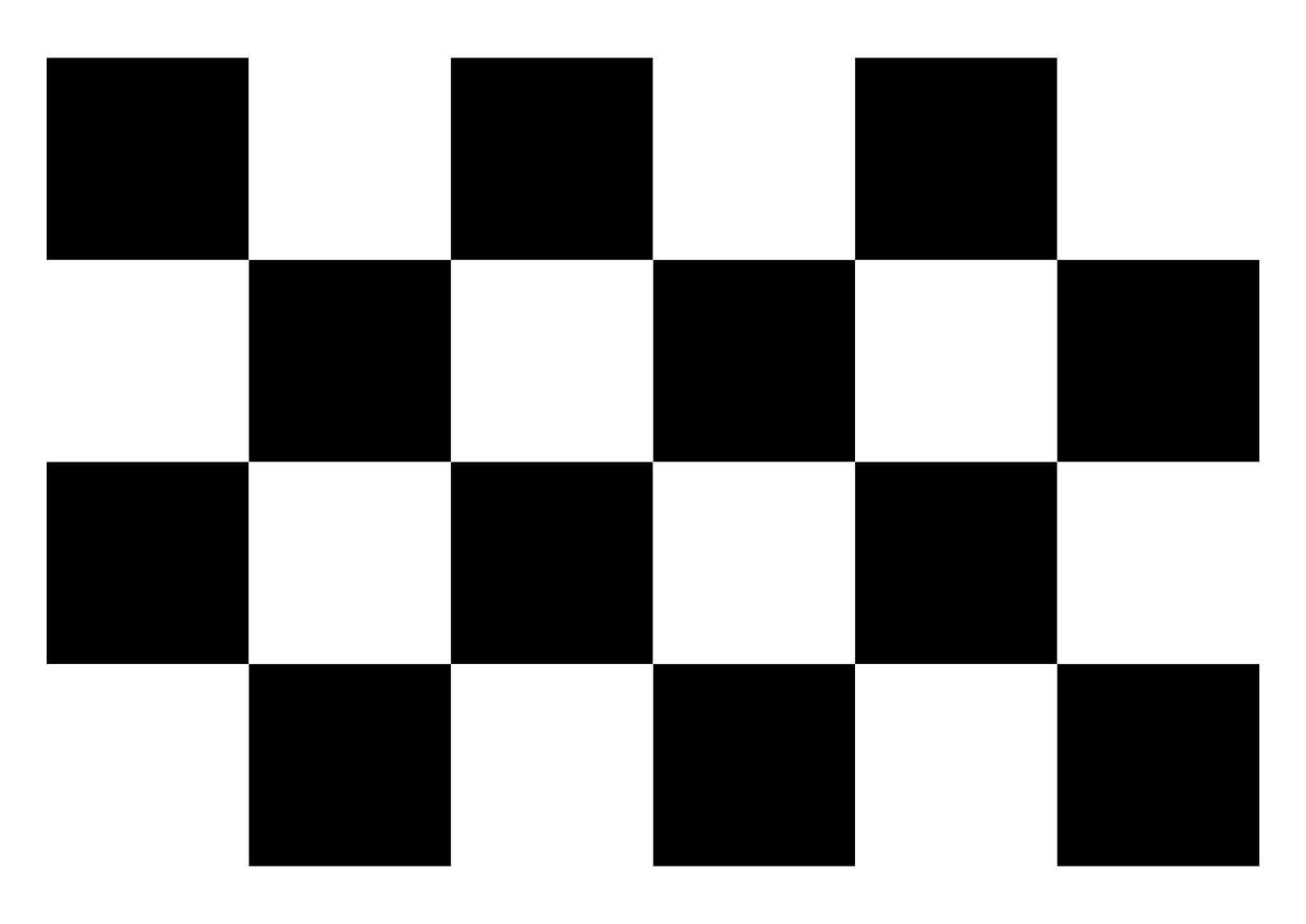 A3 - 65mm squares - 5x3 vertices, 6x4 squares
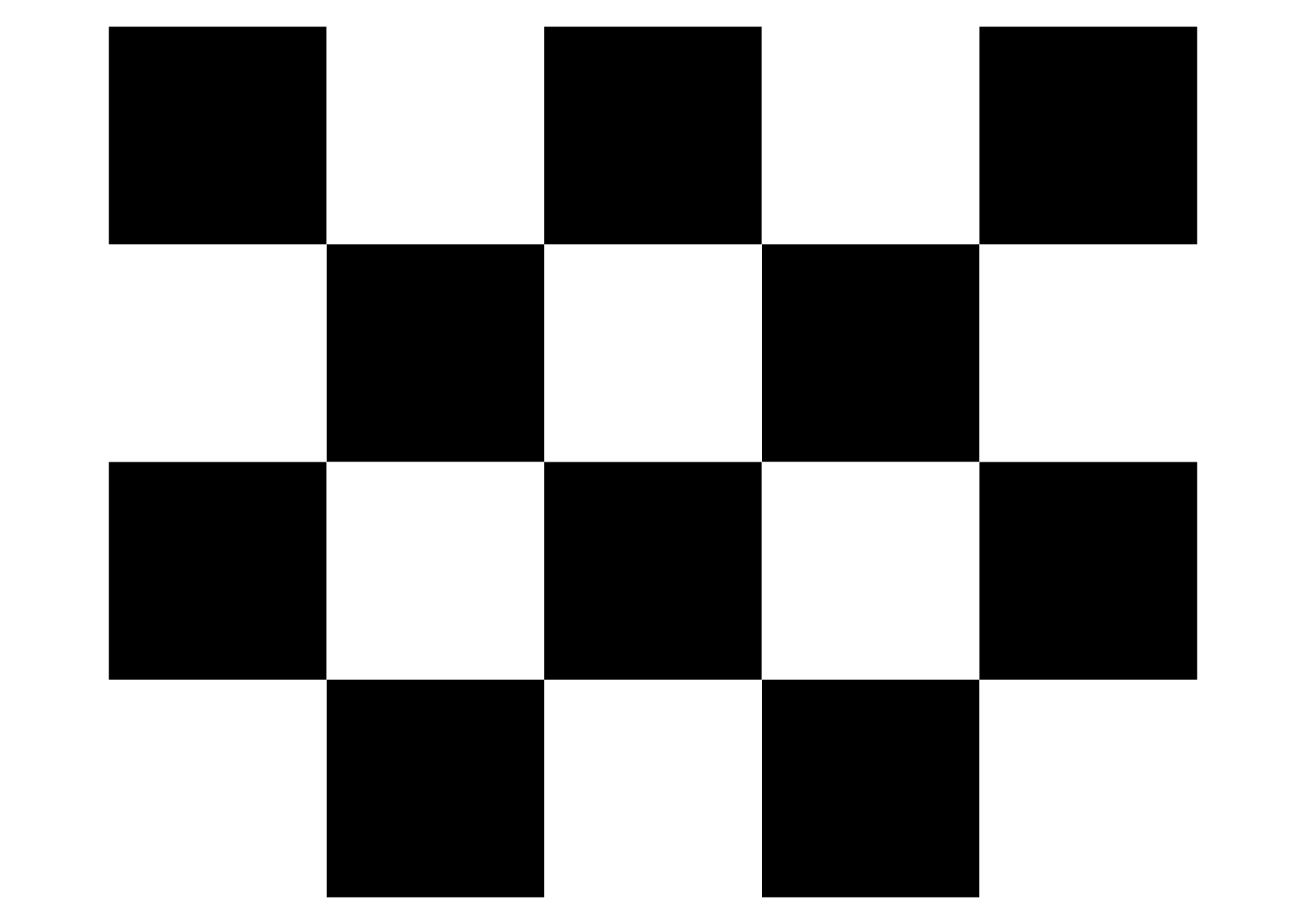 A3 - 70mm squares - 4x3 vertices, 5x4 squares
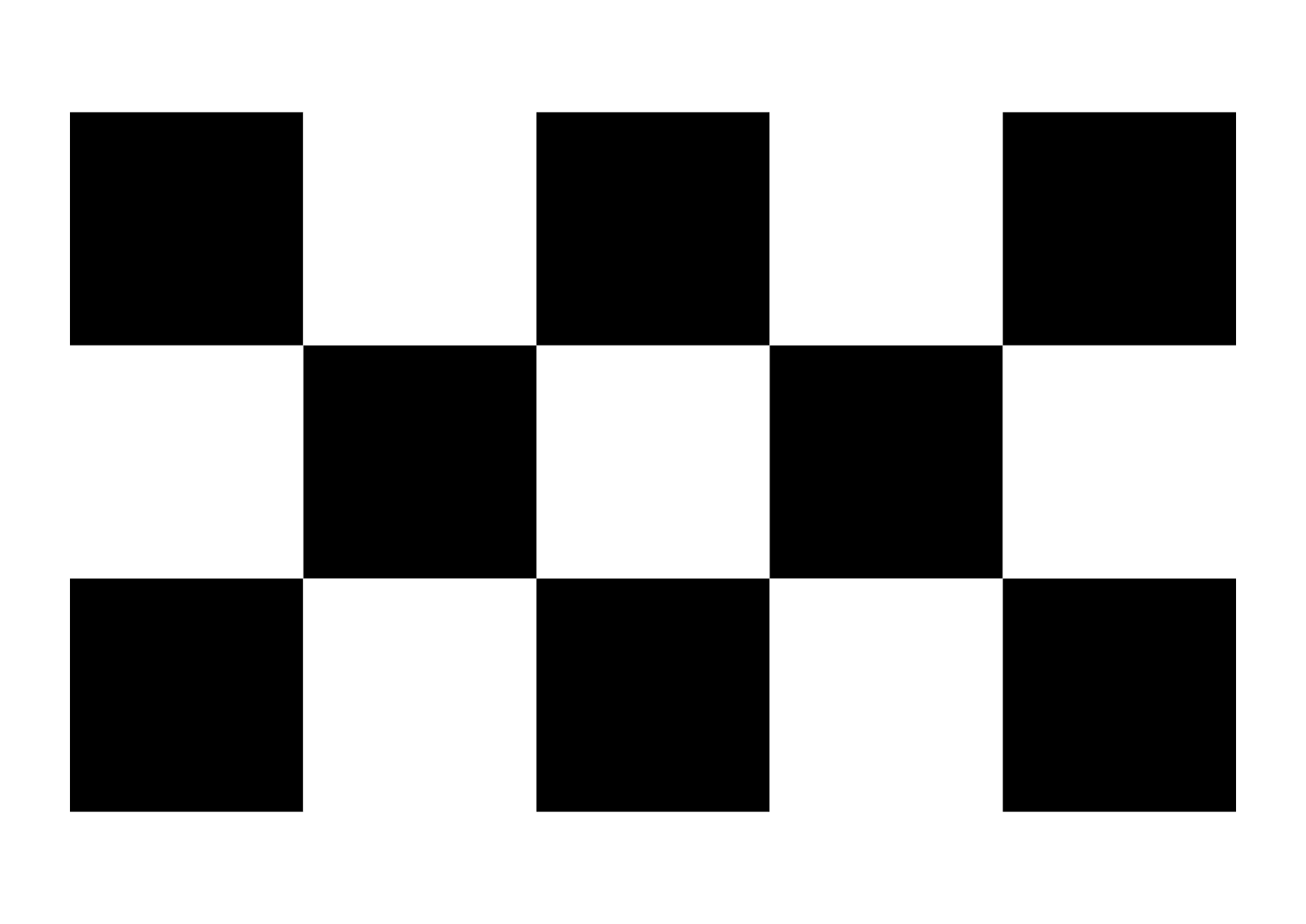 A3 - 75mm squares - 4x2 vertices, 5x3 squares
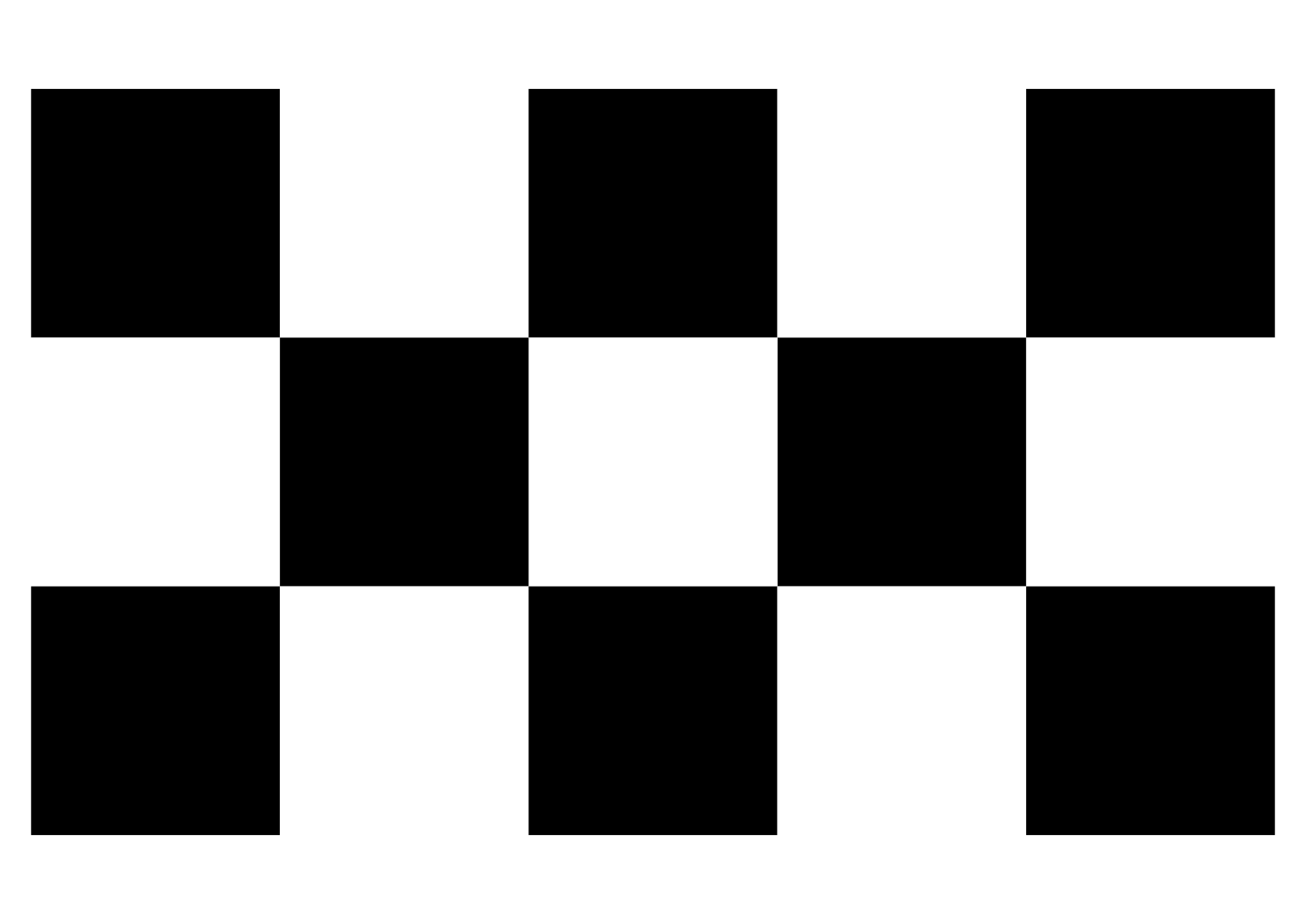 A3 - 80mm squares - 4x2 vertices, 5x3 squares
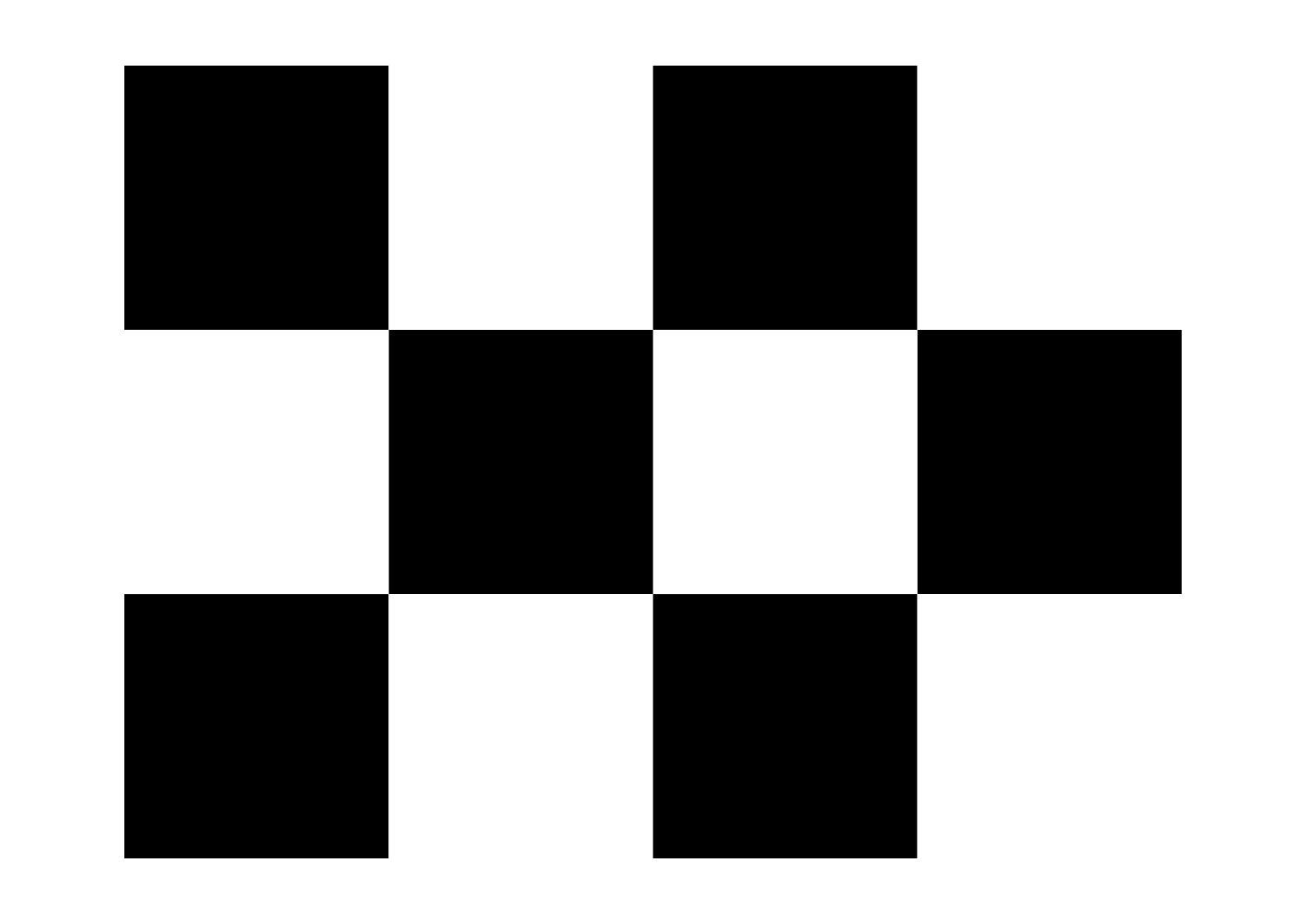 A3 - 85mm squares - 3x2 vertices, 4x3 squares
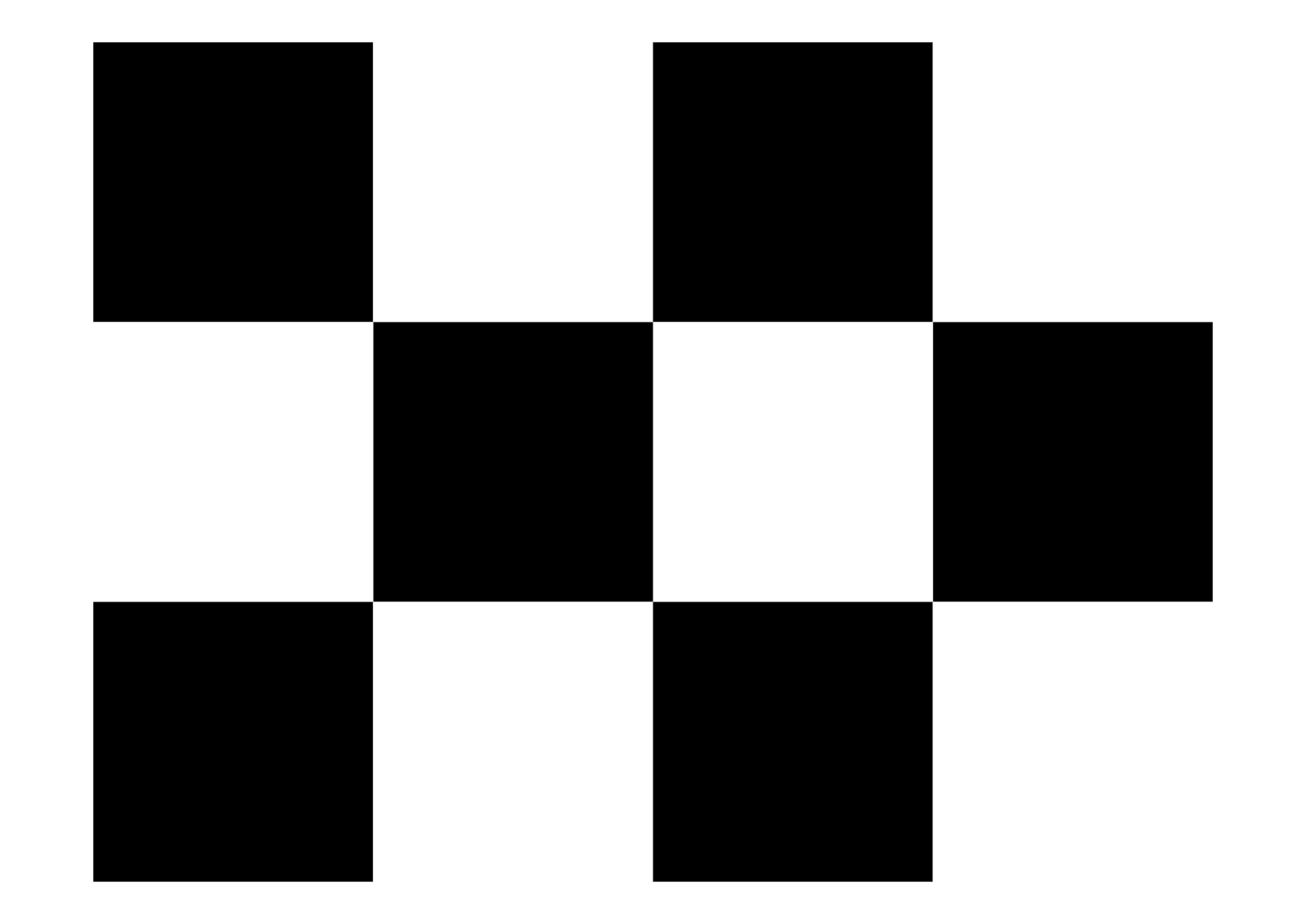 A3 - 90mm squares - 3x2 vertices, 4x3 squares
 A3 - 95mm squares - 3x2 vertices, 4x3 squares
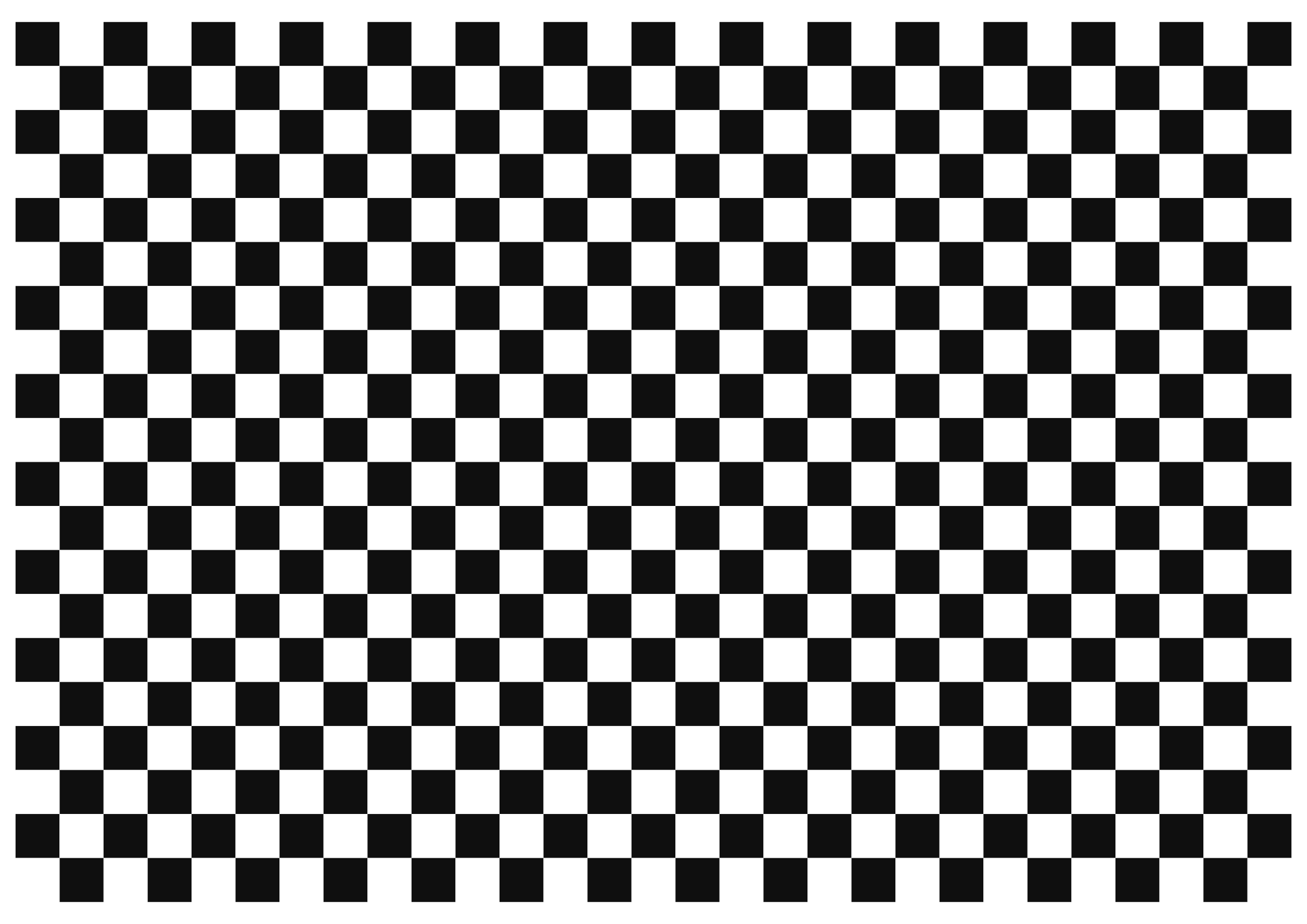 A2 - 20mm squares - 28x19 vertices, 29x20 squares
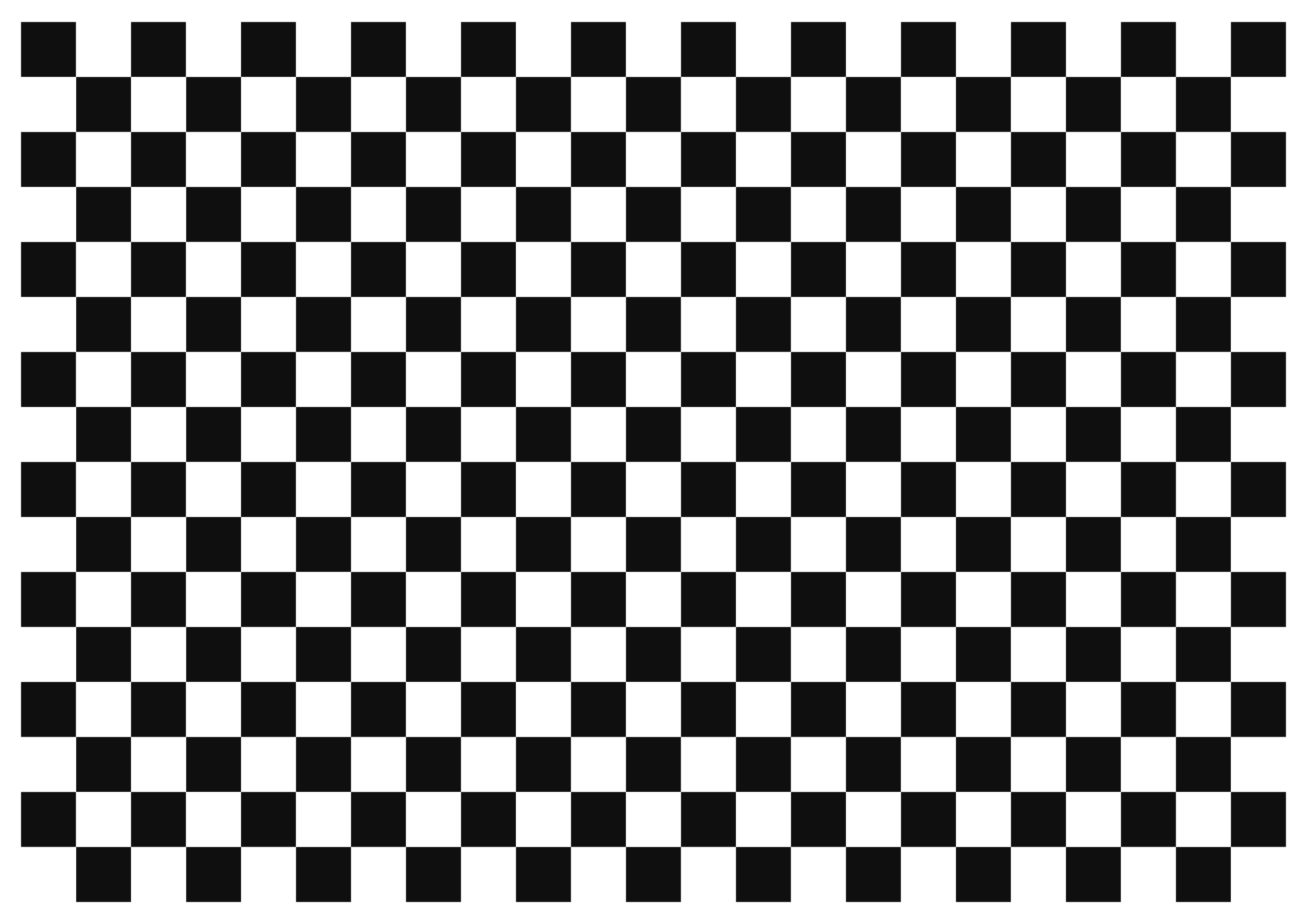 A2 - 25mm squares - 22x15 vertices, 23x16 squares
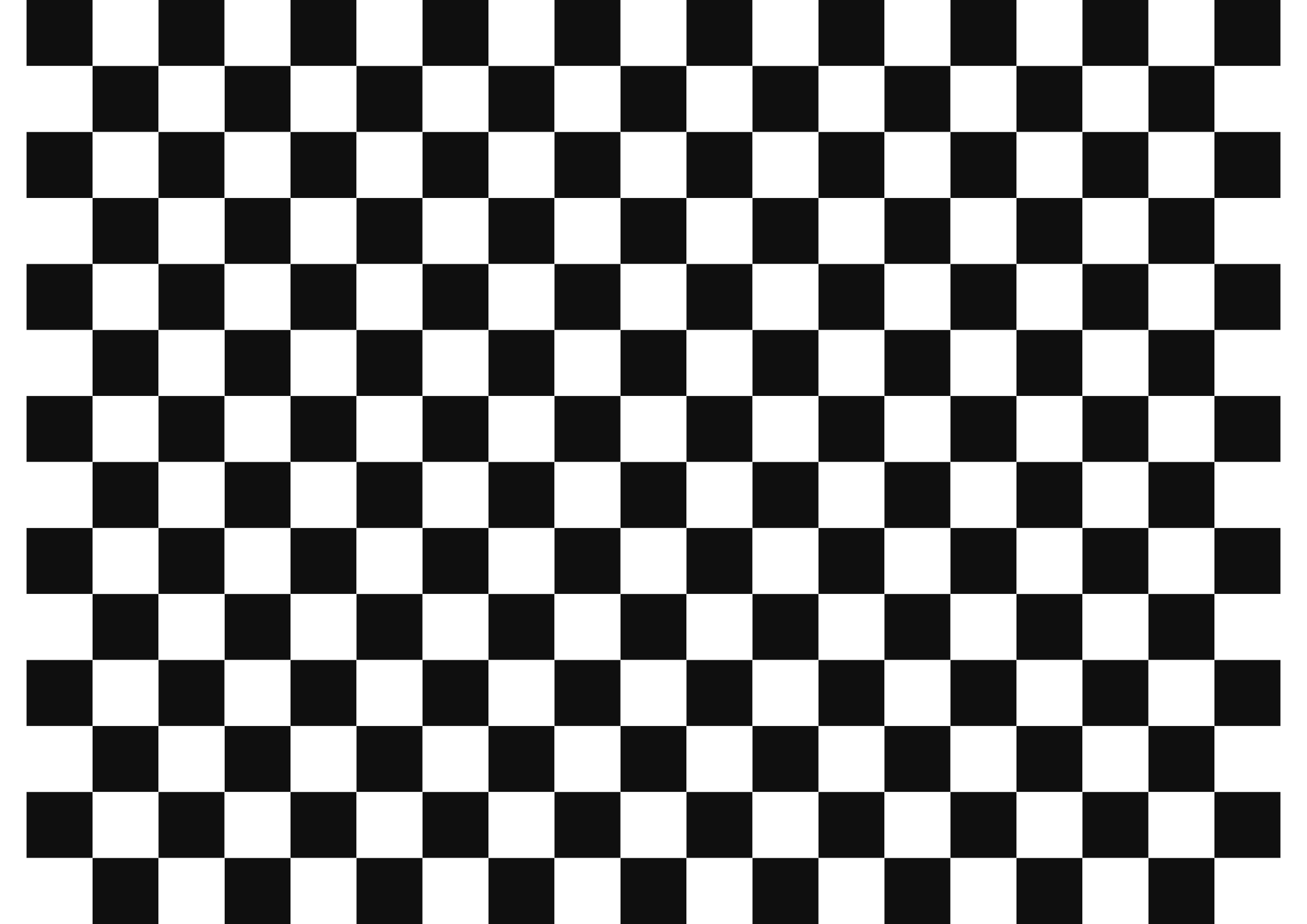 A2 - 30mm squares - 18x13 vertices, 19x14 squares
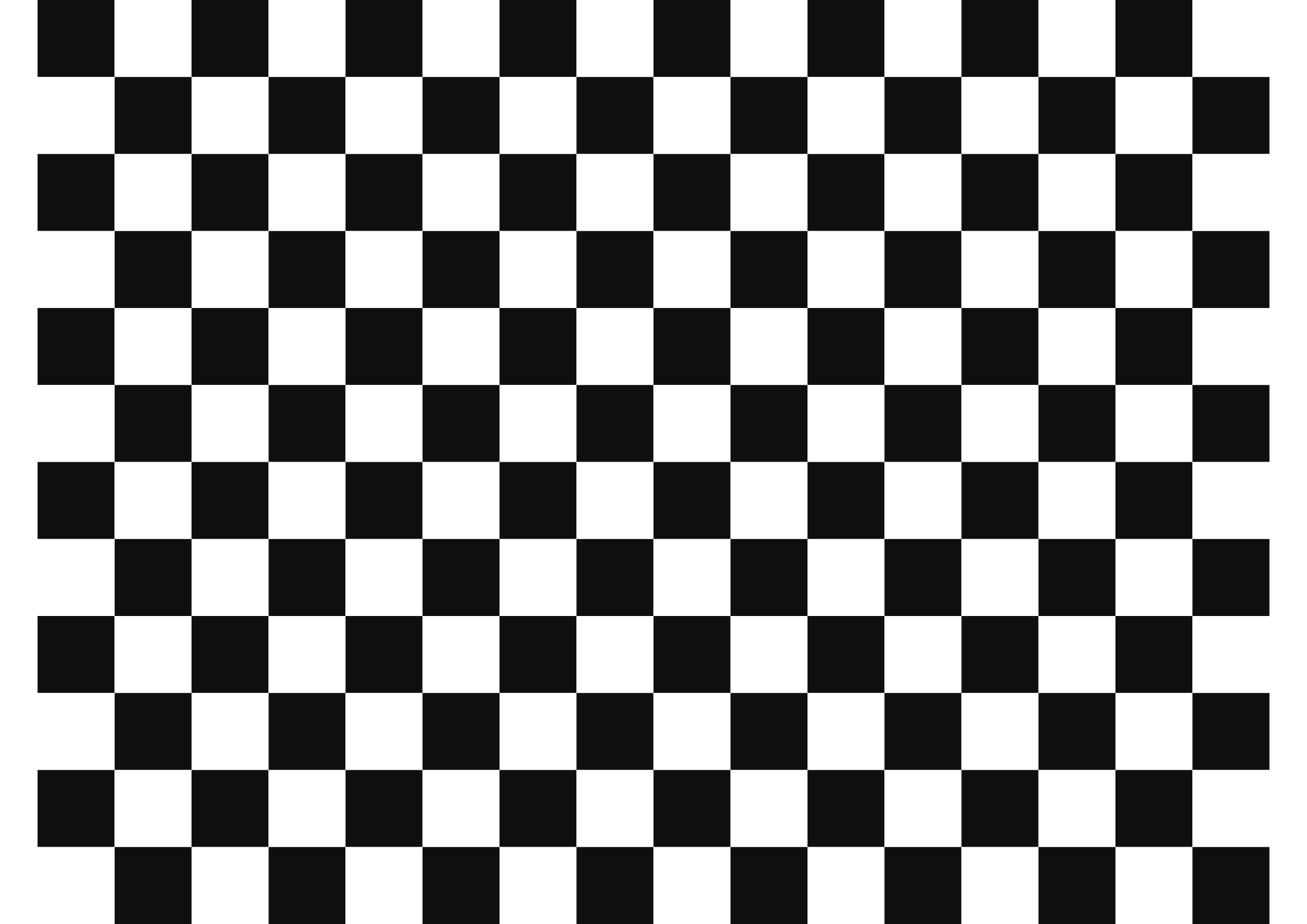 A2 - 35mm squares - 15x11 vertices, 16x12 squares
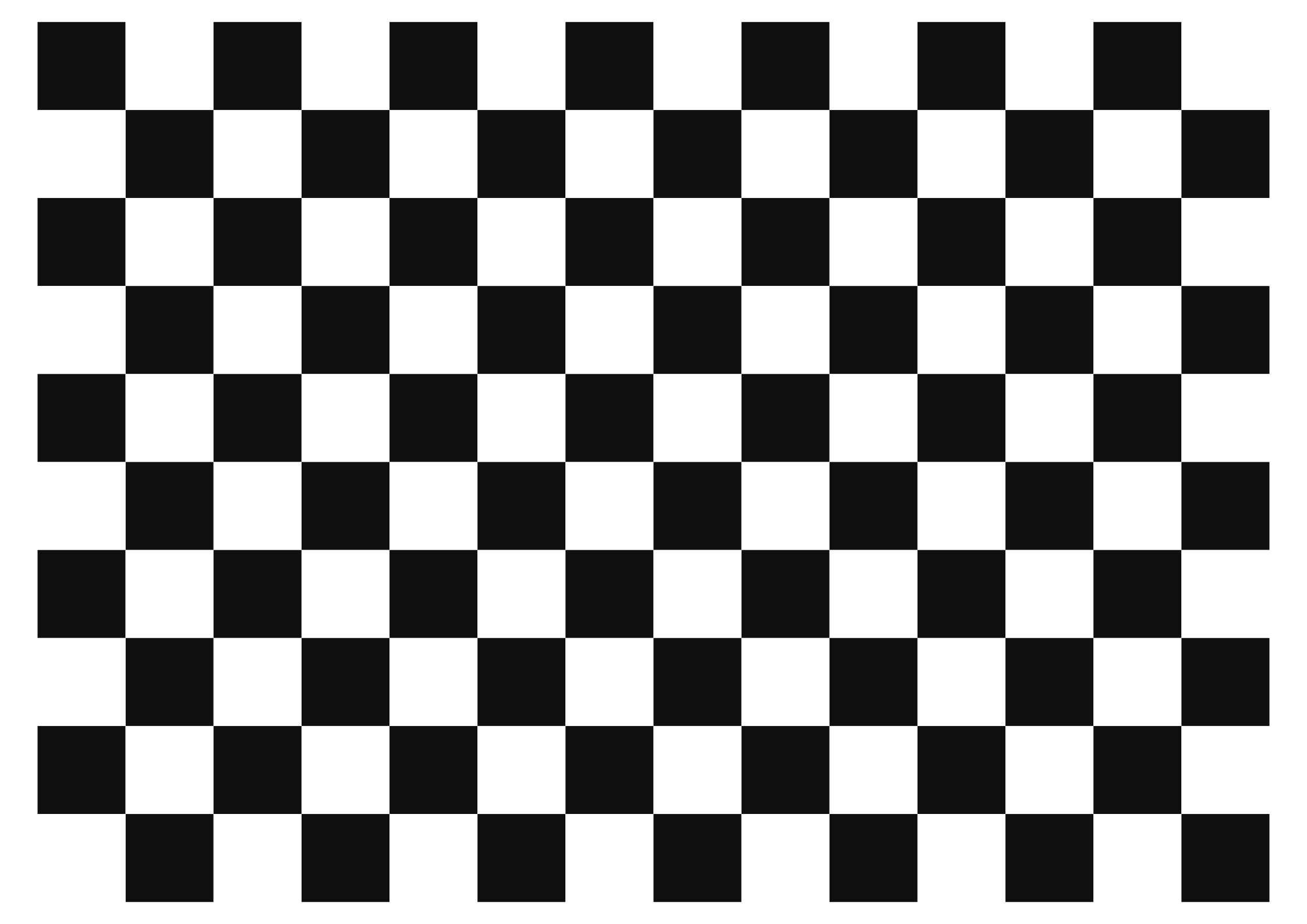 A2 - 40mm squares - 13x9 vertices, 14x10 squares
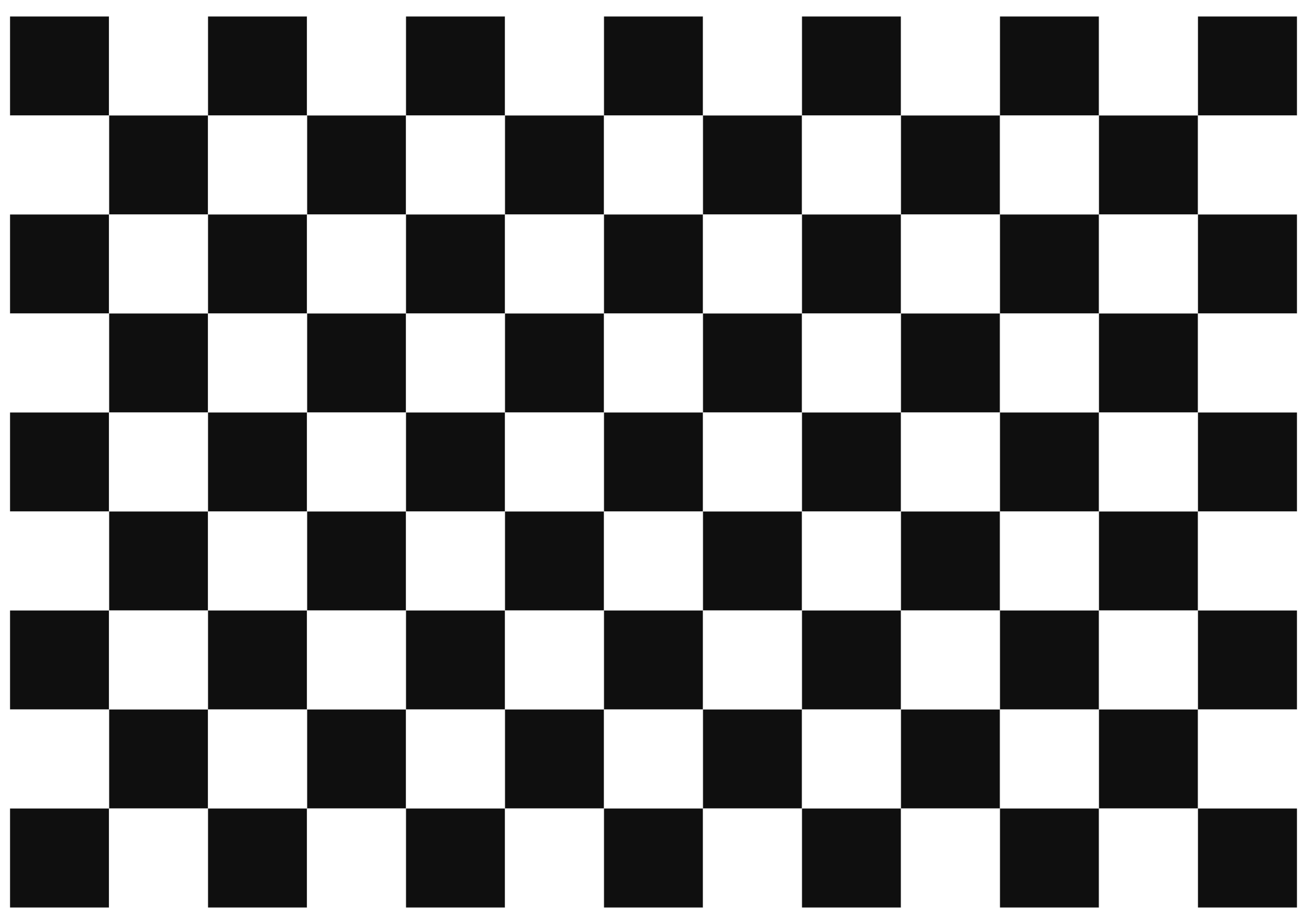 A2 - 45mm squares - 12x8 vertices, 13x9 squares
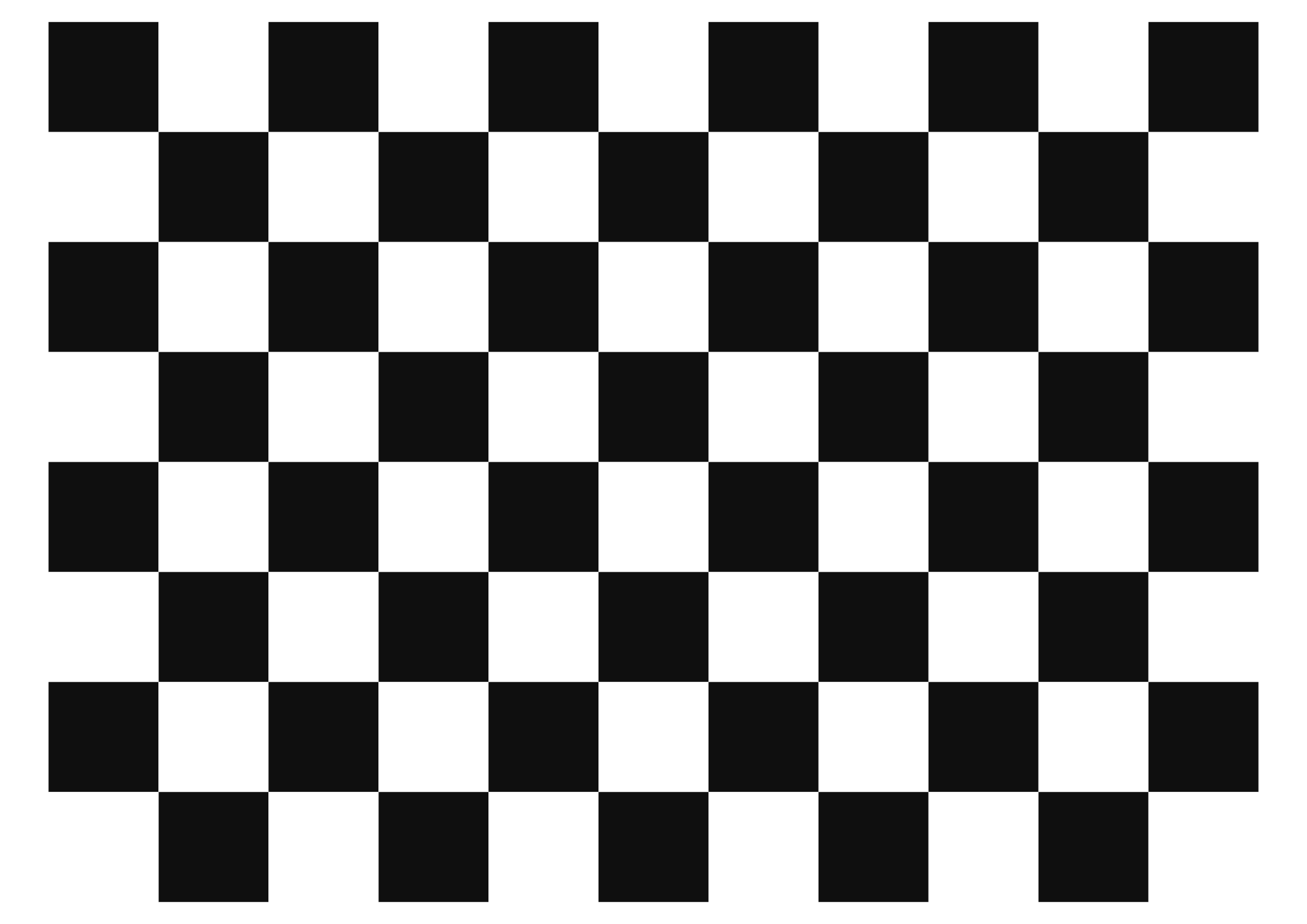 A2 - 50mm squares - 10x7 vertices, 11x8 squares
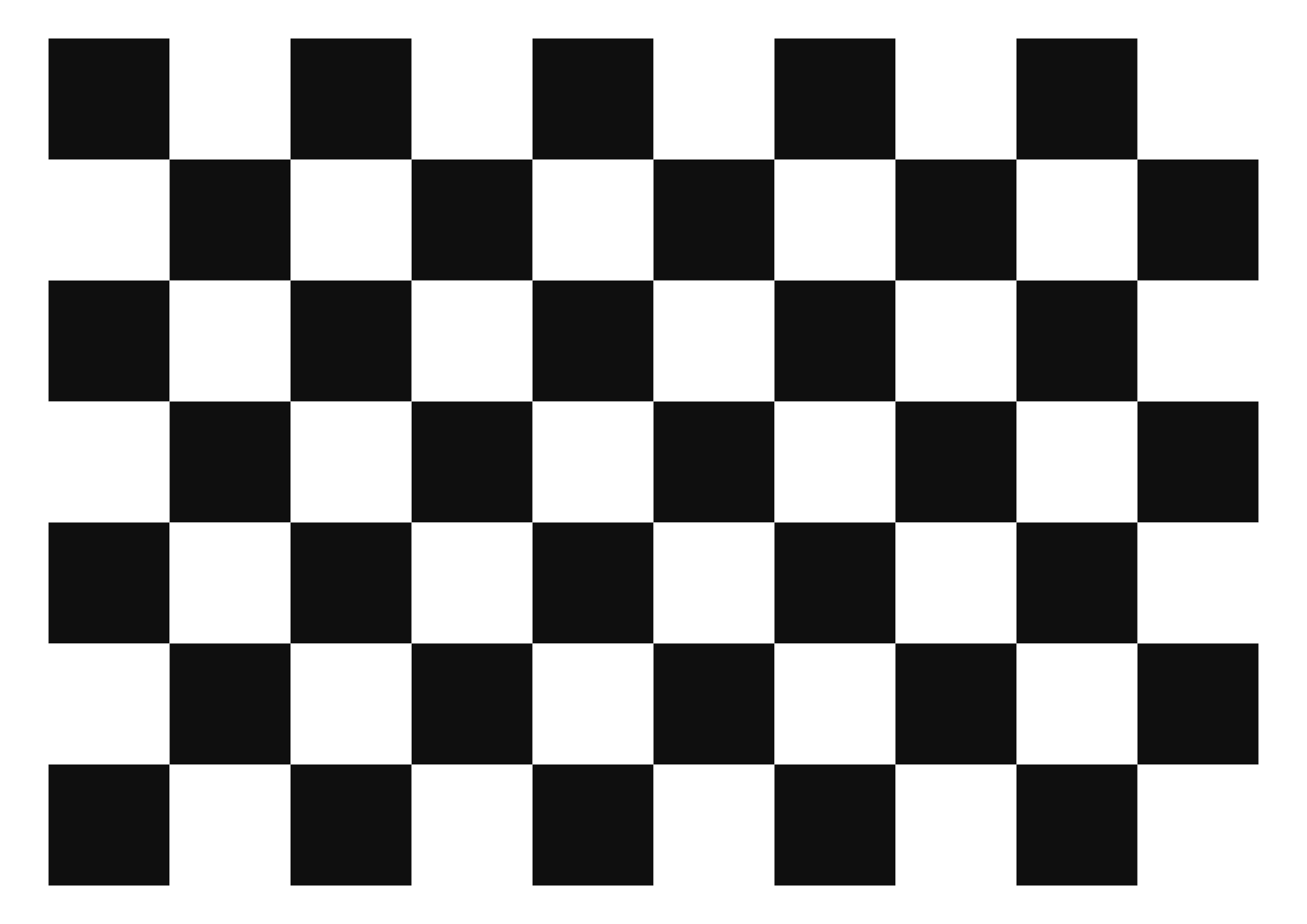 A2 - 55mm squares - 9x6 vertices, 10x7 squares
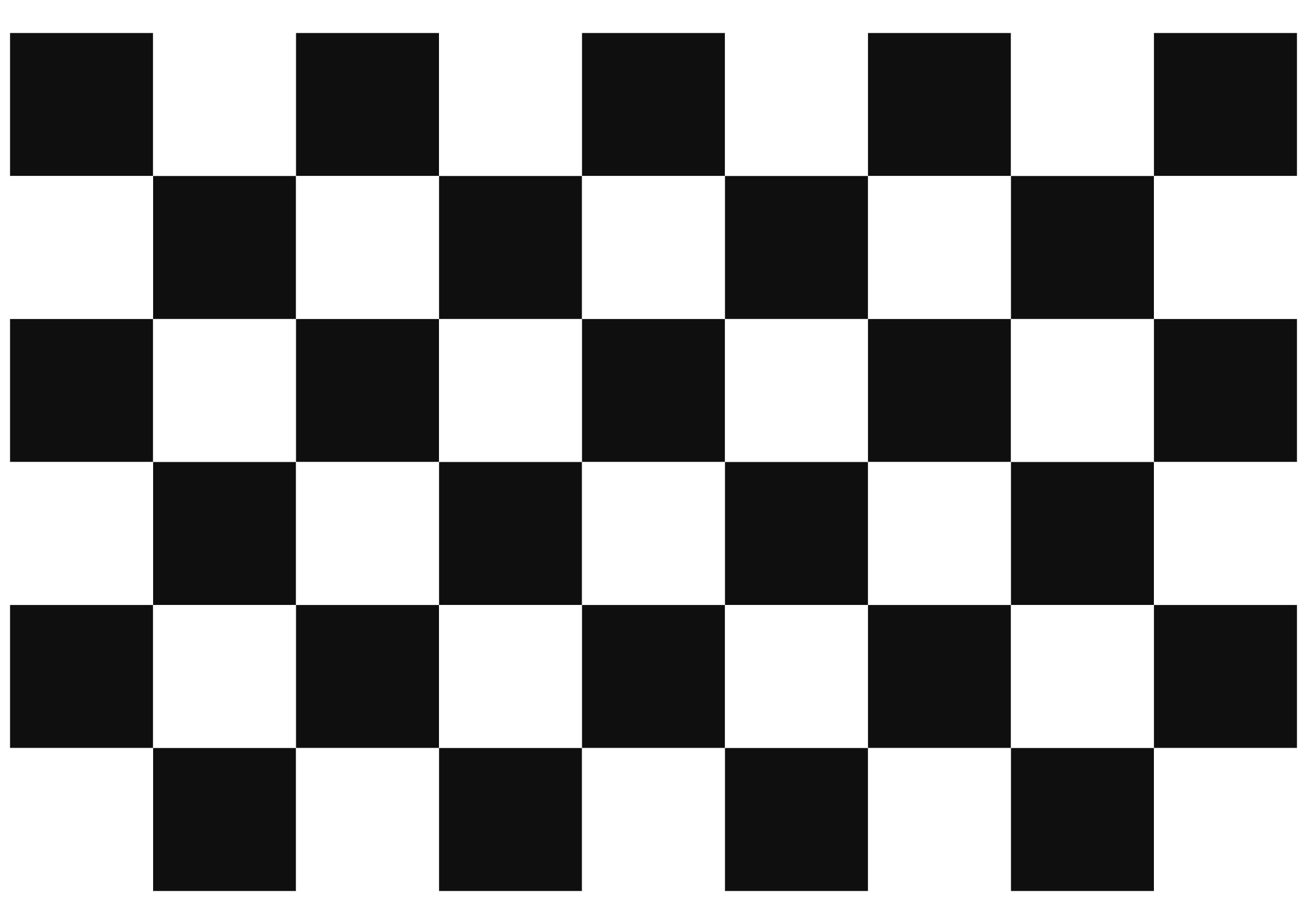 A2 - 65mm squares - 8x5 vertices, 9x6 squares
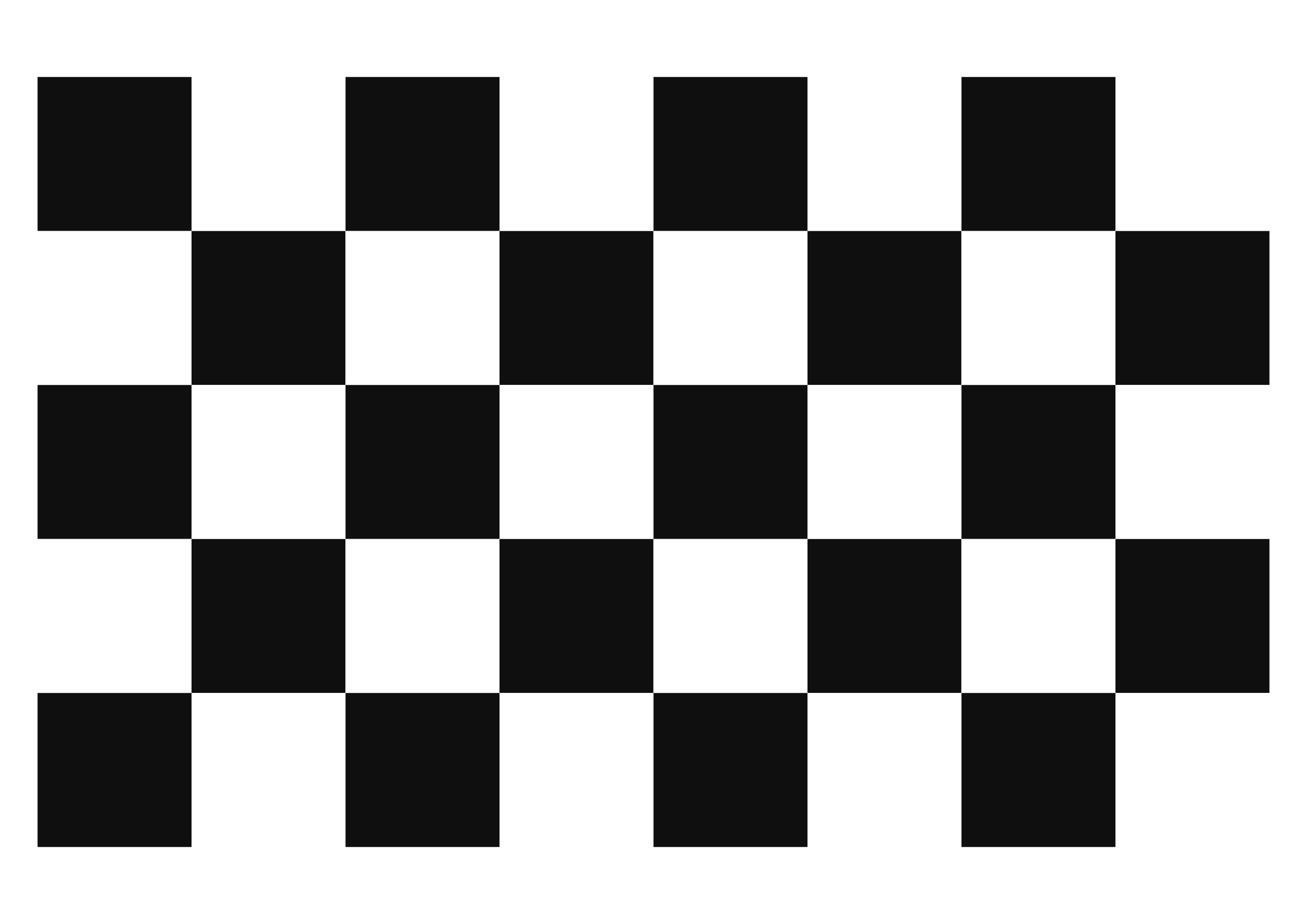 A2 - 70mm squares - 7x4 vertices, 8x5 squares
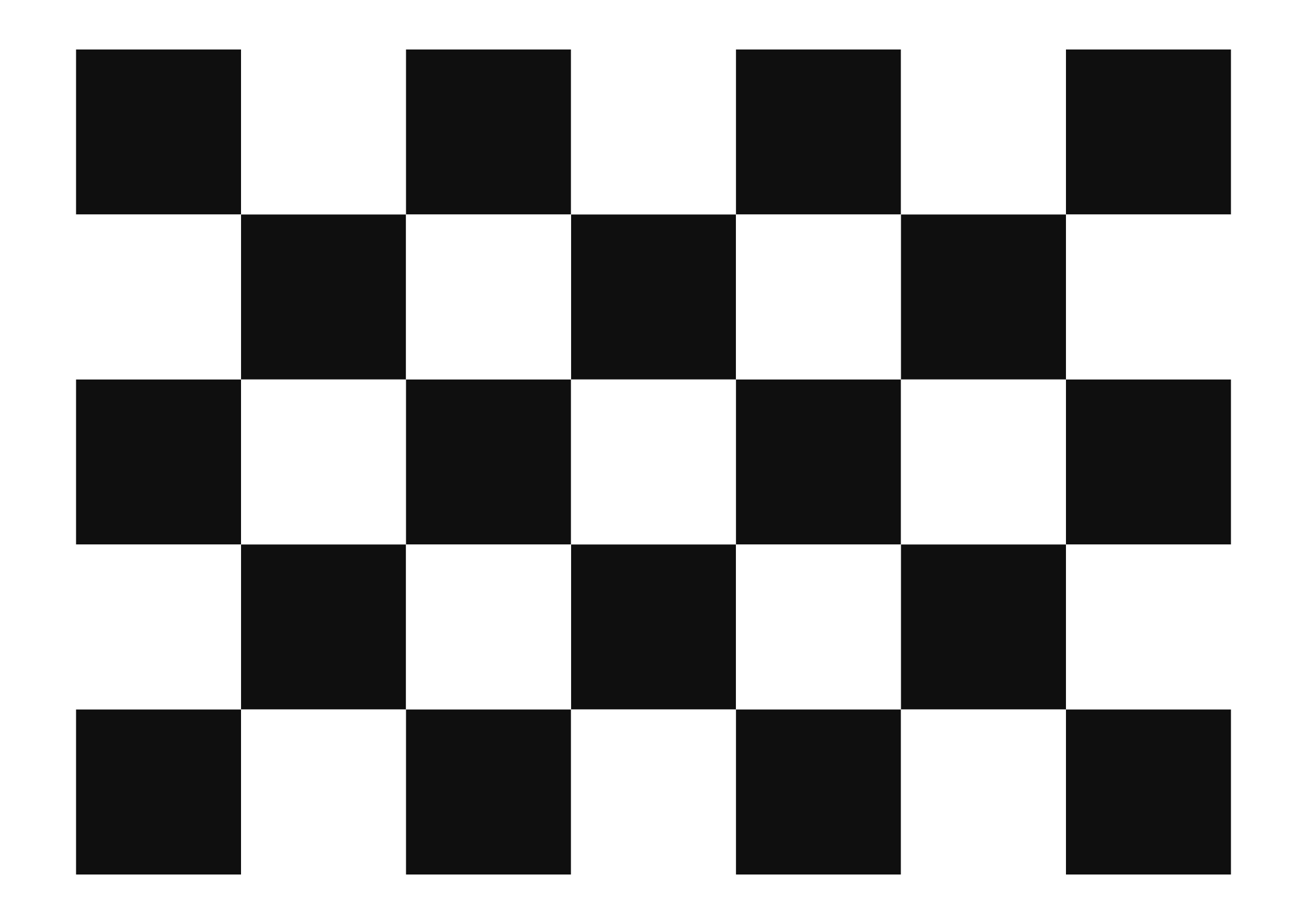 A2 - 75mm squares - 6x4 vertices, 7x5 squares
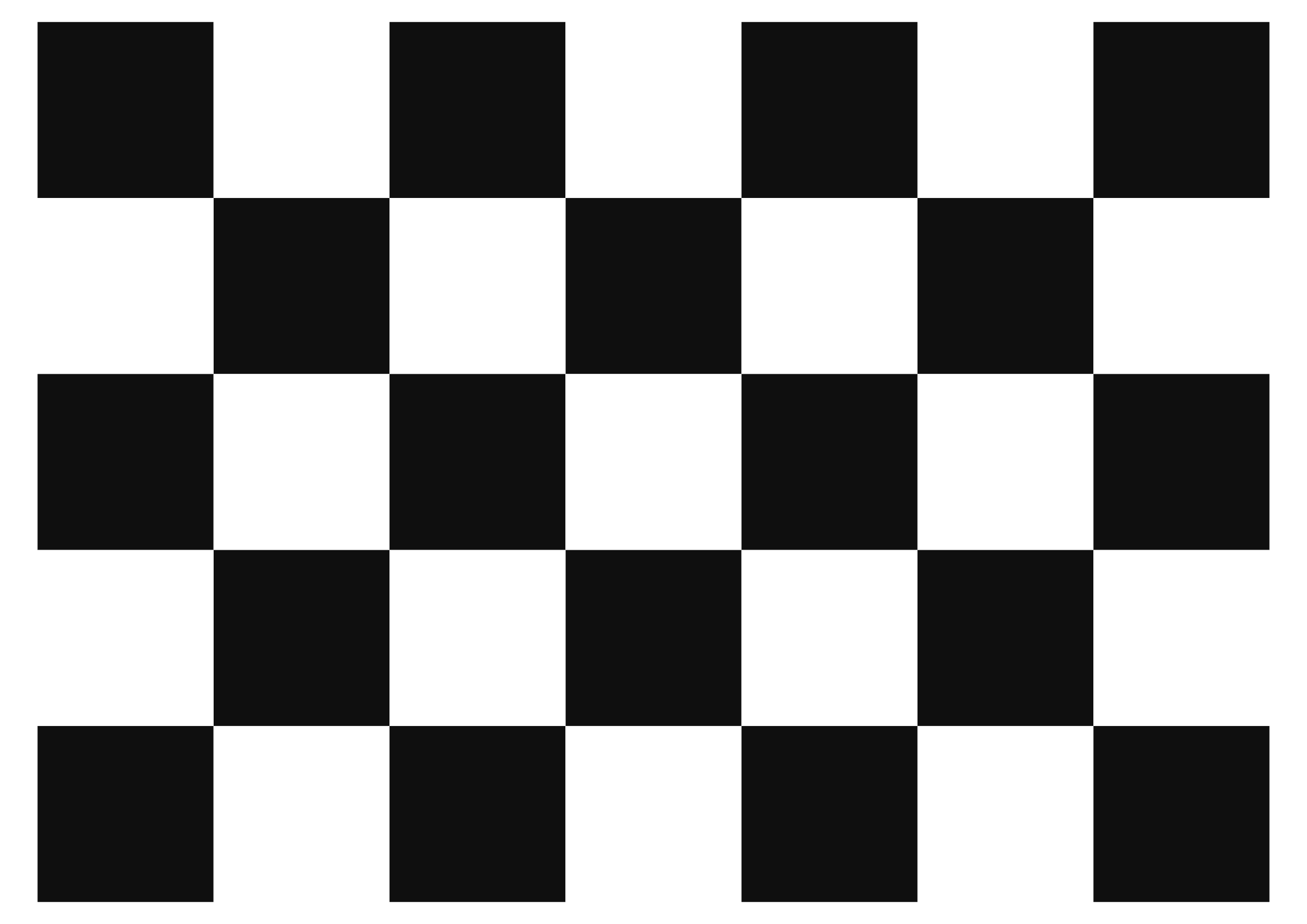 A2 - 80mm squares - 6x4 vertices, 7x5 squares
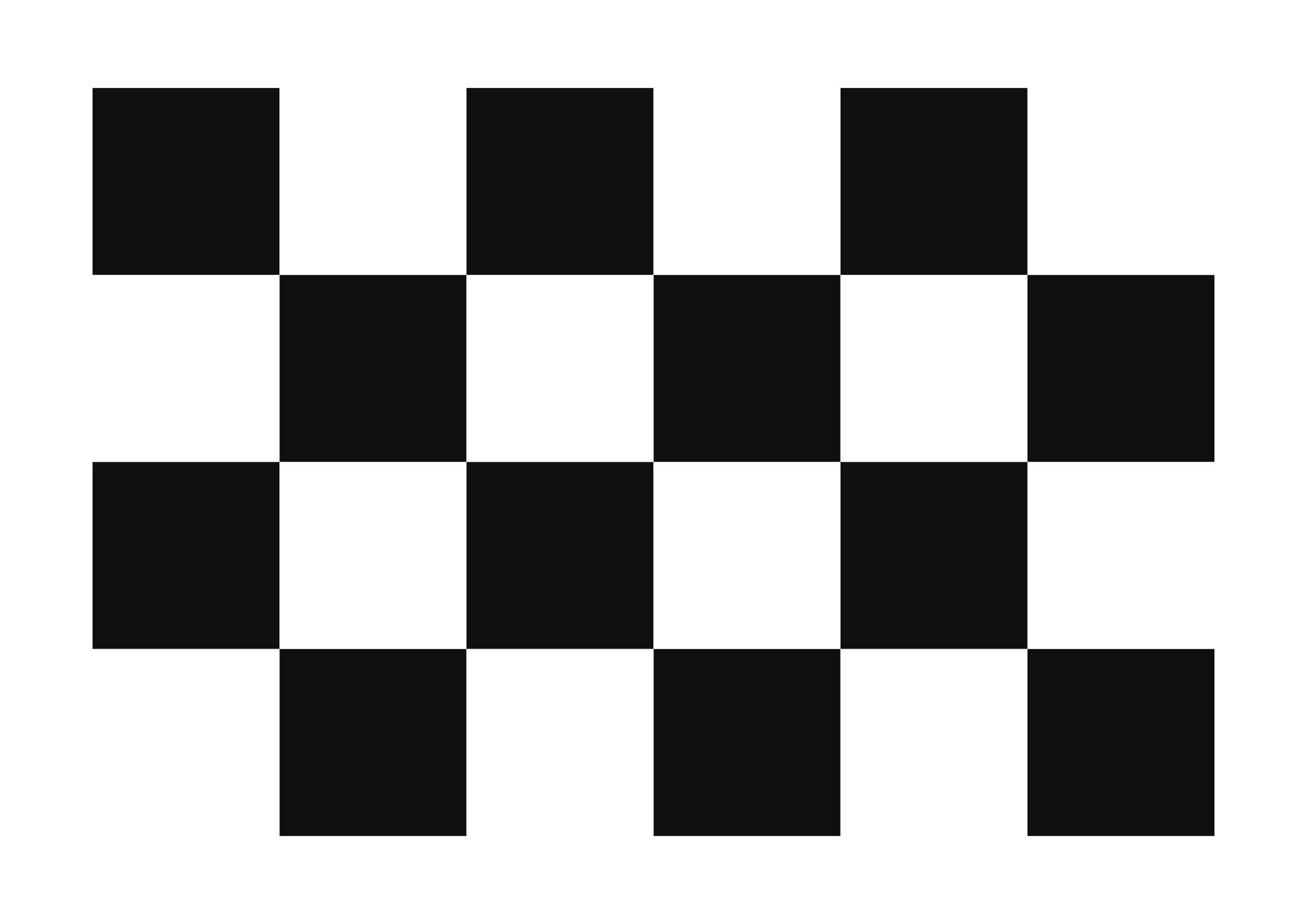 A2 - 85mm squares - 5x3 vertices, 6x4 squares
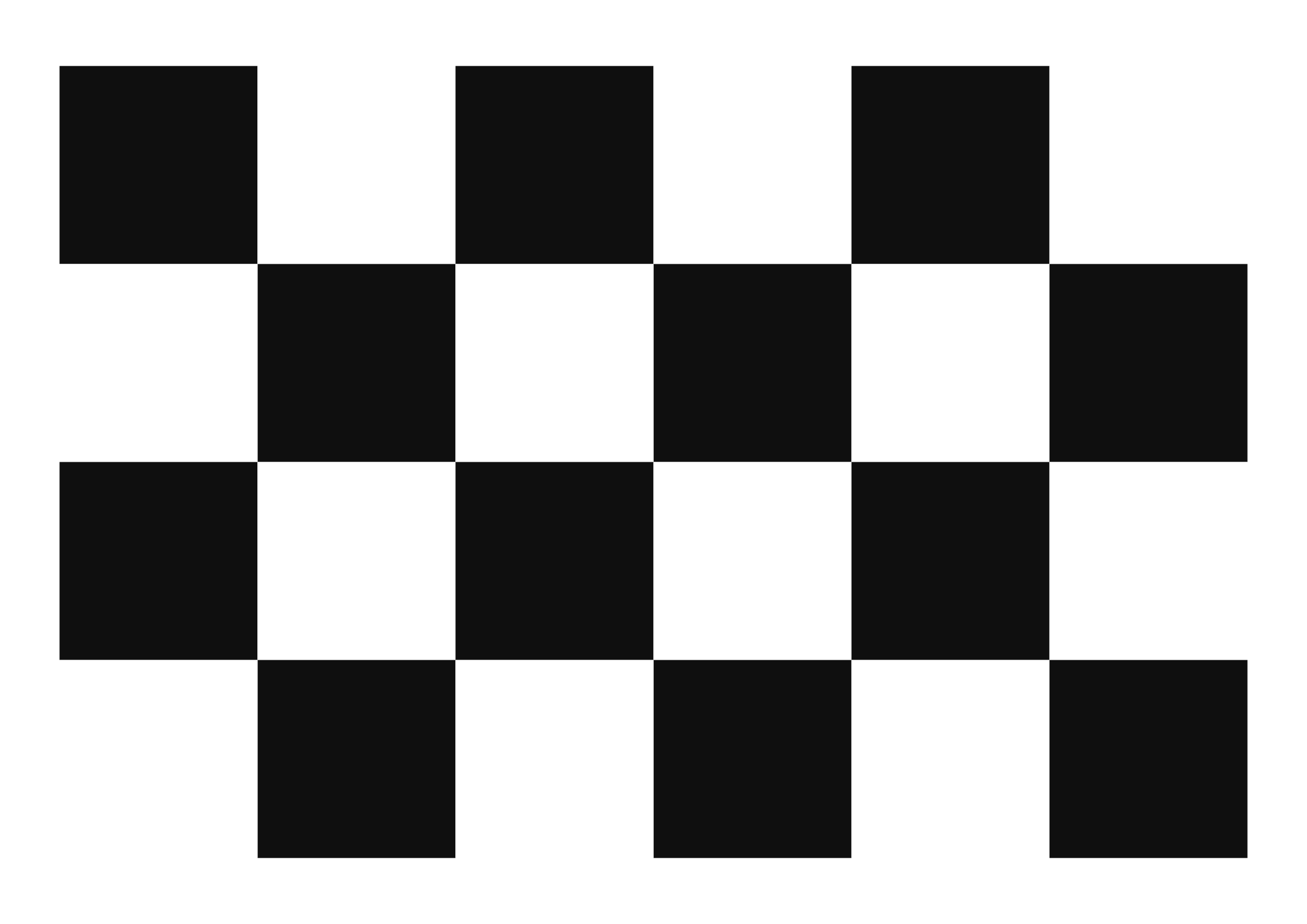 A2 - 90mm squares - 5x3 vertices, 6x4 squares
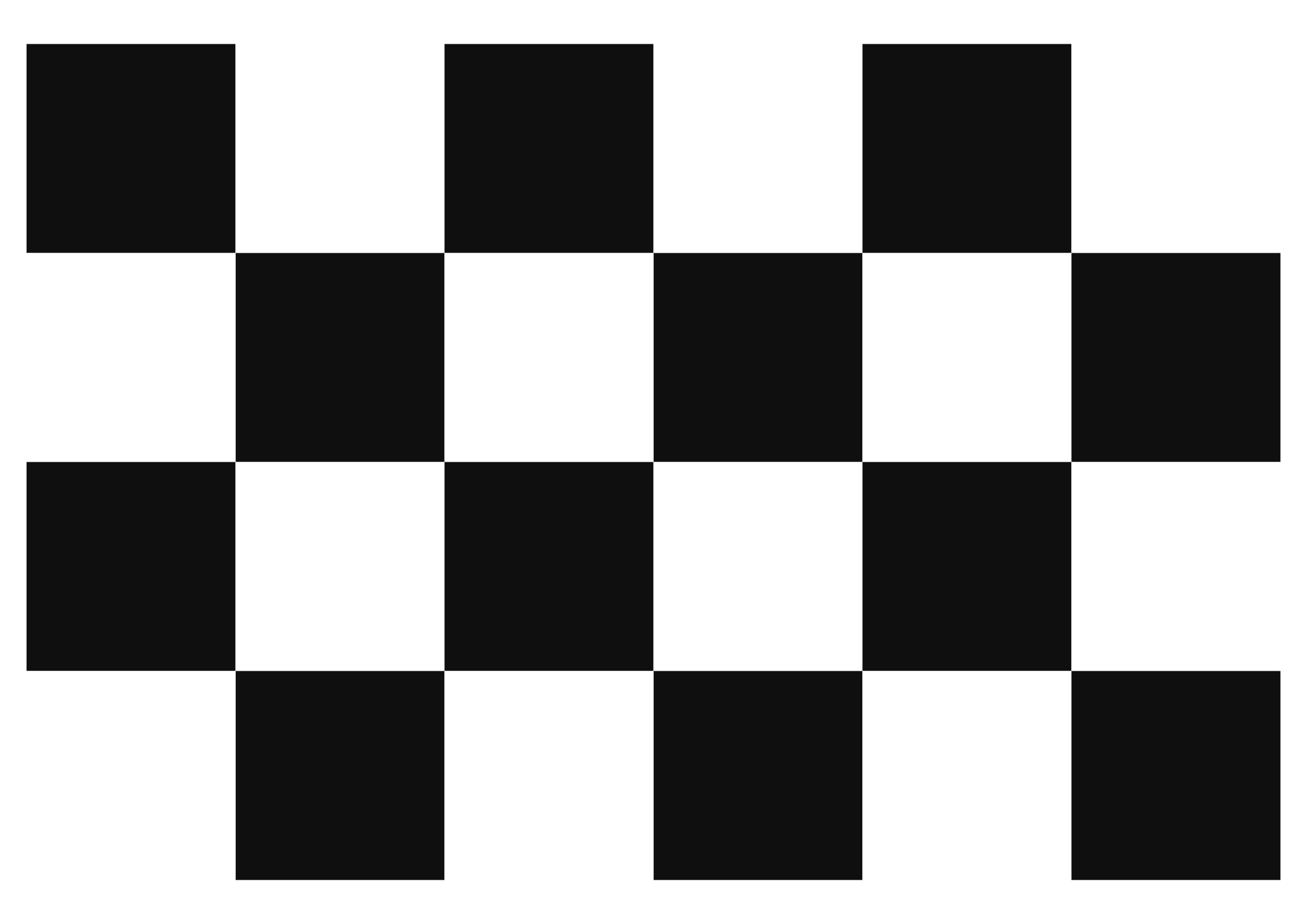 A2 - 95mm squares - 5x3 vertices, 6x4 squares
 A2 - 100mm squares - 4x3 vertices, 5x4 squares
 A2 - 105mm squares - 4x3 vertices, 5x4 squares
 A2 - 110mm squares - 4x2 vertices, 5x3 squares
 A2 - 115mm squares - 4x2 vertices, 5x3 squares
 A2 - 120mm squares - 3x2 vertices, 4x3 squares
 A2 - 125mm squares - 3x2 vertices, 4x3 squares
 A2 - 130mm squares - 3x2 vertices, 4x3 squares
 A2 - 135mm squares - 3x2 vertices, 4x3 squares
 A2 - 140mm squares - 3x2 vertices, 4x3 squares
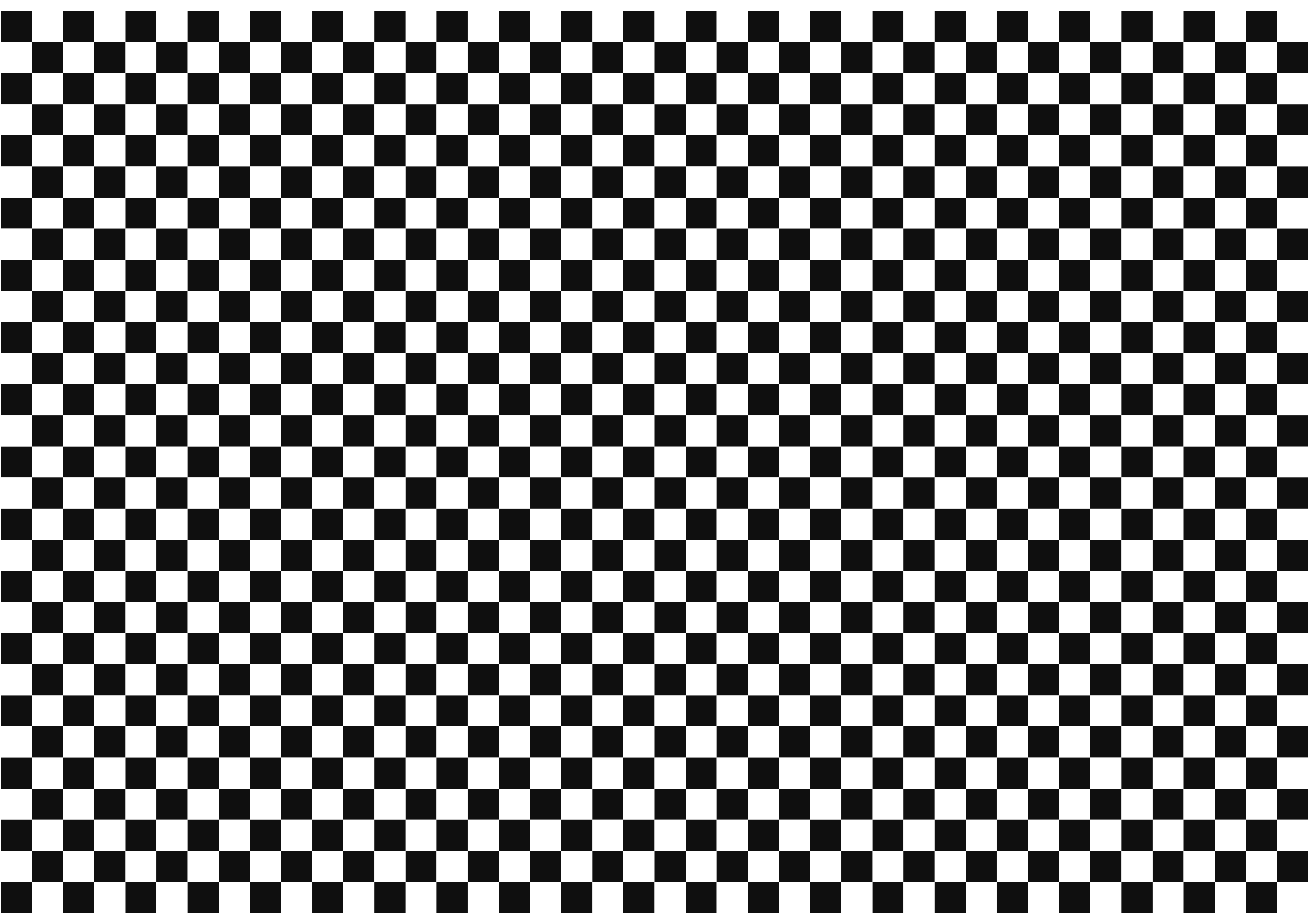 A1 - 20mm squares - 41x28 vertices, 42x29 squares
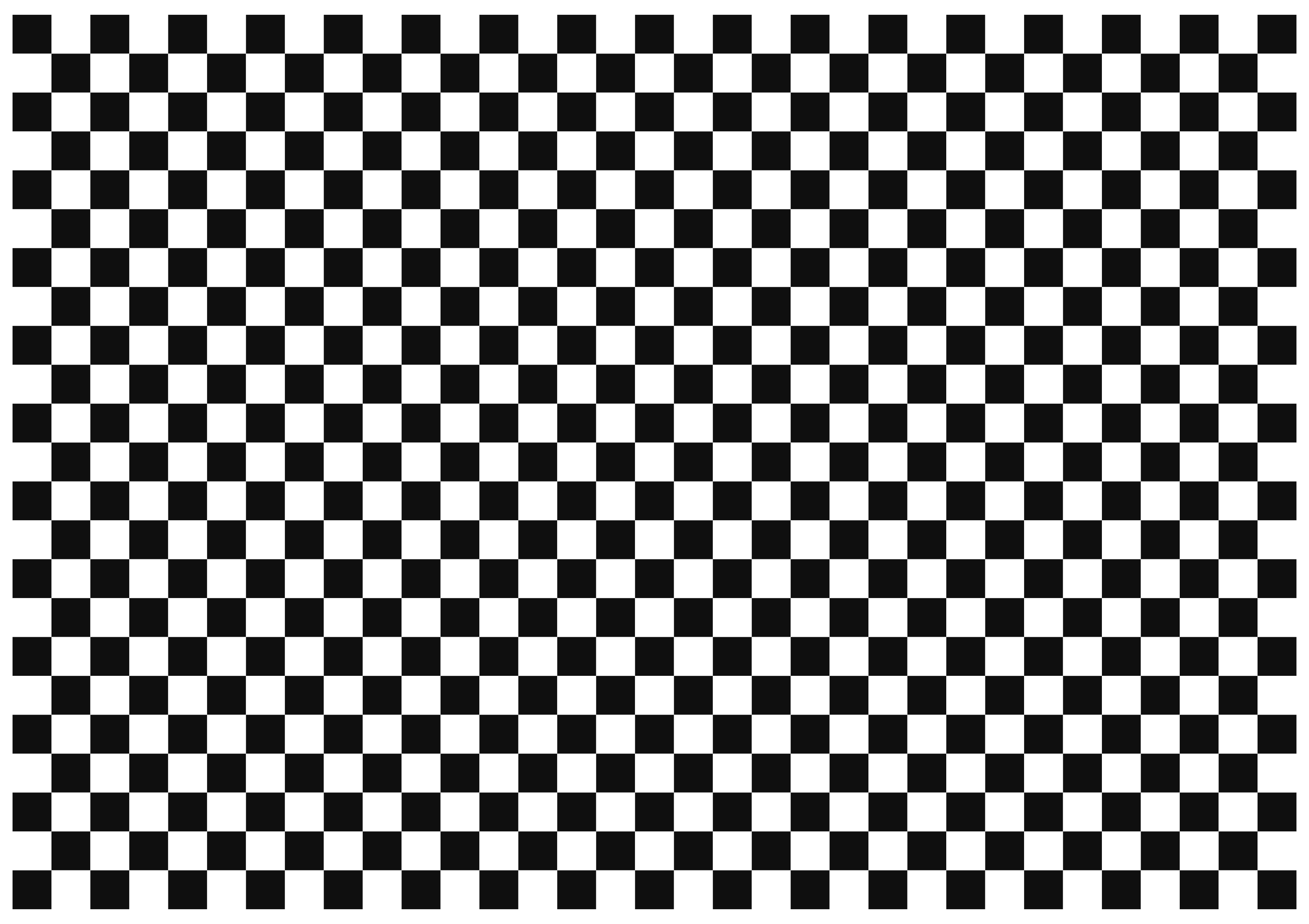 A1 - 25mm squares - 32x22 vertices, 33x23 squares
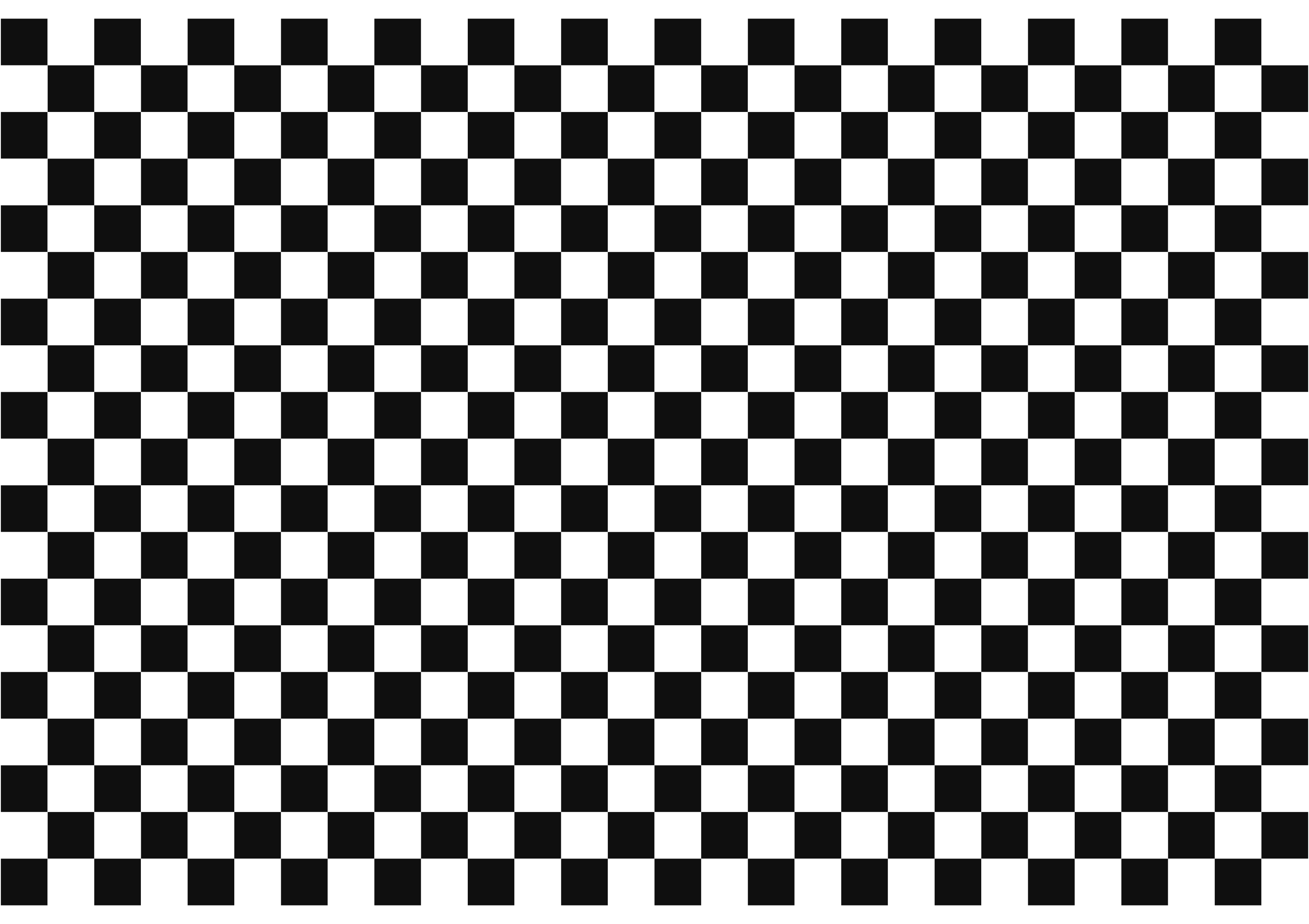 A1 - 30mm squares - 27x18 vertices, 28x19 squares
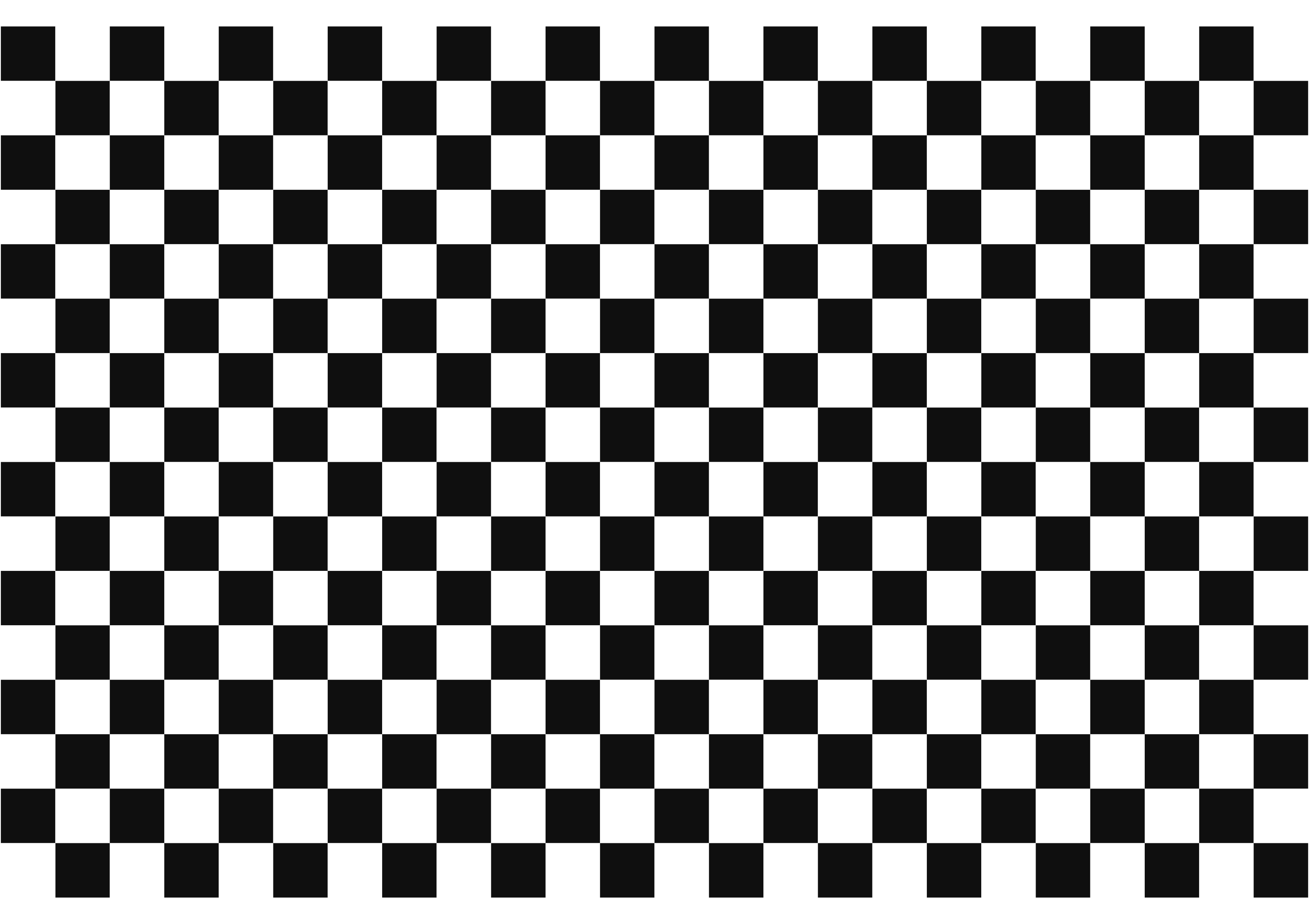 A1 - 35mm squares - 23x15 vertices, 24x16 squares
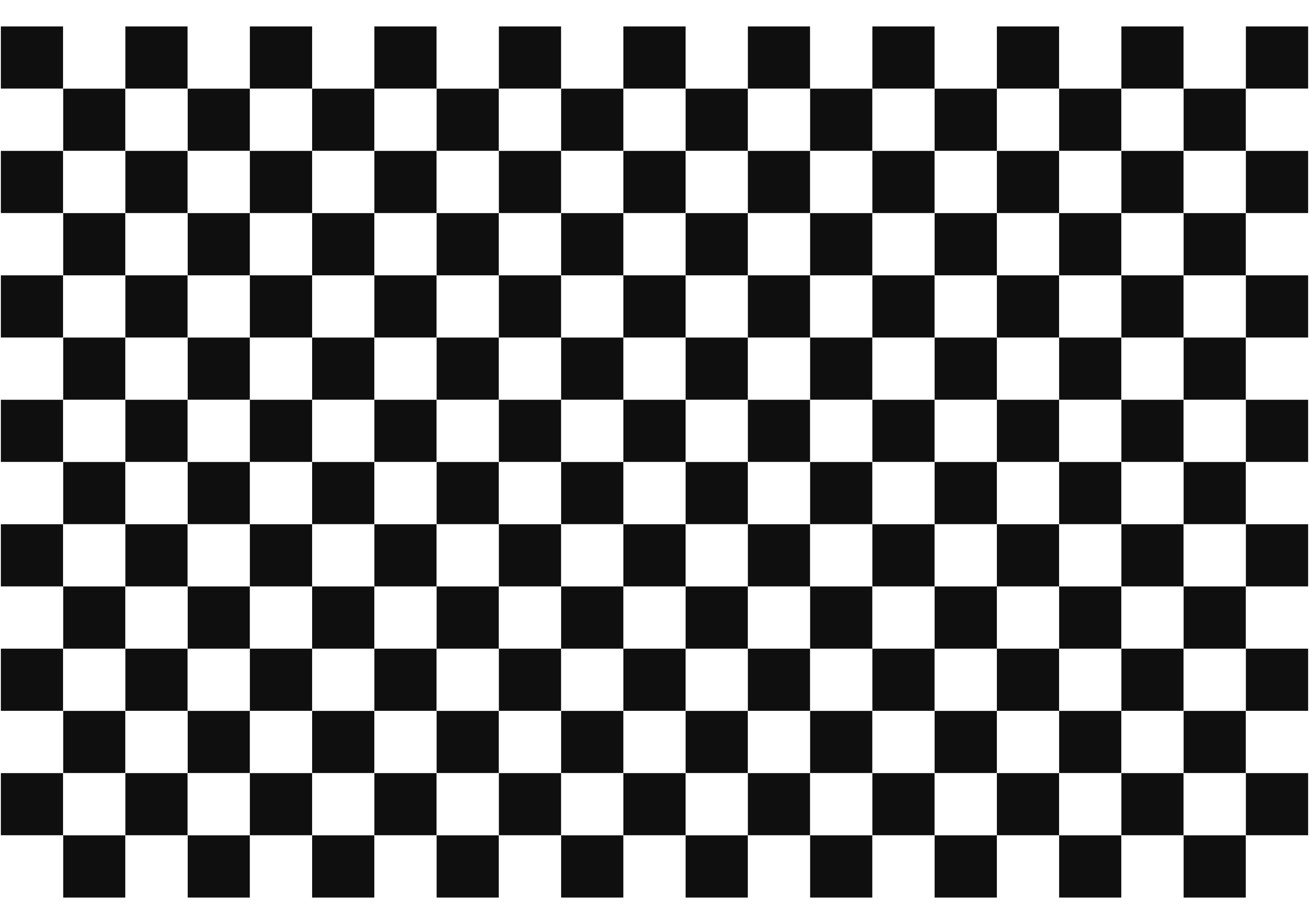 A1 - 40mm squares - 20x13 vertices, 21x14 squares
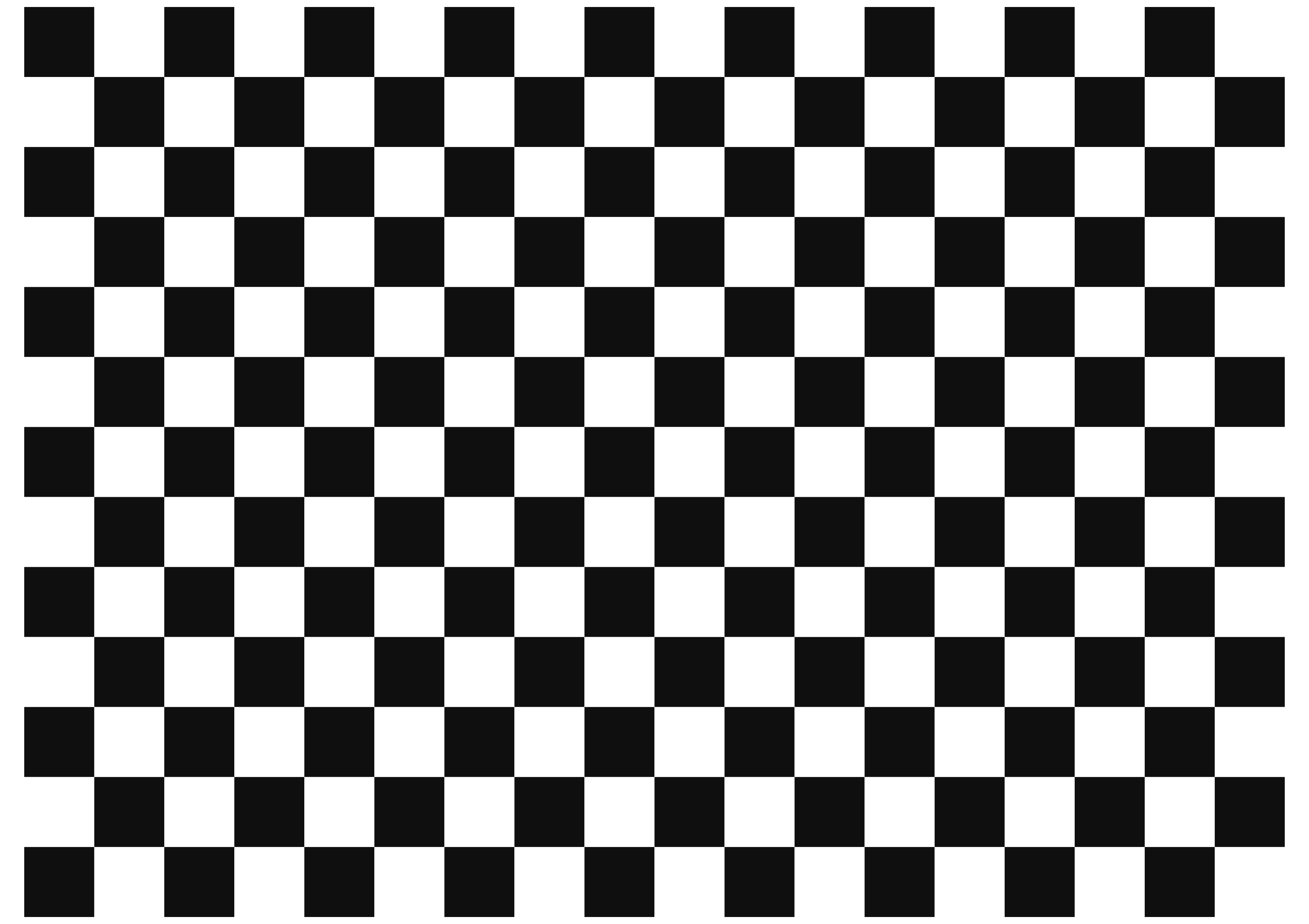 A1 - 45mm squares - 17x12 vertices, 18x13 squares
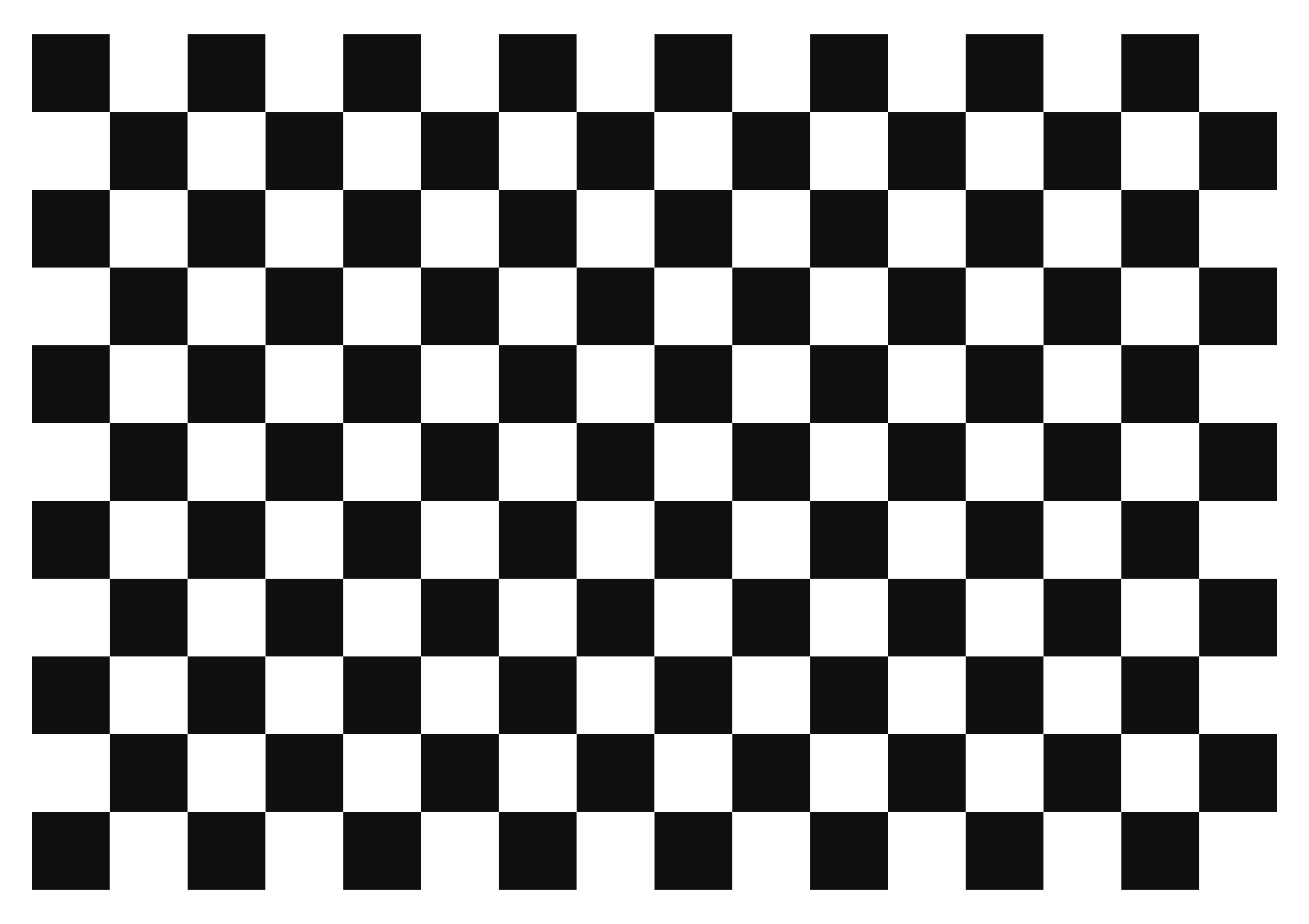 A1 - 50mm squares - 15x10 vertices, 16x11 squares
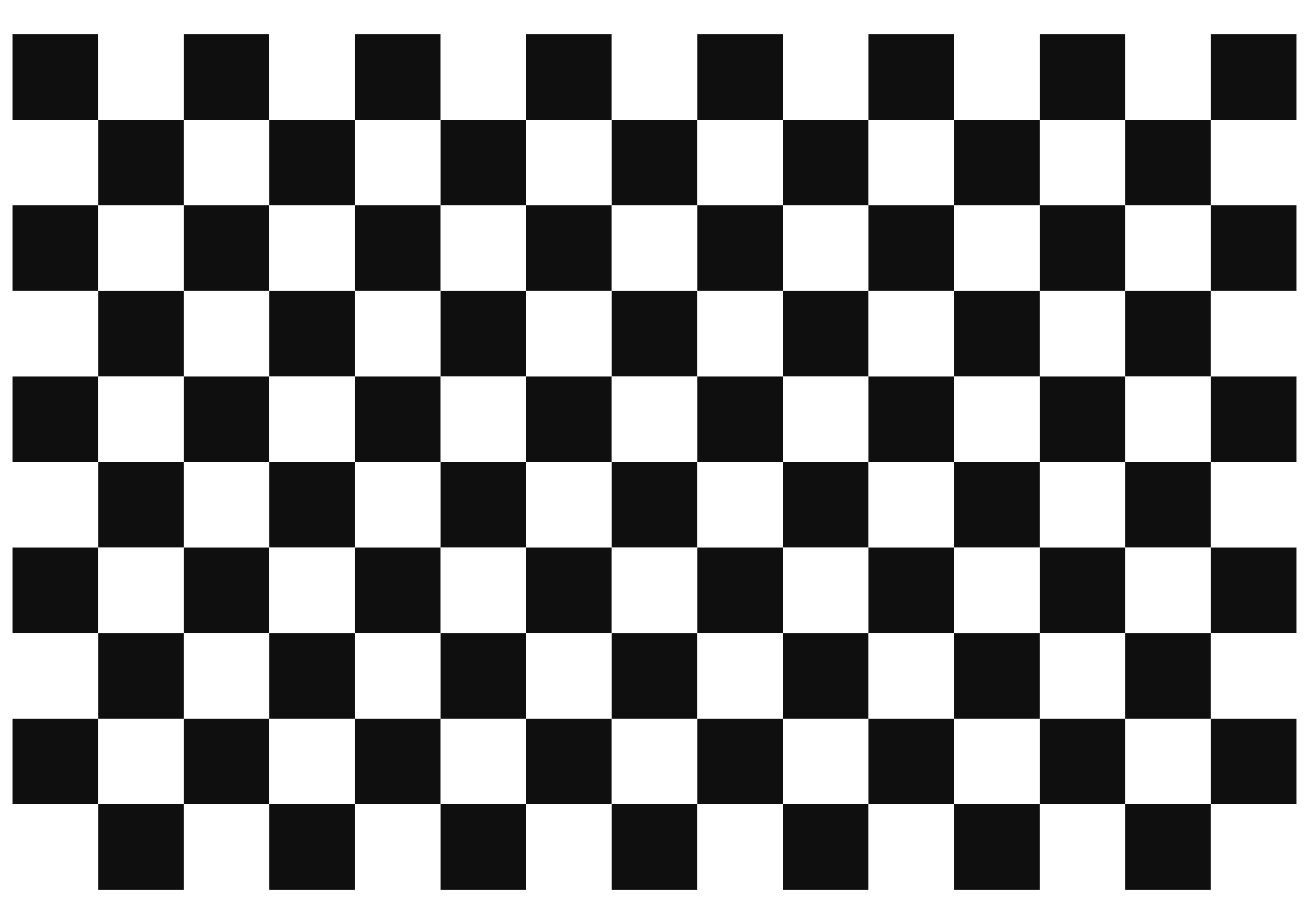 A1 - 55mm squares - 14x9 vertices, 15x10 squares
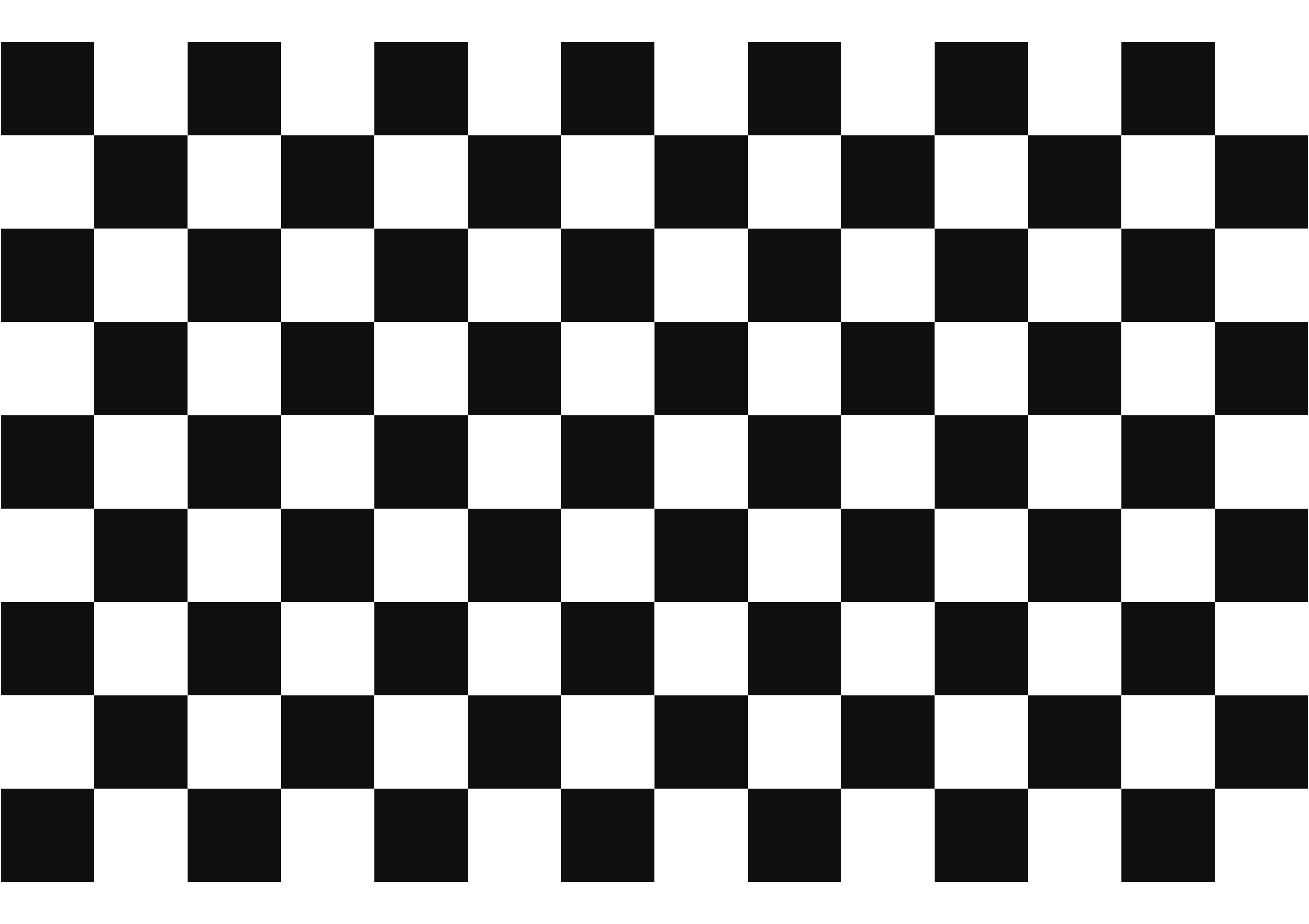 A1 - 60mm squares - 13x8 vertices, 14x9 squares
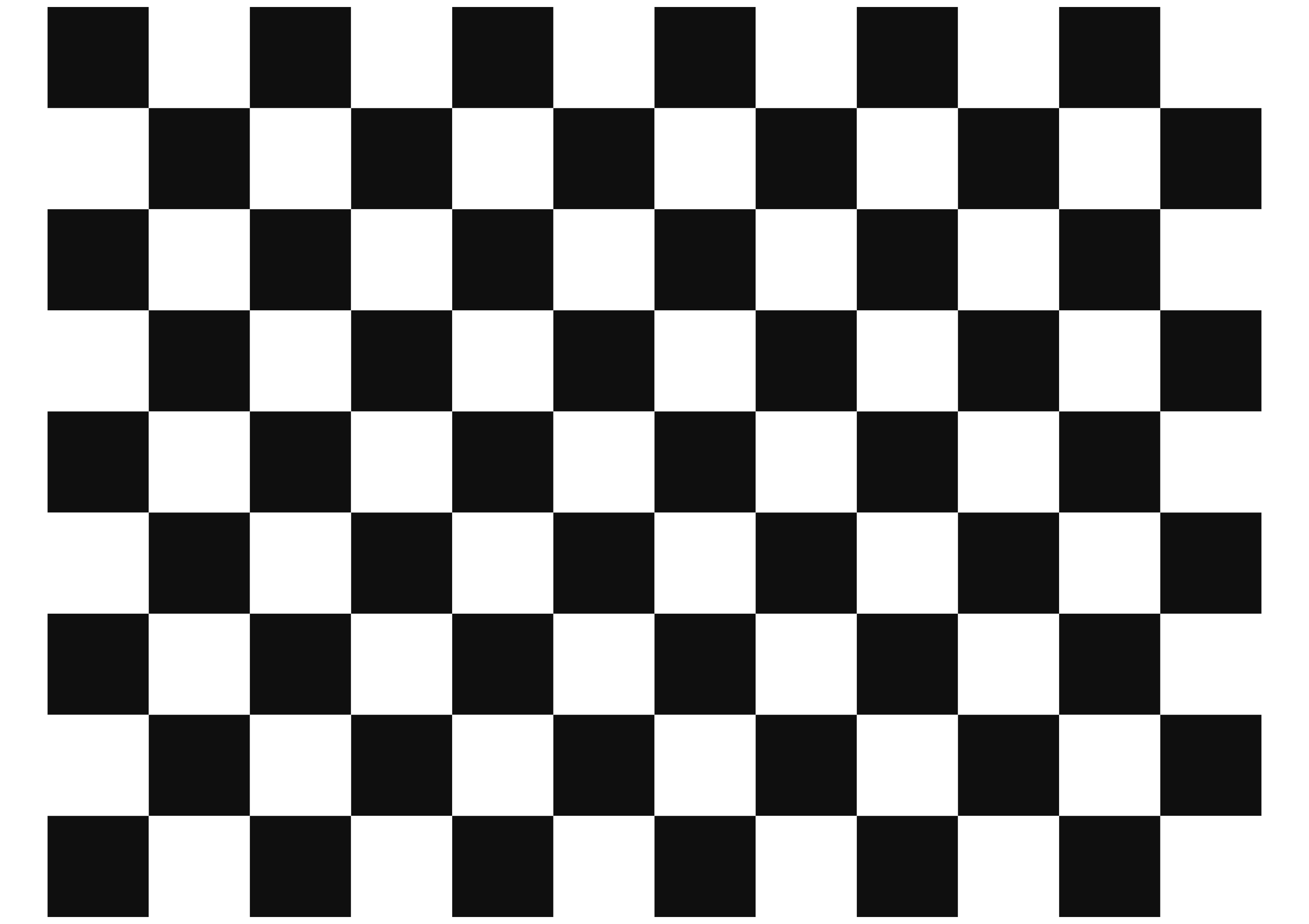 A1 - 65mm squares - 11x8 vertices, 12x9 squares
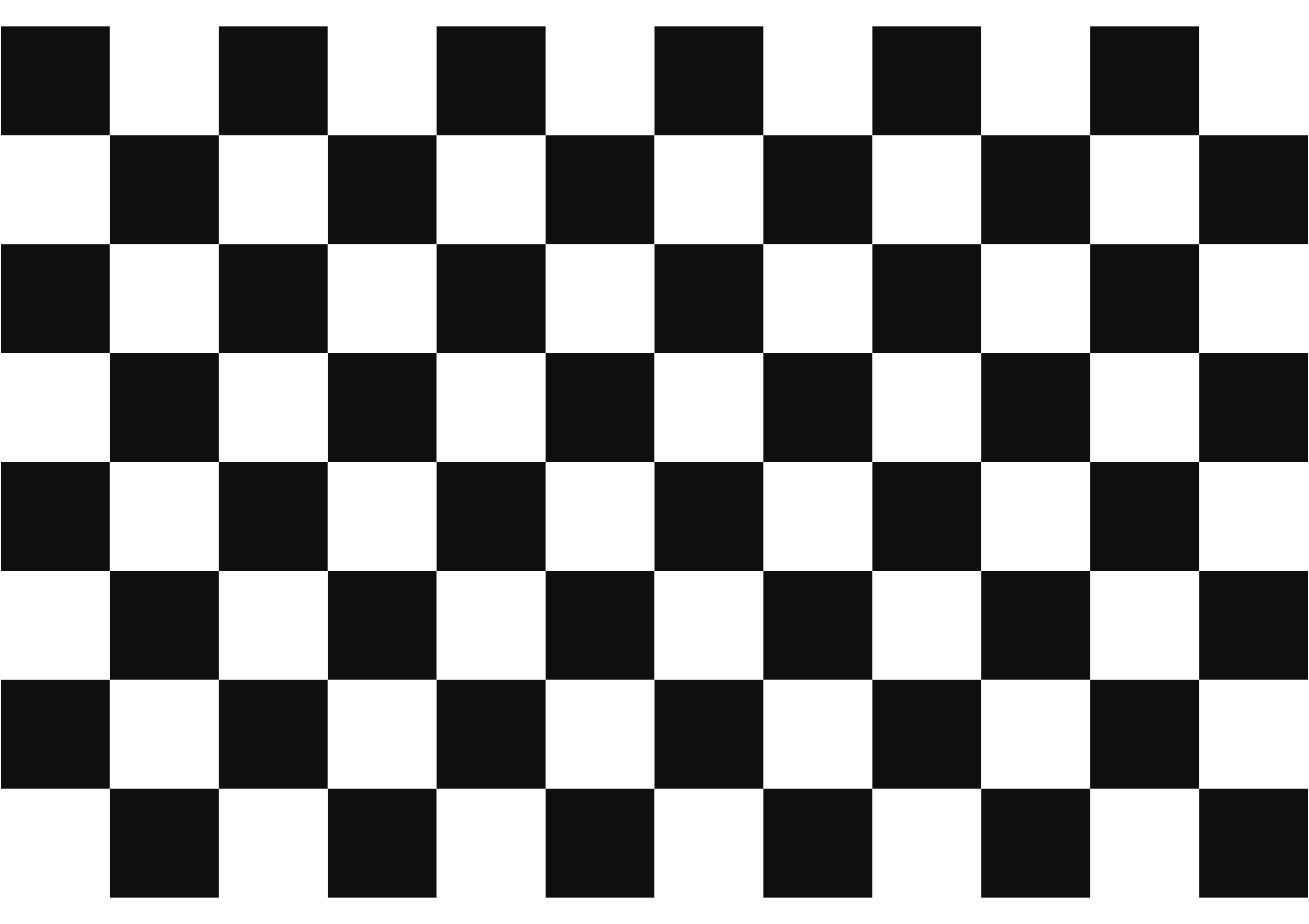 A1 - 70mm squares - 11x7 vertices, 12x8 squares
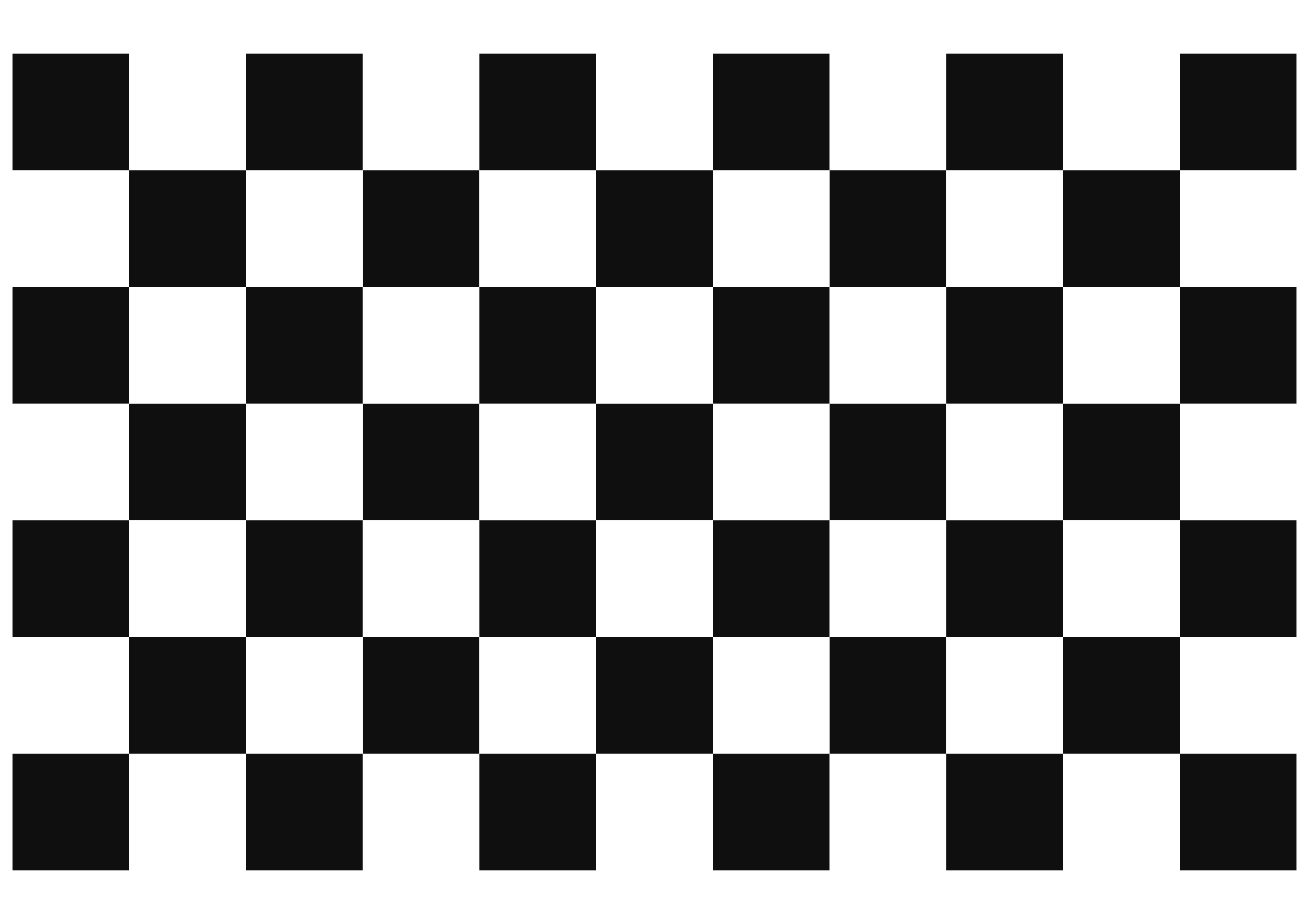 A1 - 75mm squares - 10x6 vertices, 11x7 squares
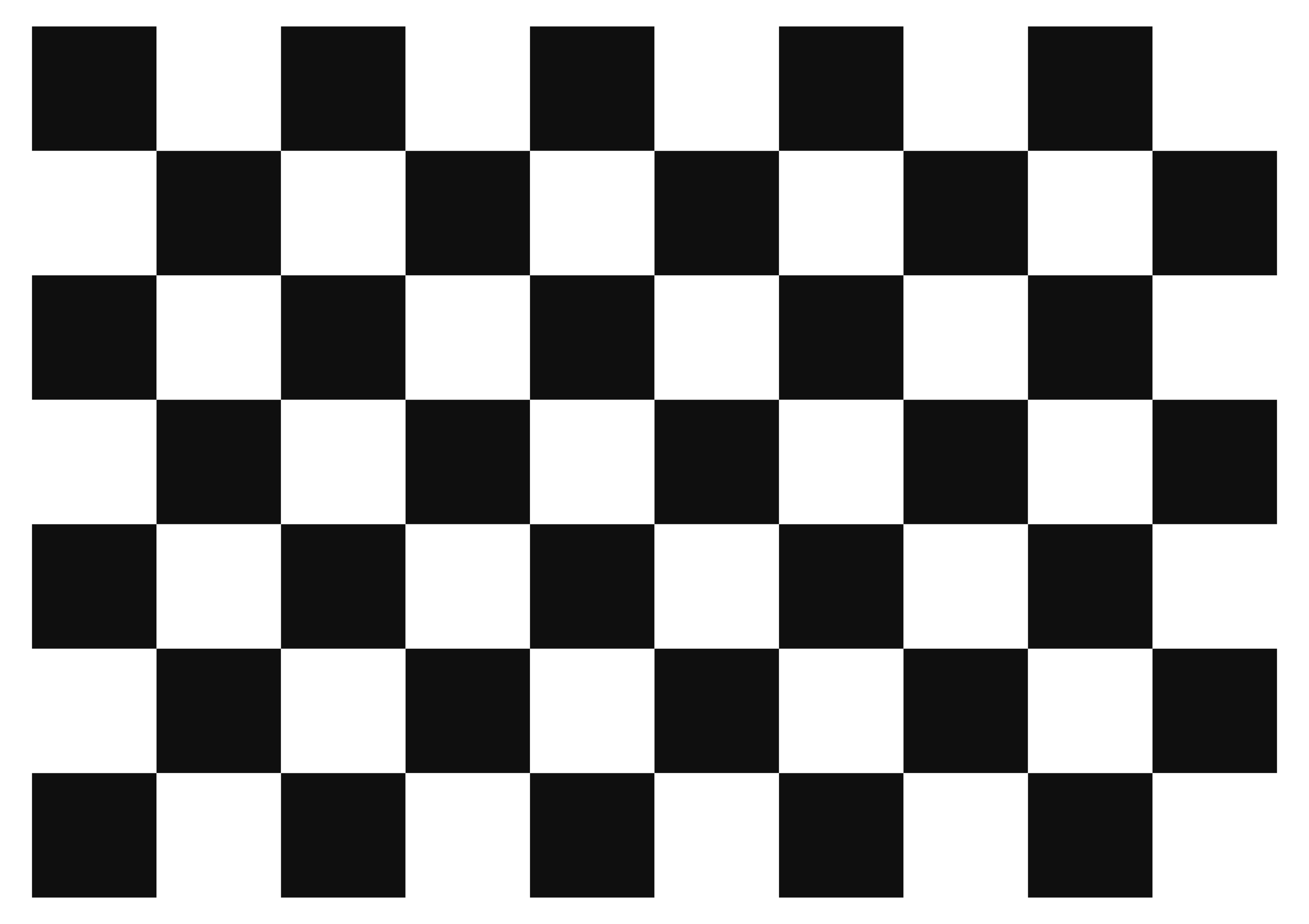 A1 - 80mm squares - 9x6 vertices, 10x7 squares
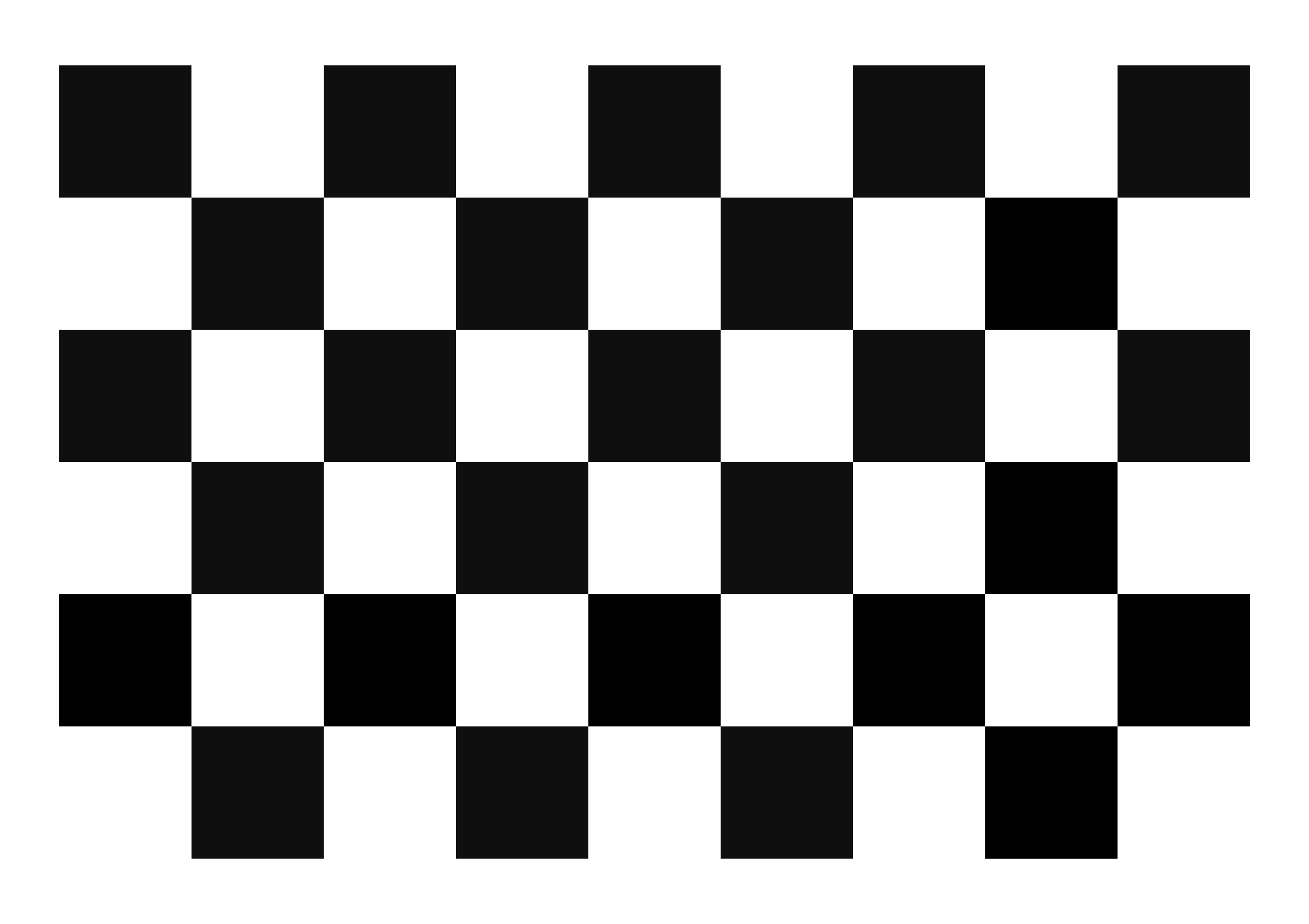 A1 - 85mm squares - 8x5 vertices, 9x6 squares
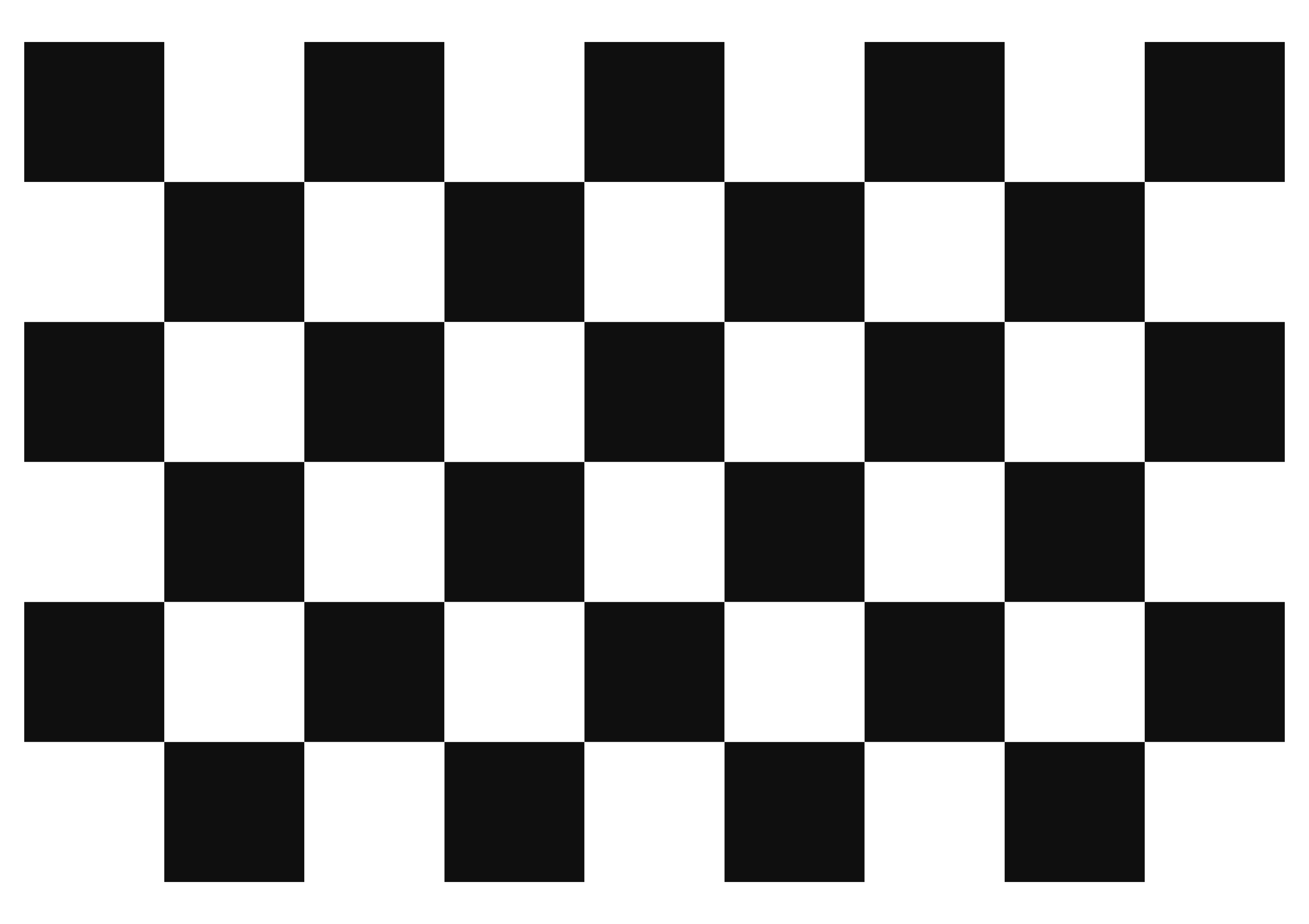 A1 - 90mm squares - 8x5 vertices, 9x6 squares
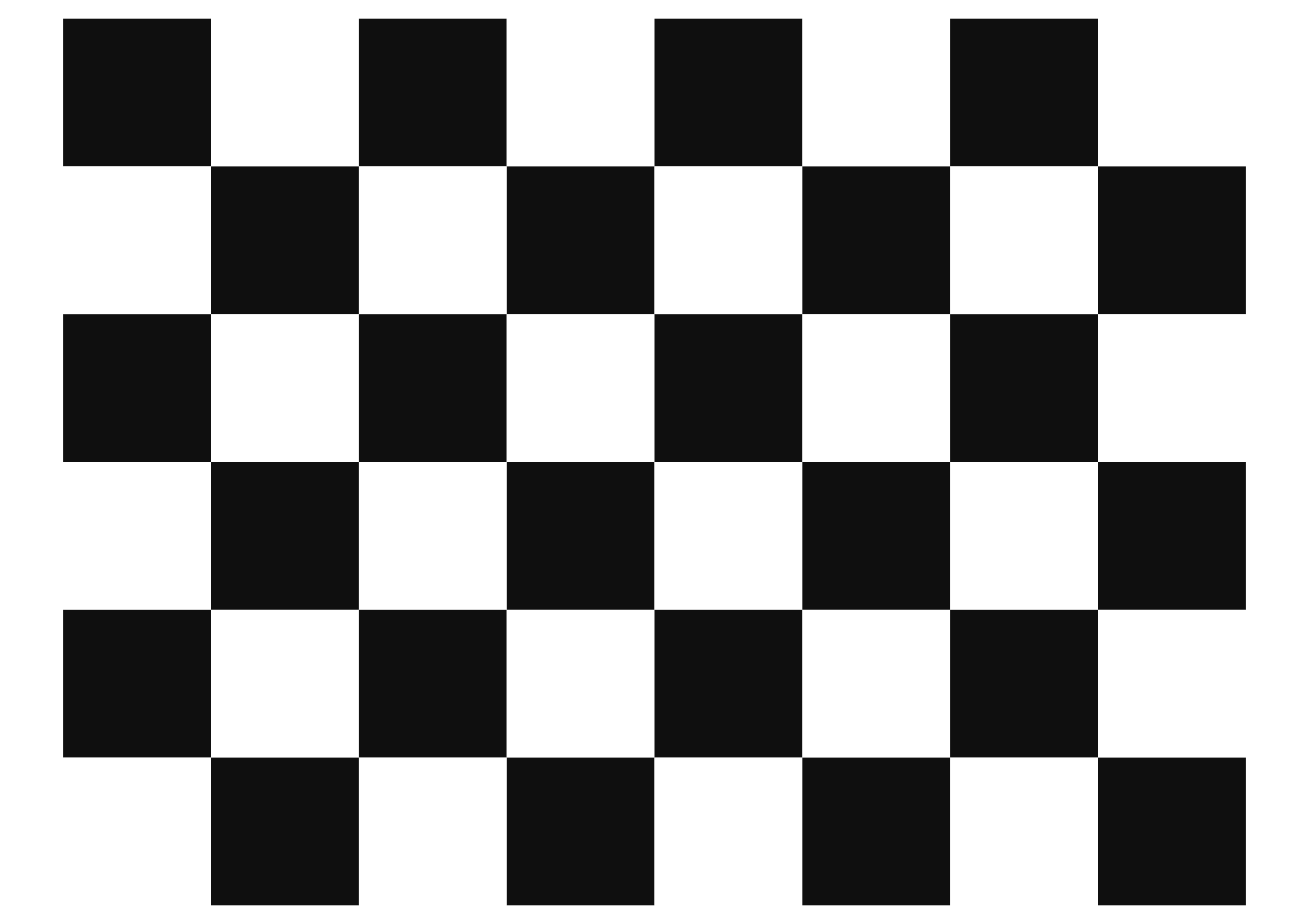 A1 - 95mm squares - 7x5 vertices, 8x6 squares
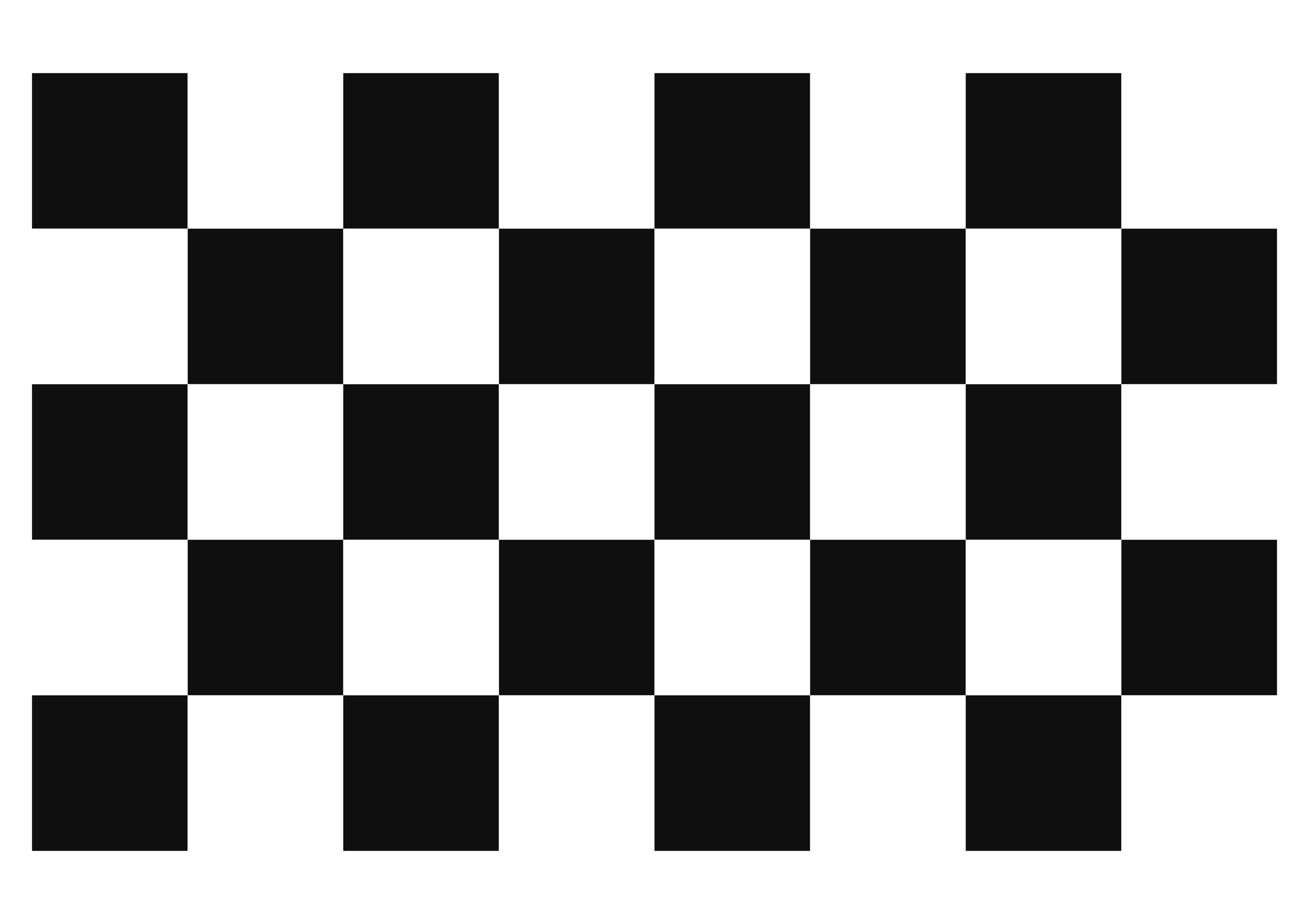 A1 - 100mm squares - 7x4 vertices, 8x5 squares
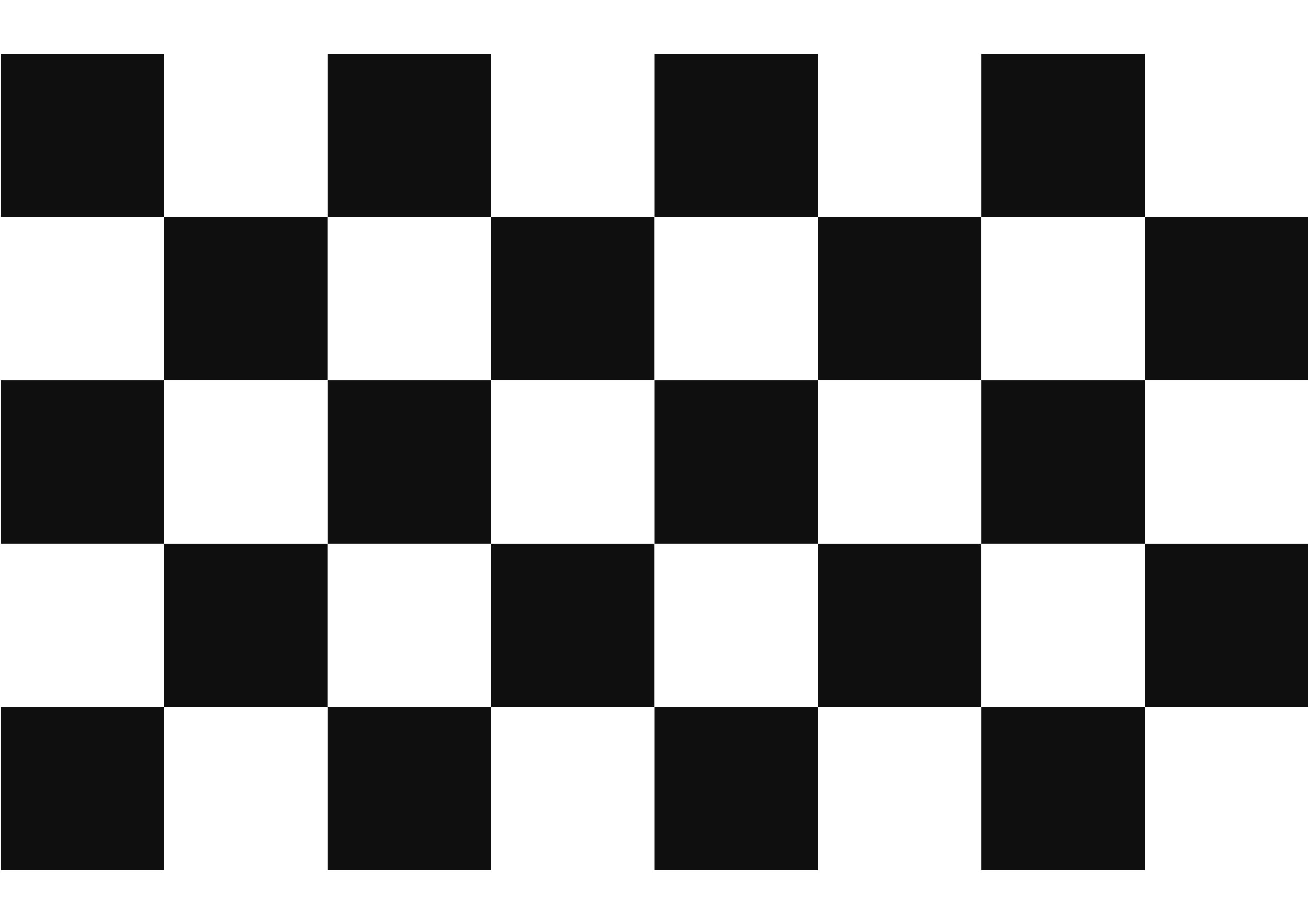 A1 - 105mm squares - 7x4 vertices, 8x5 squares
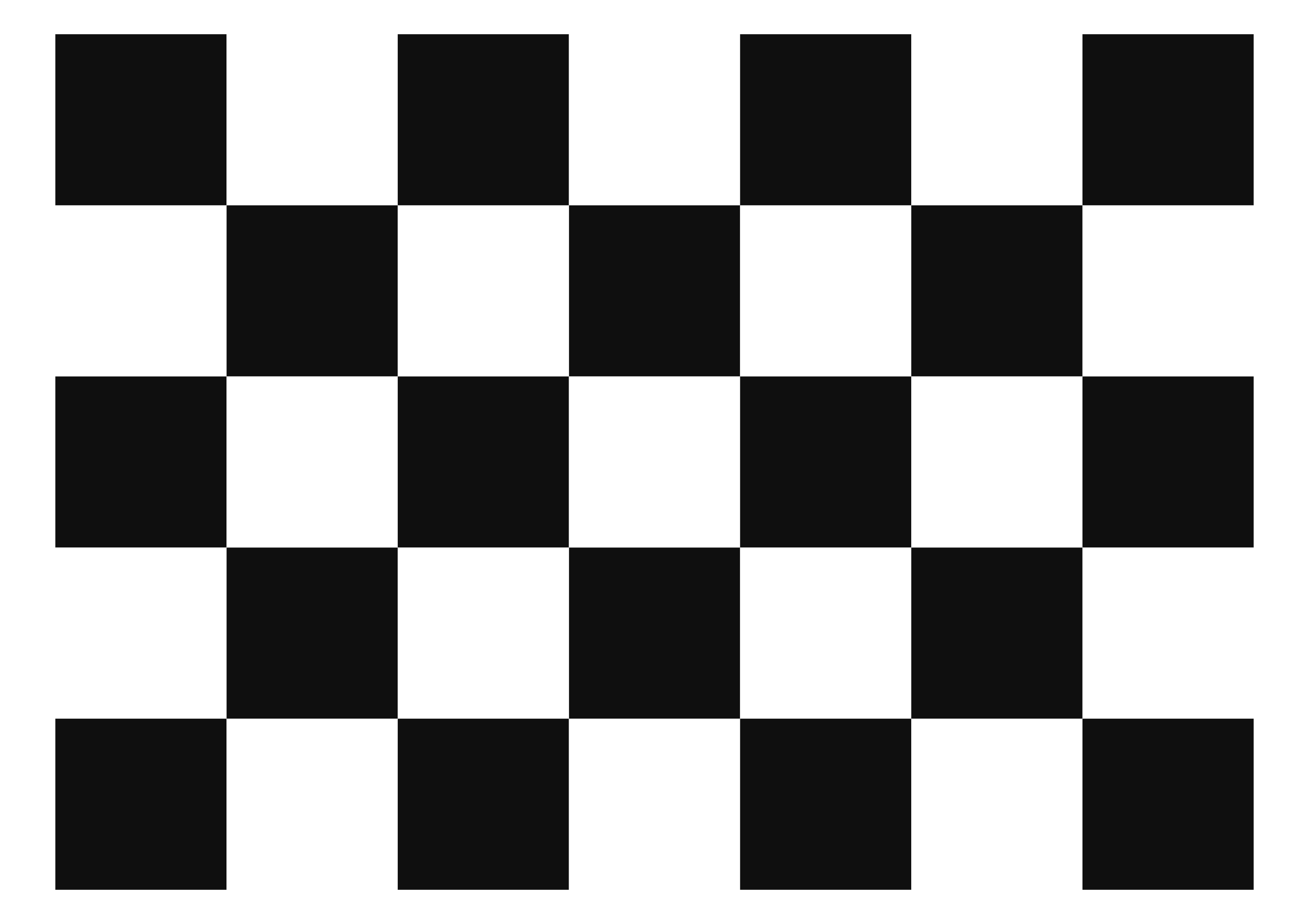 A1 - 110mm squares - 6x4 vertices, 7x5 squares
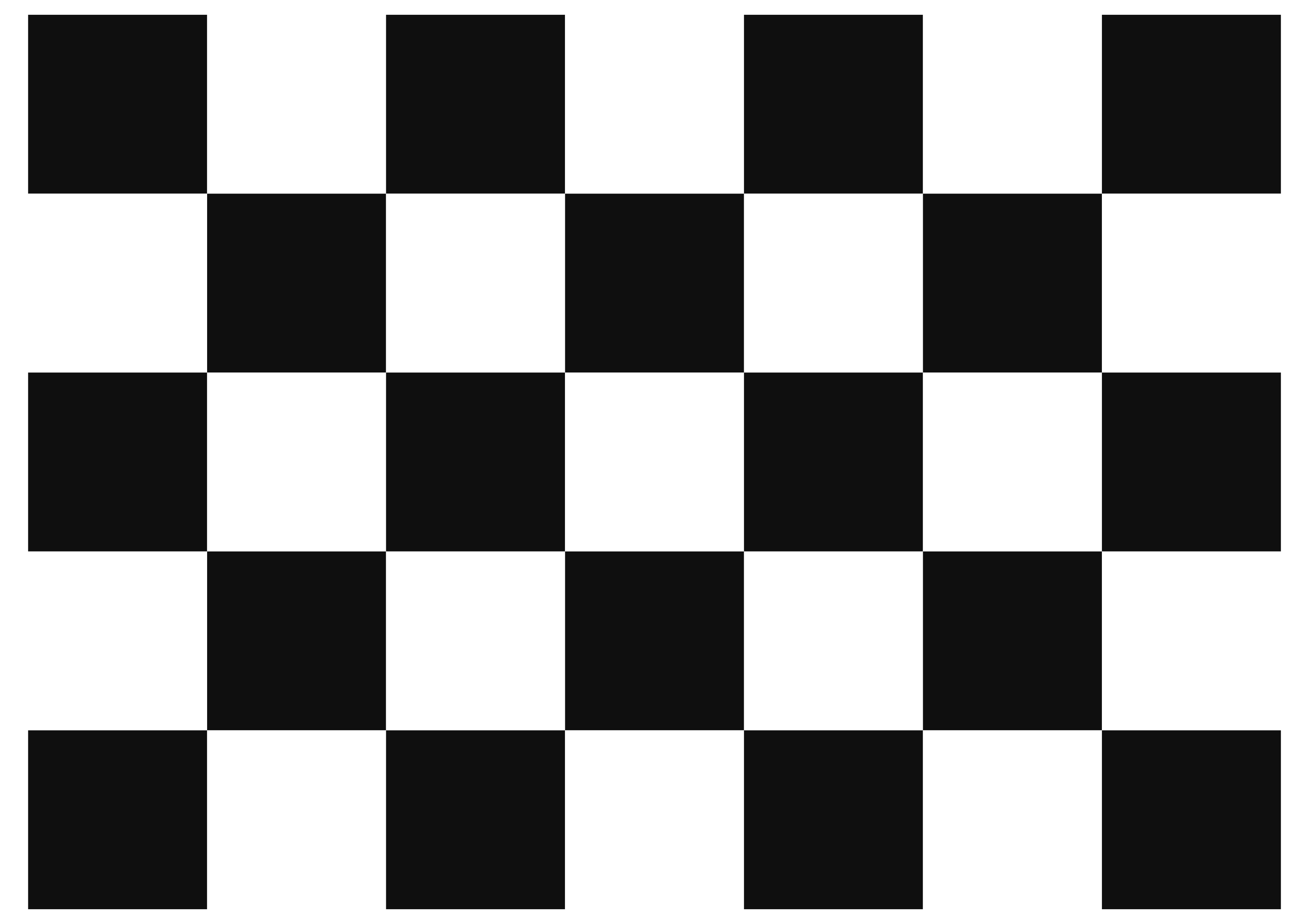 A1 - 115mm squares - 6x4 vertices, 7x5 squares
 A1 - 120mm squares - 6x4 vertices, 7x5 squares
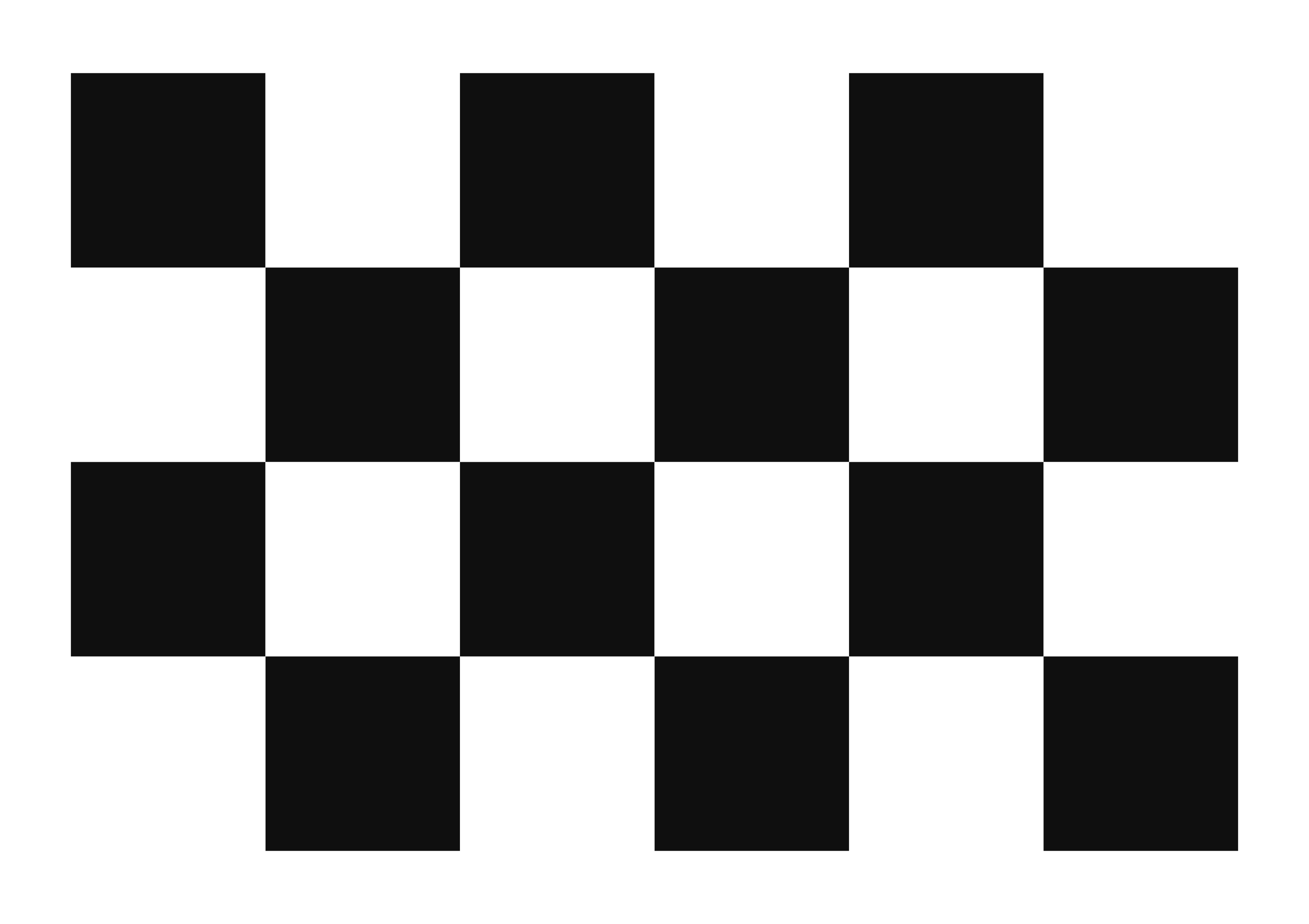 A1 - 125mm squares - 5x3 vertices, 6x4 squares
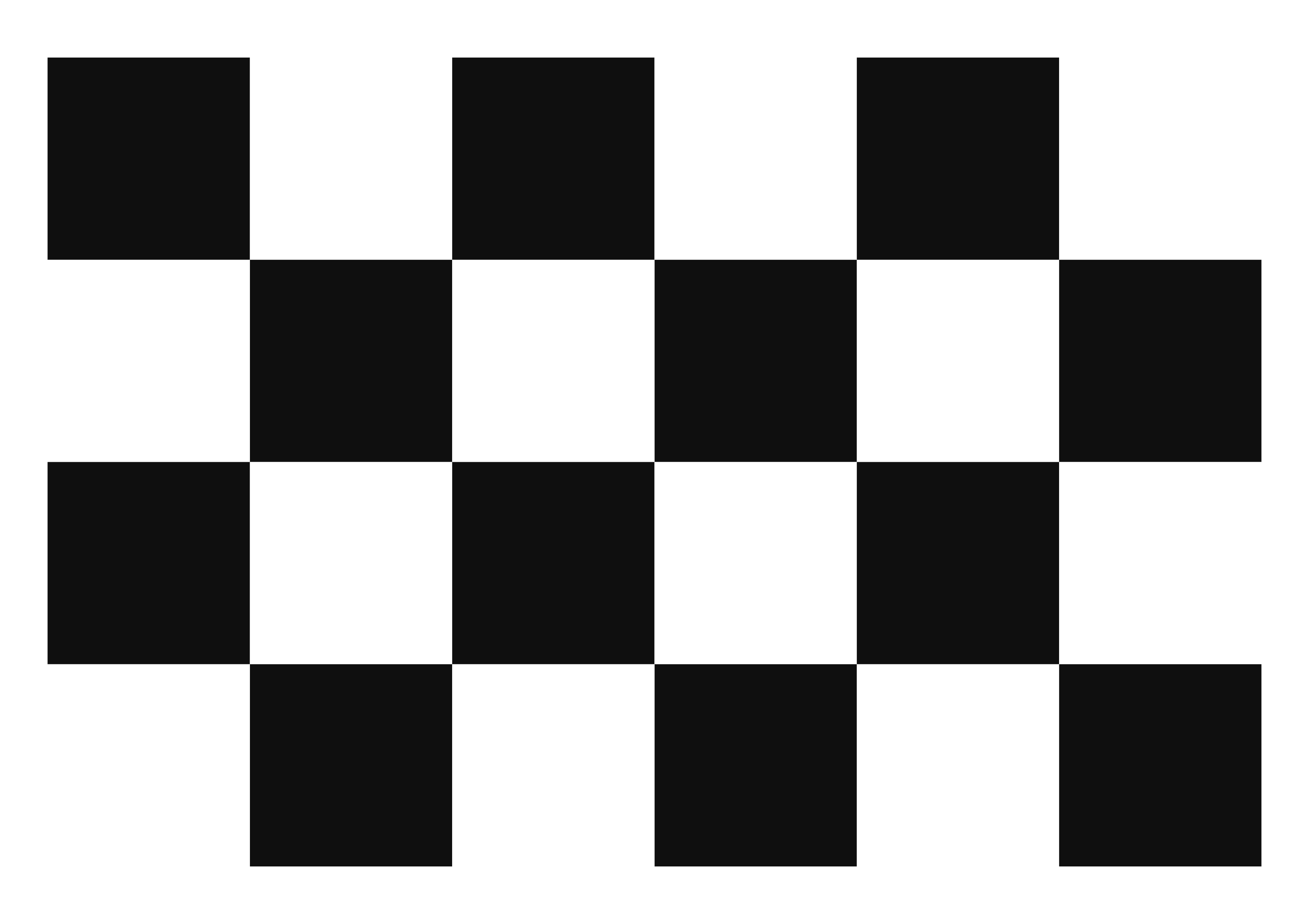 A1 - 130mm squares - 5x3 vertices, 6x4 squares
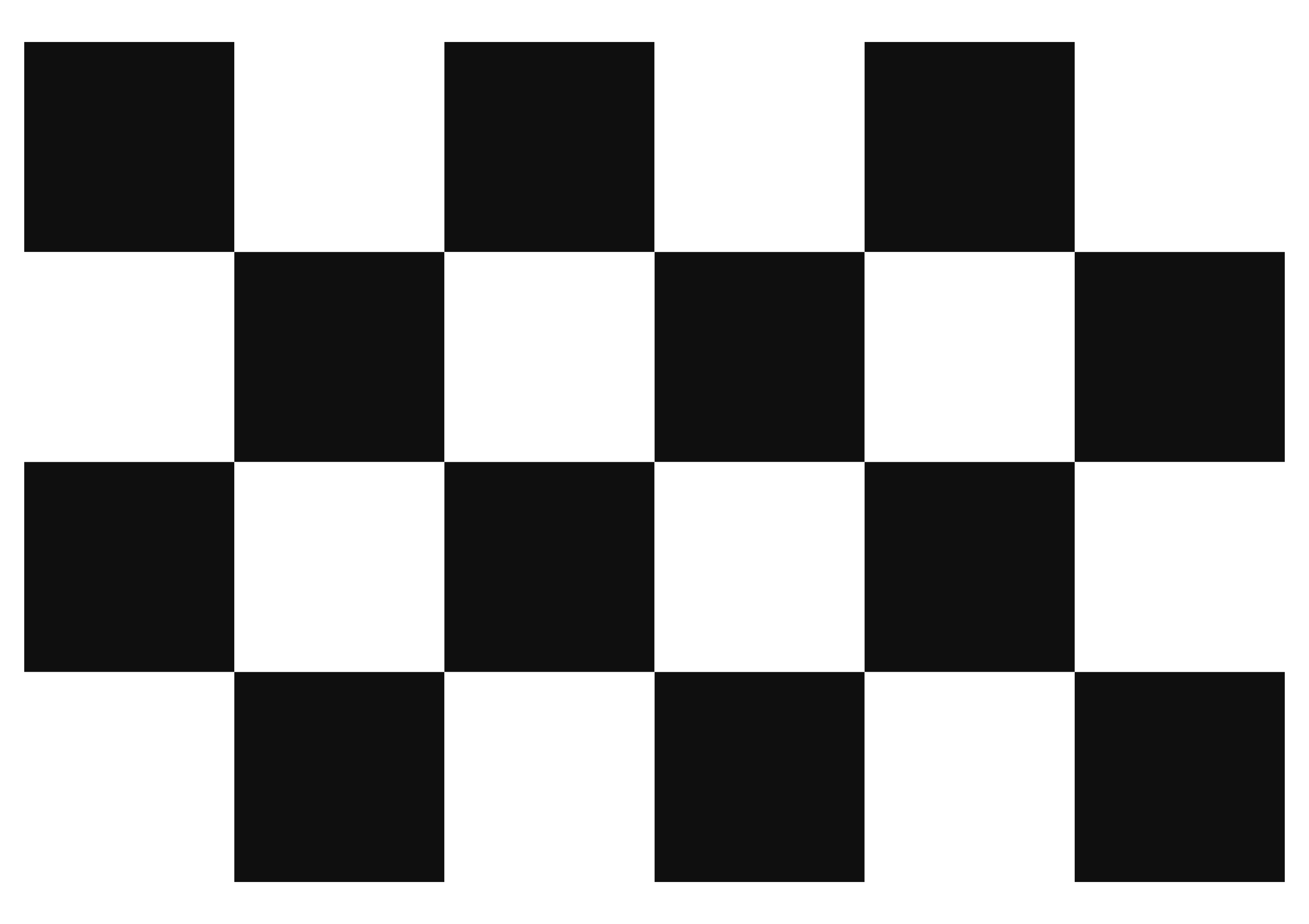 A1 - 135mm squares - 5x3 vertices, 6x4 squares
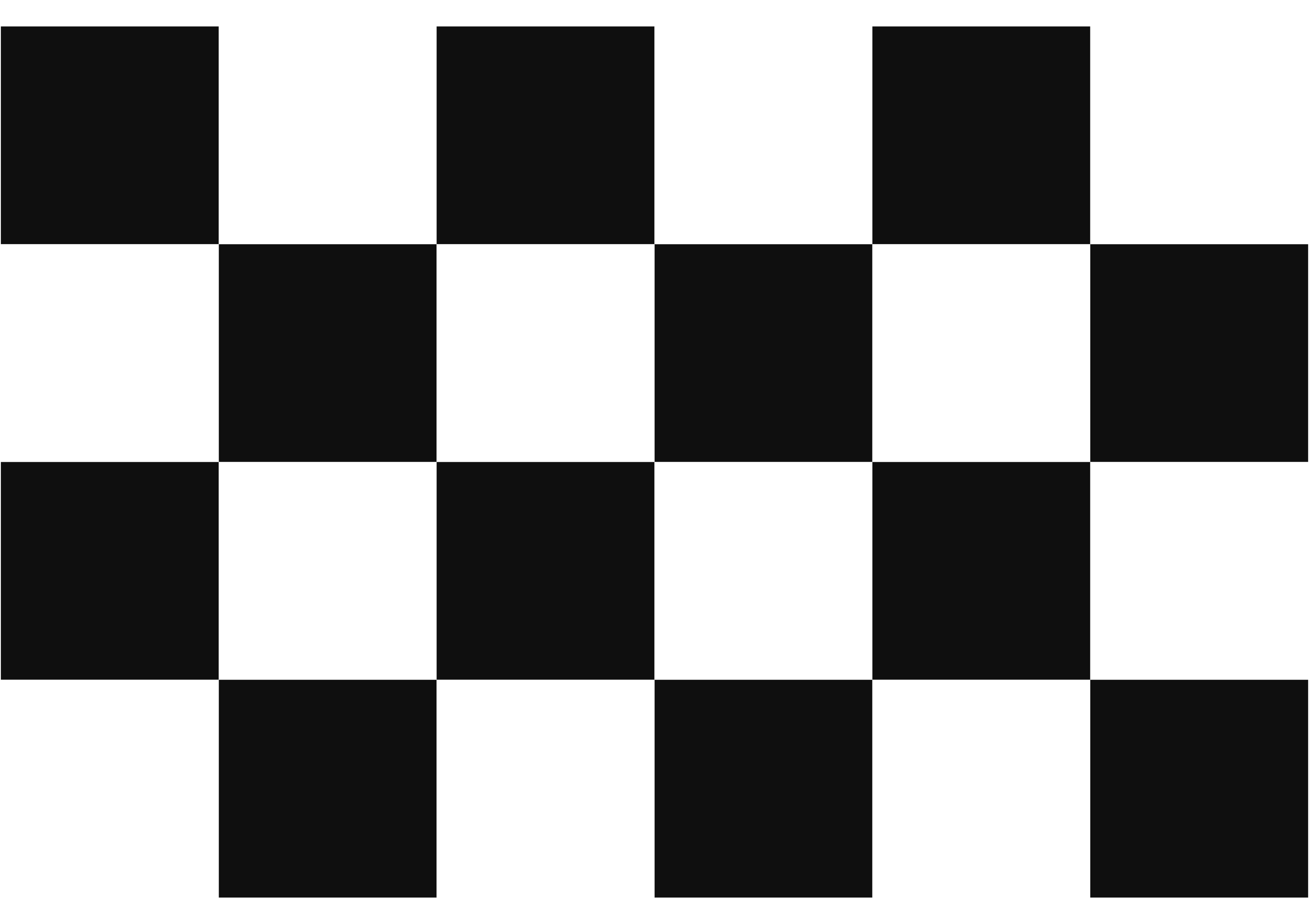 A1 - 140mm squares - 5x3 vertices, 6x4 squares
 A1 - 145mm squares - 4x3 vertices, 5x4 squares
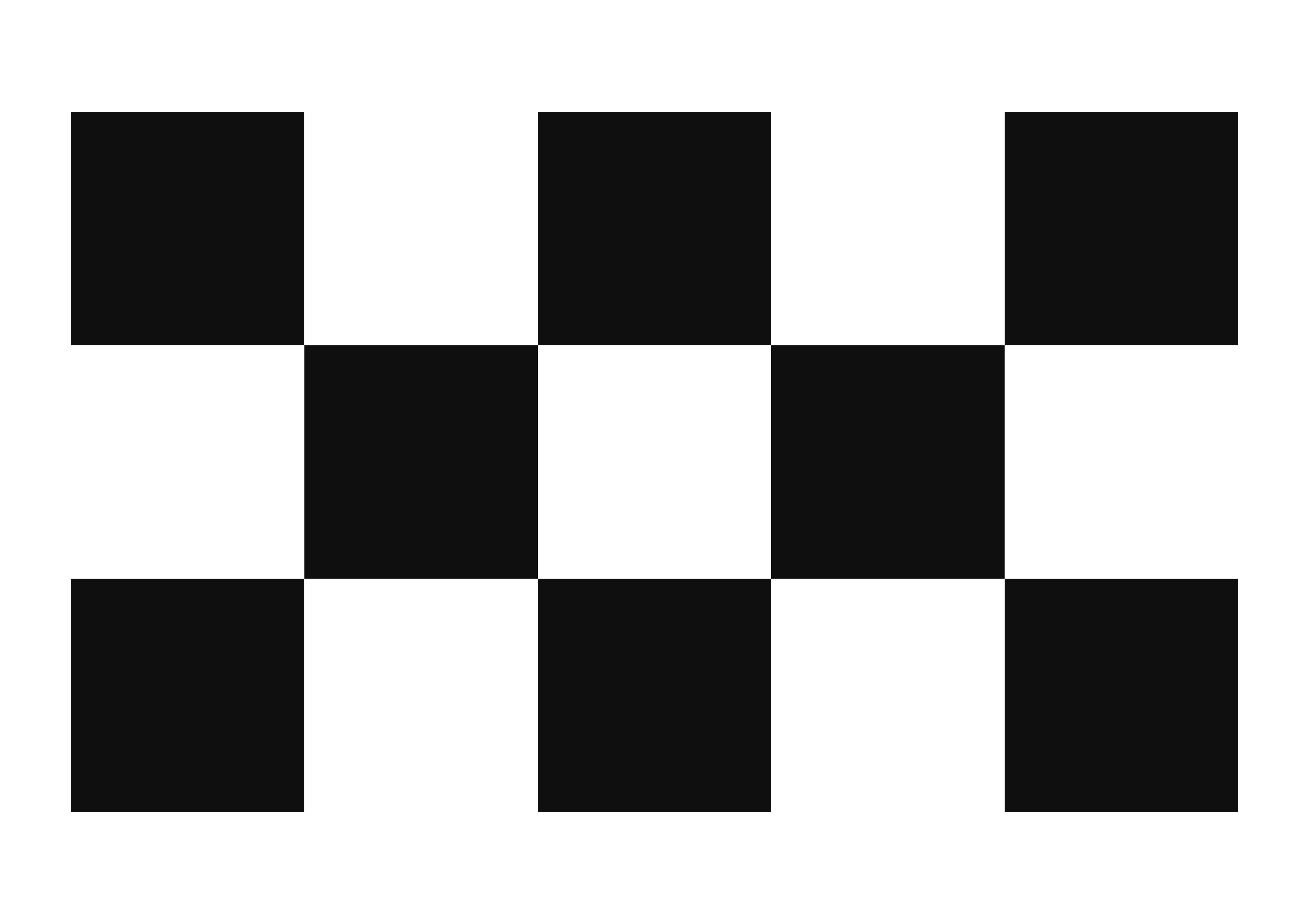 A1 - 150mm squares - 4x2 vertices, 5x3 squares
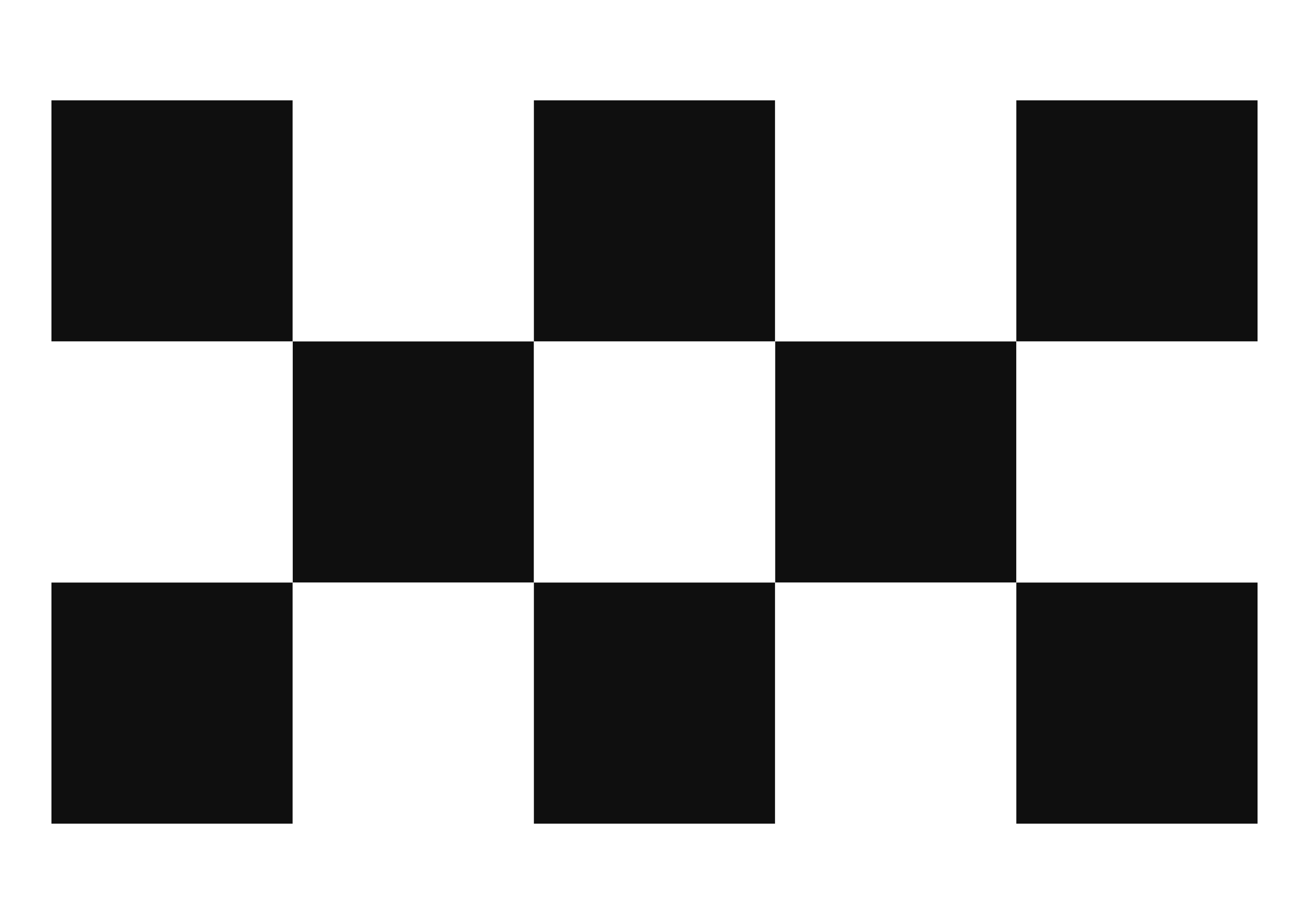 A1 - 155mm squares - 4x2 vertices, 5x3 squares
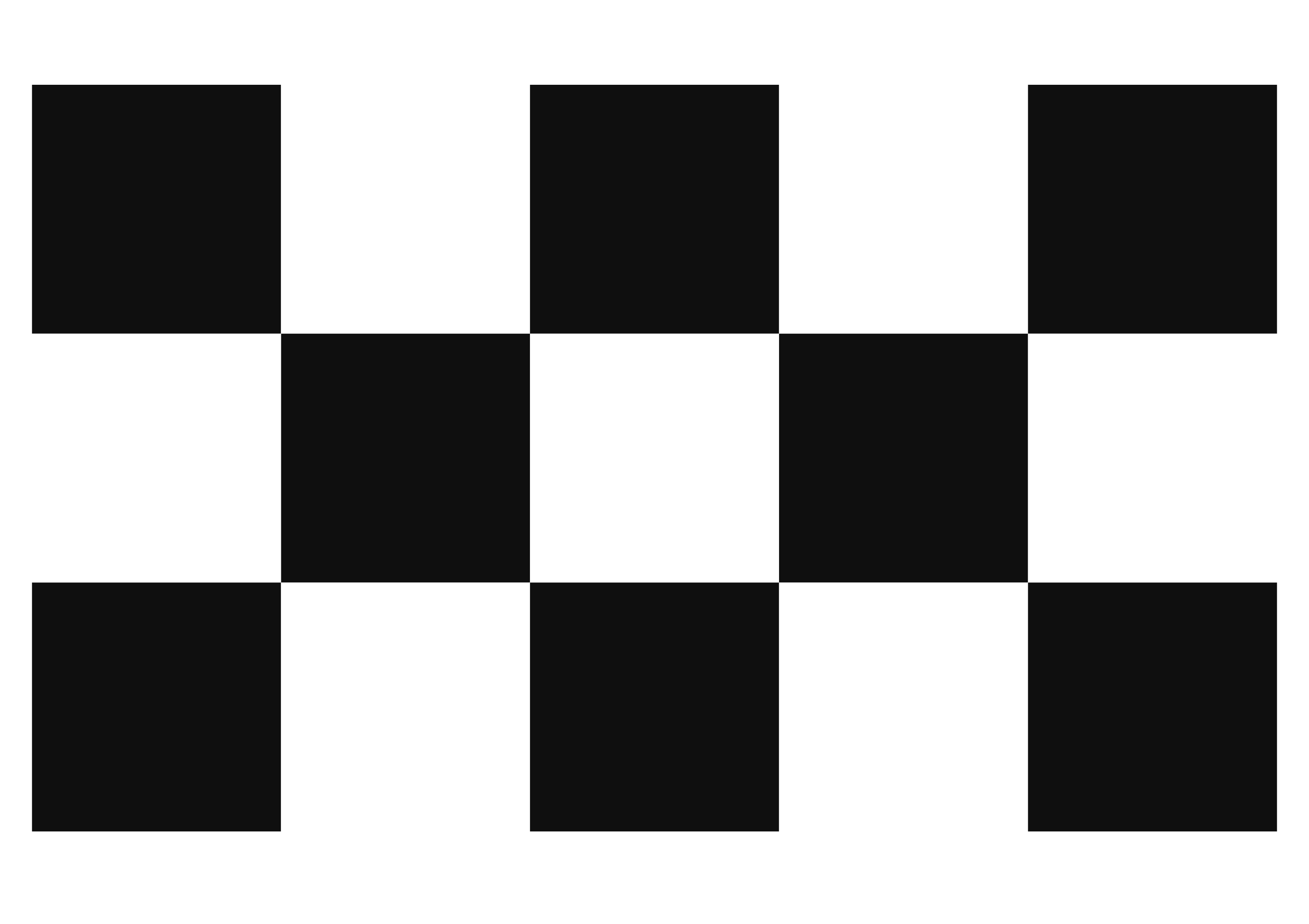 A1 - 160mm squares - 4x2 vertices, 5x3 squares
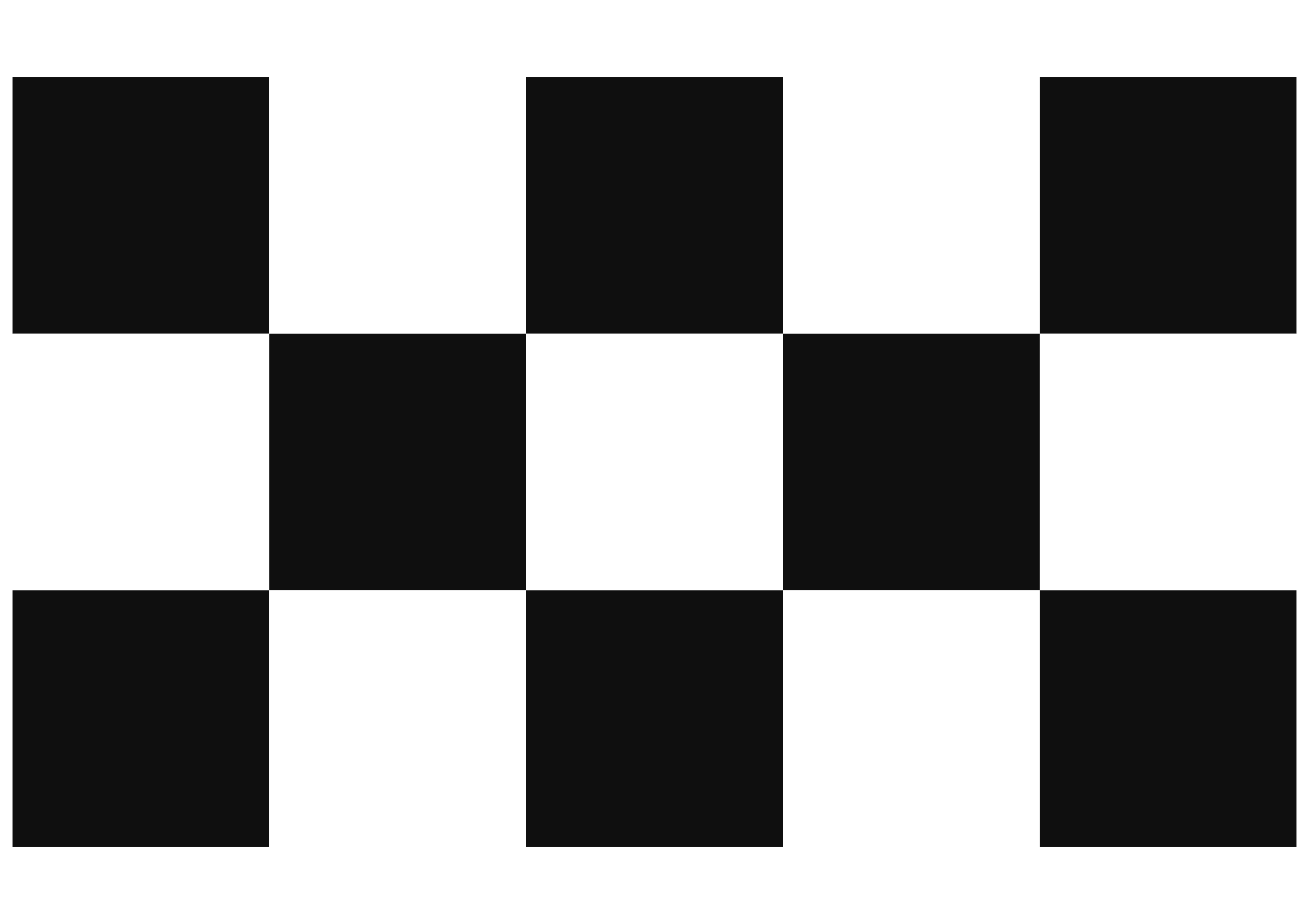 A1 - 165mm squares - 4x2 vertices, 5x3 squares
 A1 - 170mm squares - 3x2 vertices, 4x3 squares
 A1 - 175mm squares - 3x2 vertices, 4x3 squares
 A1 - 180mm squares - 3x2 vertices, 4x3 squares
 A1 - 185mm squares - 3x2 vertices, 4x3 squares
 A1 - 190mm squares - 3x2 vertices, 4x3 squares